
F&B - restaurant POS and kitchen
The F&B module runs your restaurants, bars and room service: captains take orders on the Restaurant POS, the kitchen works from the Kitchen display and kitchen printers, and bills are settled at the outlet or posted to the guest's room. Front Desk and Finance staff can use the POS; Hotel Admin and Finance set it up.
Before you start
Turn the module on. Settings → F&B → Module on. When it's off, the F&B screens and the F&B tools for AI agents are hidden.
Add your outlets. F&B → Outlets → New: a name, the type (Restaurant, Room Service, Bar, Spa, Other), the tax rate, and the tables. Write one table per line as
name:seats, and group them with an area in brackets:[Main Hall] T1:2 T2:4 [Patio] P1:2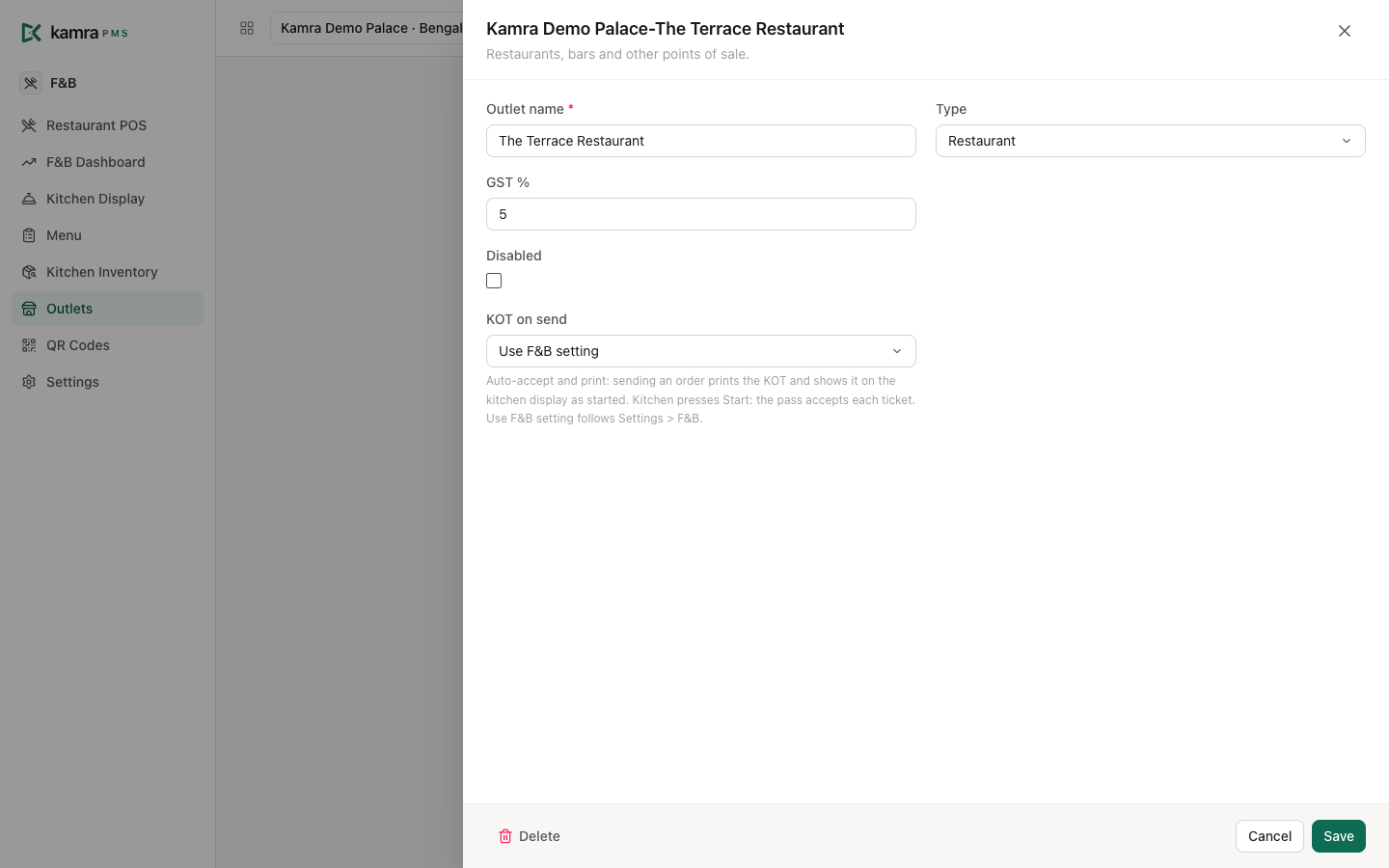
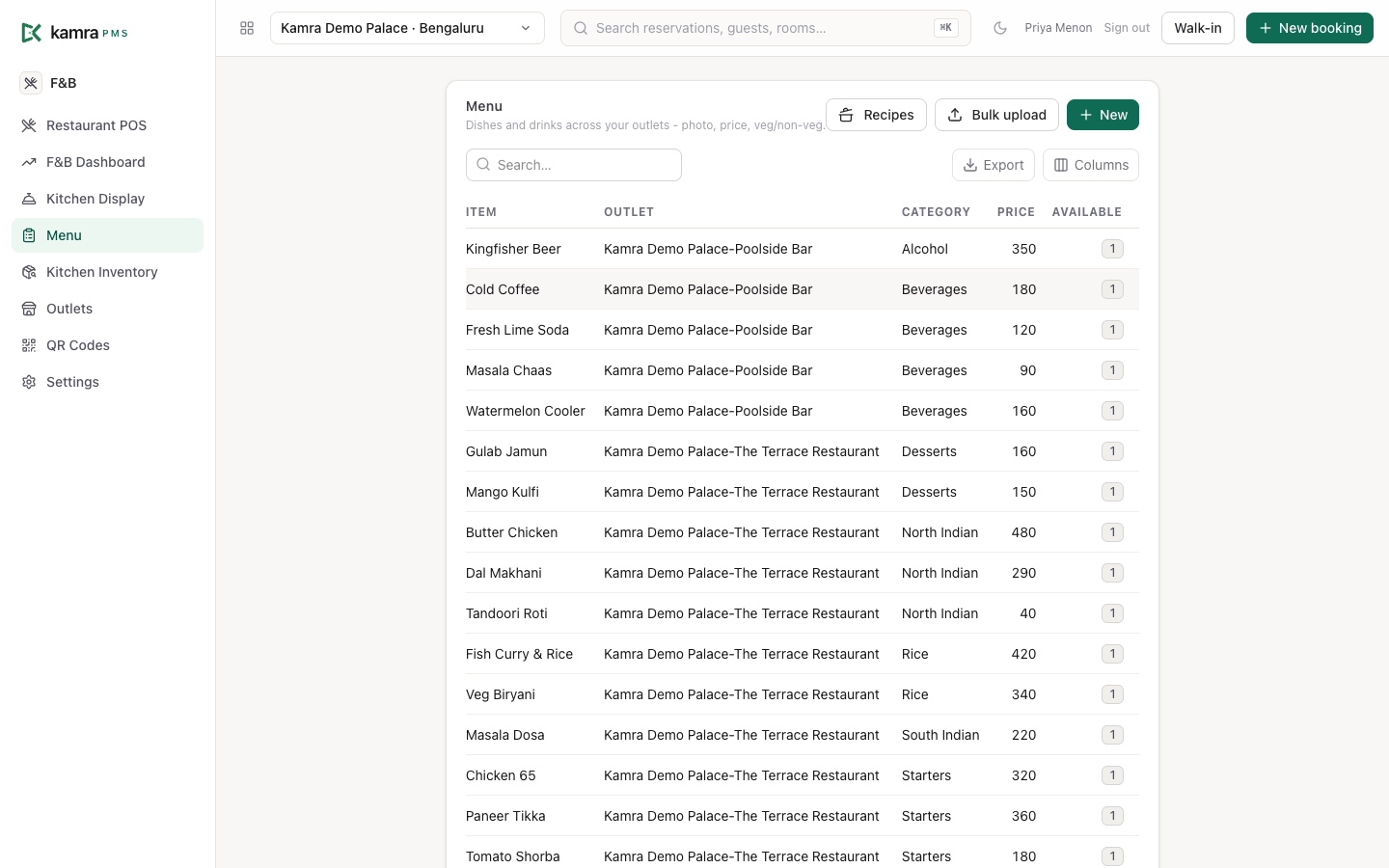
Build the menu. F&B → Menu. Each dish has a price, an outlet, a category, veg or non-veg, a photo, a course (Starter, Main, Dessert, Drink) and a prep station (Kitchen, Tandoor, Grill, Fryer, Bar). The station decides which kitchen printer gets the dish and which station filter shows it on the kitchen display. To load a whole menu at once, use Bulk upload on the Menu screen: upload a spreadsheet, check the preview, then run it.
Decide how KOTs reach the kitchen. See Kitchen printers and Auto-accept and print below. With nothing set up, the kitchen works from the kitchen display and each till can print its own KOTs.
Take an order and send it to the kitchen
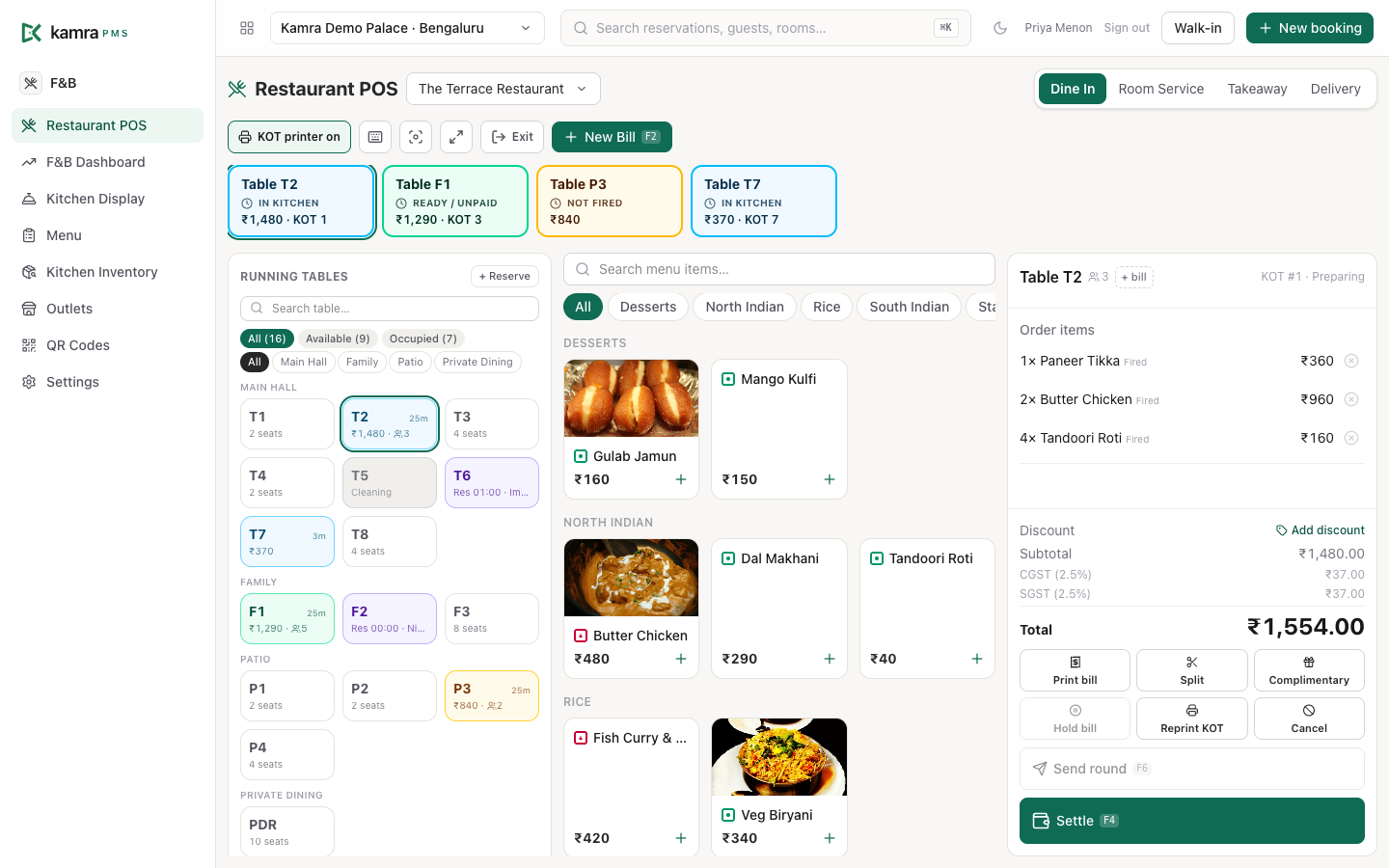
- Open F&B → Restaurant POS and pick the outlet at the top.
- Press New Bill (or F2). Choose Dine In, Room Service, Takeaway or Delivery at the top right.
- For dine-in, pick the table (from the table map or the Table… list) and the number of guests. For takeaway and delivery, enter the customer's name and phone, and the address for delivery.
- Tap dishes to add them. Use + / − on a line to change the quantity, and add an instruction to a line ("less spicy") if needed.
- Press Send to kitchen (or F6). The order gets a KOT number, shows up on the kitchen display, and prints where your printers are set up.
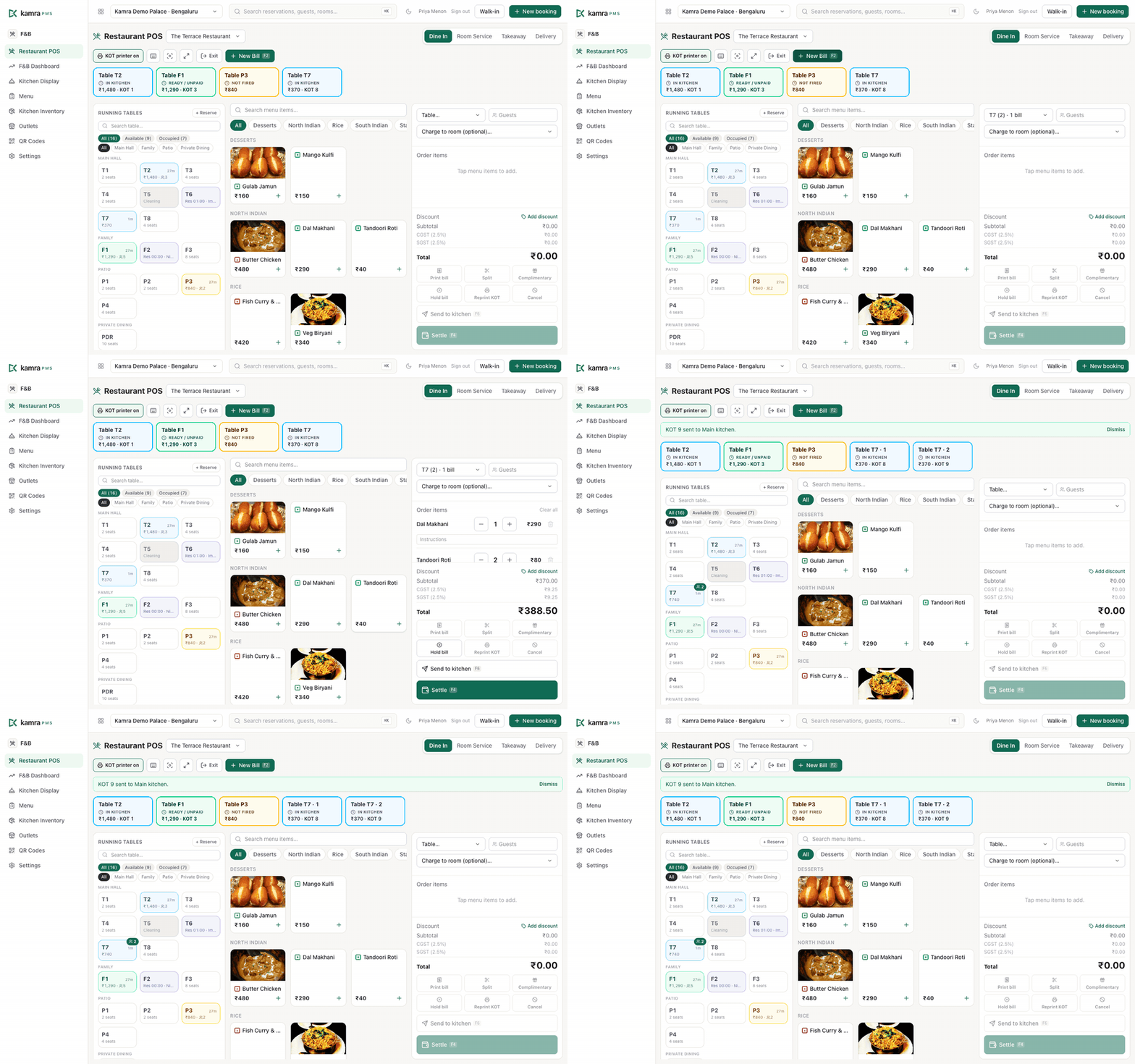
The bar under the menu shows what happened: "KOT 4 sent to Main kitchen", or "KOT 4 printed and on the kitchen display" when the till prints it.
Another round on a running bill: open the bill (tap its tile, or F3 to cycle through open bills), add the dishes and press Send round. Only the new lines go to the kitchen.
Hold a bill without sending it (F5) when the guests are still deciding. It stays in Open bills → Not sent to kitchen.
The table map
Each table tile shows its state: Vacant, Running (bill open, not sent), In kitchen, Ready, Reserved or Cleaning, with the running total, guests and minutes since the order. Filter by area (Main Hall, Patio…) or search a table.
- Several bills on one table. Two parties sharing a table each get their own bill: open the table and press + bill.
- Temp tables. + Temp table names a table on the spot (a walk-in on the lawn). It shows as a tile until it's settled.
- Reservations. + Reserve books a table for a guest, phone, party size and time. The tile shows "Res 19:30" from an hour before (you can change the window in Settings → F&B), with Seat, No-show and Cancel actions.
- Cleaning. A settled table turns to Cleaning until someone marks it clean, or 30 minutes pass.
Settle a bill
- Open the bill and press Settle (or F4).
- Pick how the guest pays: Cash, Card or UPI. Or post it to an in-house guest's room with Charge to room.
- Print bill prints the bill on the till's printer, with the tax split your country uses.
- Room charges need a guest who is checked in to that room. A room with nobody in house is refused - take it as a walk-in bill instead. The bill posts to the guest's folio when it's delivered; alcohol always goes to the guest's own folio, never to a company paying for the room.
- Split moves chosen items onto a new bill, with their kitchen status kept. The totals always add up to the original.
- Discounts: Add discount takes an amount off the bill.
- Complimentary (NC, no charge) needs the name of whoever authorised it, and takes an optional reference (the occasion, a complaint). The KOT and bill print "NC - NO CHARGE", and the bill closes at zero without touching a folio.
- Void a line or Cancel a bill only with a reason. The line stays on the bill, struck through, so the KOT-to-bill audit still adds up. If the KOT was already sent, a VOID slip prints in the kitchen (see Settings).
- A dine-in or takeaway bill can't be closed unpaid, and serving it doesn't settle it.
Run the kitchen display
Open F&B → Kitchen Display on a screen at the pass. Every sent order appears as a ticket, newest chiming in (turn the sound off with Sound on).
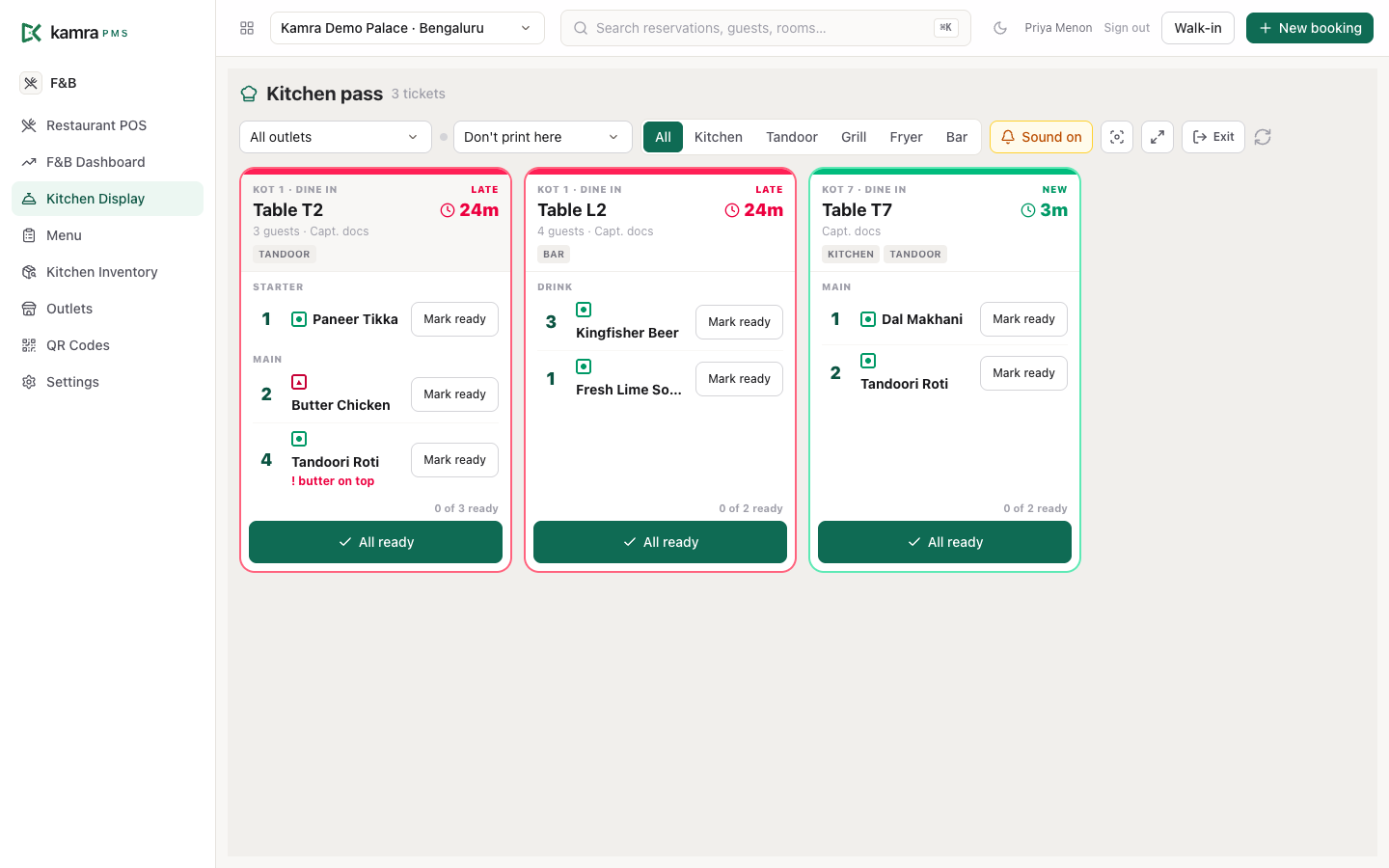
- Filter by outlet and by station (Kitchen, Tandoor, Bar …) so each section sees only its own dishes.
- Press Start when the kitchen picks a ticket up. The ticket shows WAITING until then, and the cook's clock runs from the moment the order was sent.
- Press Mark ready on each dish, or All ready for the ticket. The POS tile turns Ready so the captain knows to pick it up.
- Bumped a dish too soon? Open the ticket and recall it; it goes back on the display.
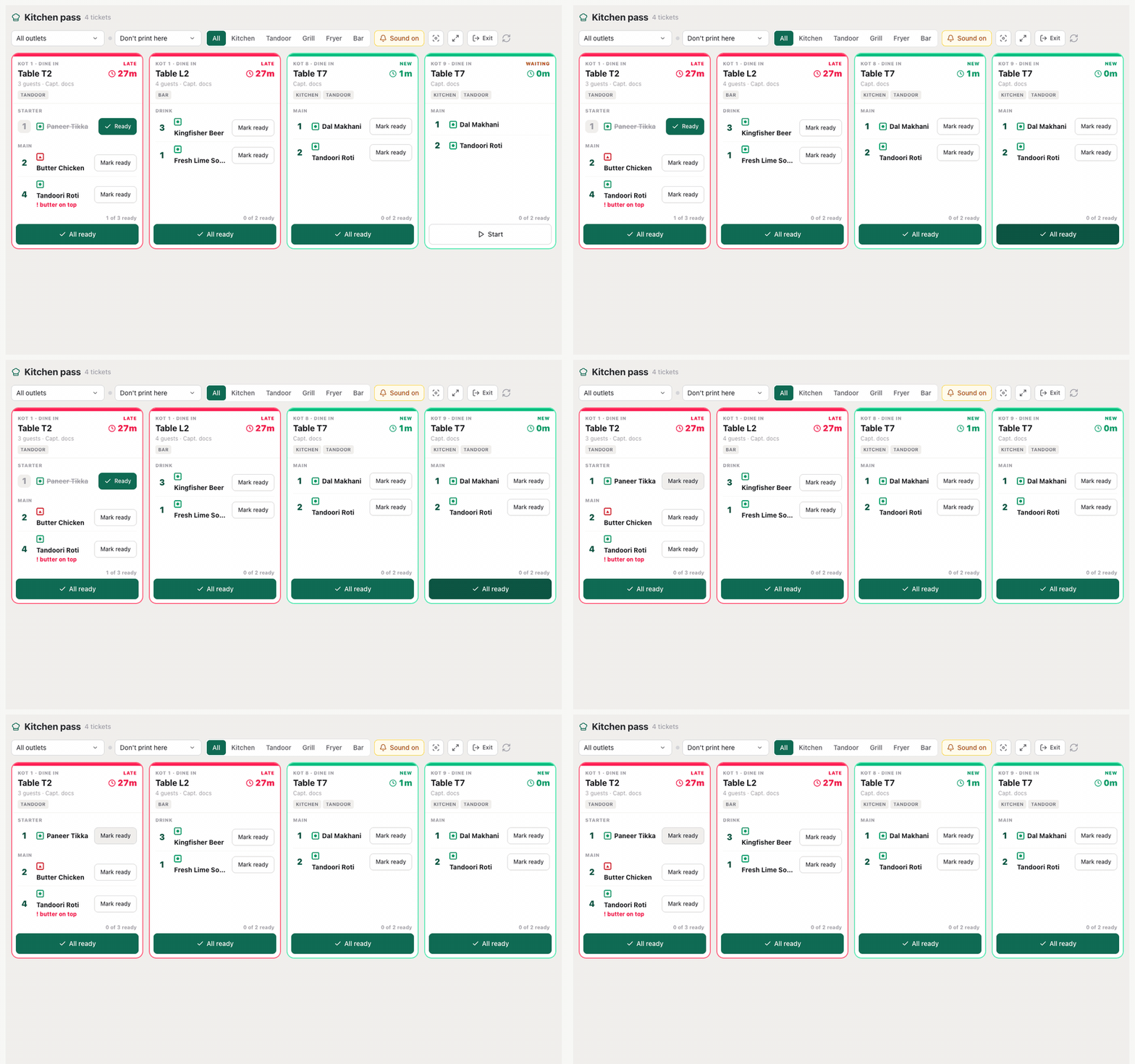
Tickets age from green to amber to LATE. Each card shows the table, guests, captain, the stations involved, and instructions in red. If the order has an allergy note, dishes whose allergens match are highlighted; treat it as a reminder, not a guarantee. A line voided after it was sent shows an alert on the ticket.
If an order is sent one course at a time (an AI agent or the API can do this with a course), the held courses show on the ticket with a Fire mains (or starters, desserts) button for the kitchen to send when ready.
Auto-accept and print KOT
For a busy kitchen that doesn't want to press Start on every ticket: Settings → F&B → Kitchen orders (KOT) → Auto-accept and print KOT. When a captain sends an order, the KOT prints at once and the ticket shows on the kitchen display already started. Off (the default), the kitchen presses Start and each till decides whether to print with its KOT printer switch.
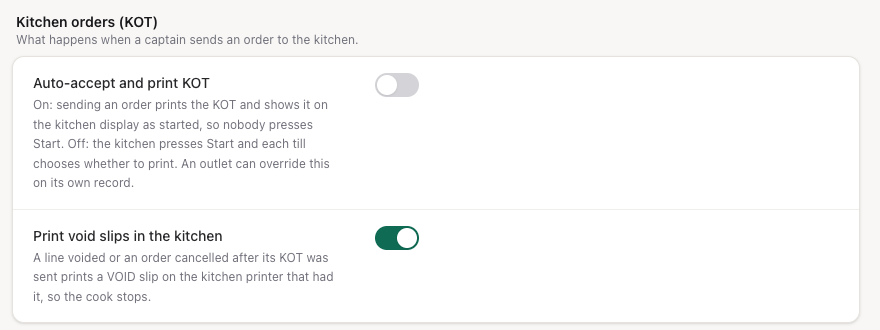
Each outlet can override this under F&B → Outlets → KOT on send:
| KOT on send | What happens when an order is sent |
|---|---|
| Use F&B setting (default) | Follows Settings → F&B |
| Auto-accept and print | Prints the KOT and marks the ticket started |
| Kitchen presses Start | The kitchen accepts each ticket; the till's printer switch decides printing |
So the bar and room service can auto-accept while the main restaurant's pass still starts each ticket by hand. A second round on the same bill prints its own KOT but doesn't reset the first one's start time.
Kitchen printers
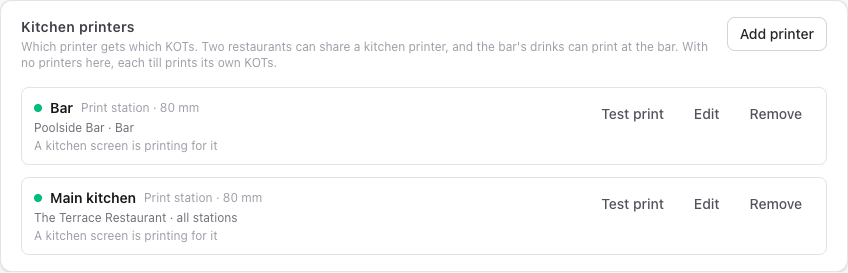
Without kitchen printers, a KOT prints on the till that sent it. Set up kitchen printers to send each KOT to the printer that cooks it, whichever till sent the order: two restaurants can share one kitchen printer, the bar's drinks can print at the bar, and the tandoor can have its own.
Add a printer
- Settings → F&B → Kitchen printers → Add printer.
- Name it ("Main kitchen") and choose the Connection (see below), Paper width (80 mm or 58 mm) and Copies (1-3).
- Optionally pick a Fallback printer: where its tickets go if it fails.
- Under Prints KOTs for, tick what it prints: All stations for an outlet, or single stations. Tick the same outlet and station on two printers to print a copy on each.
- Save printer, then Test print.
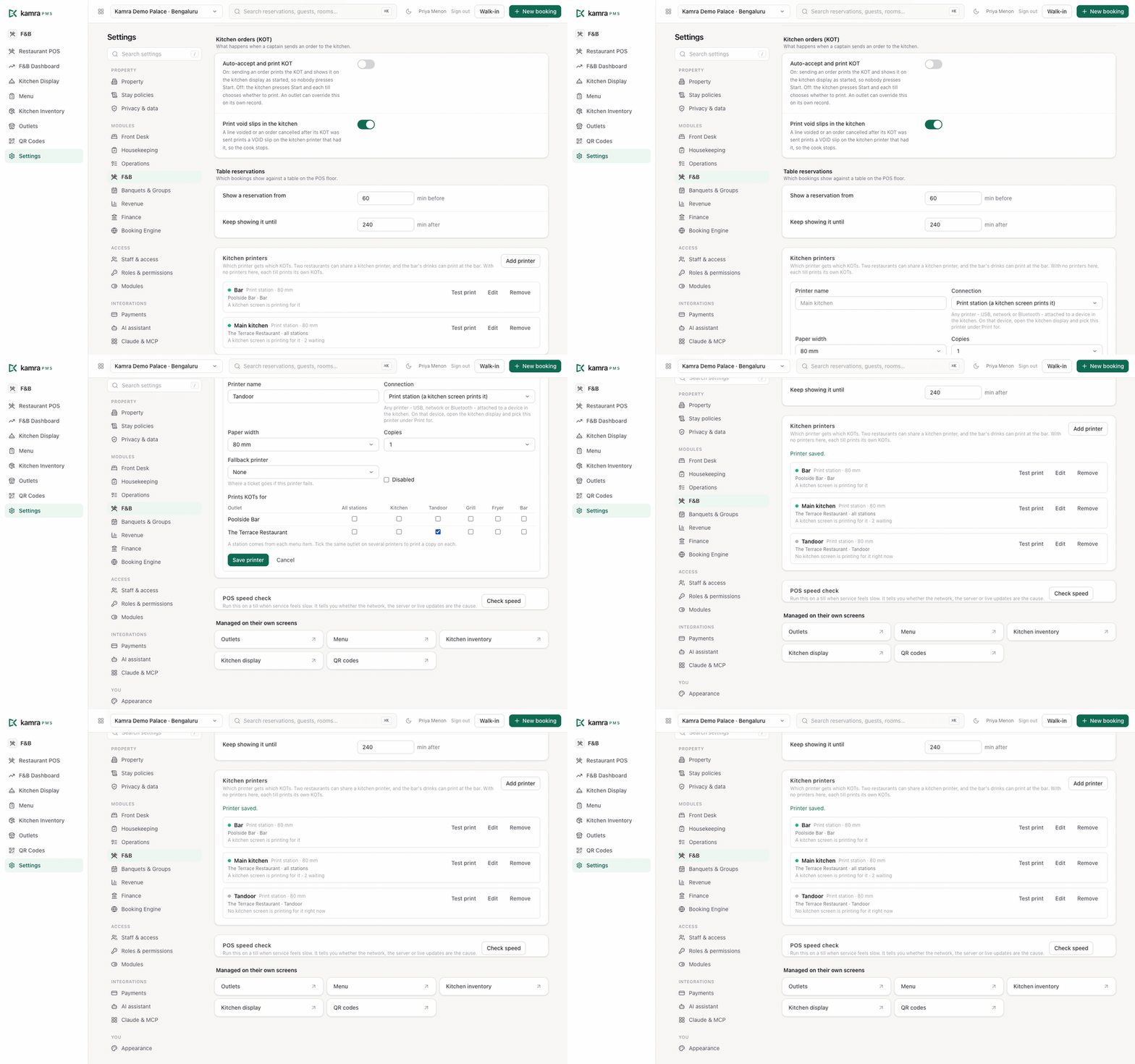
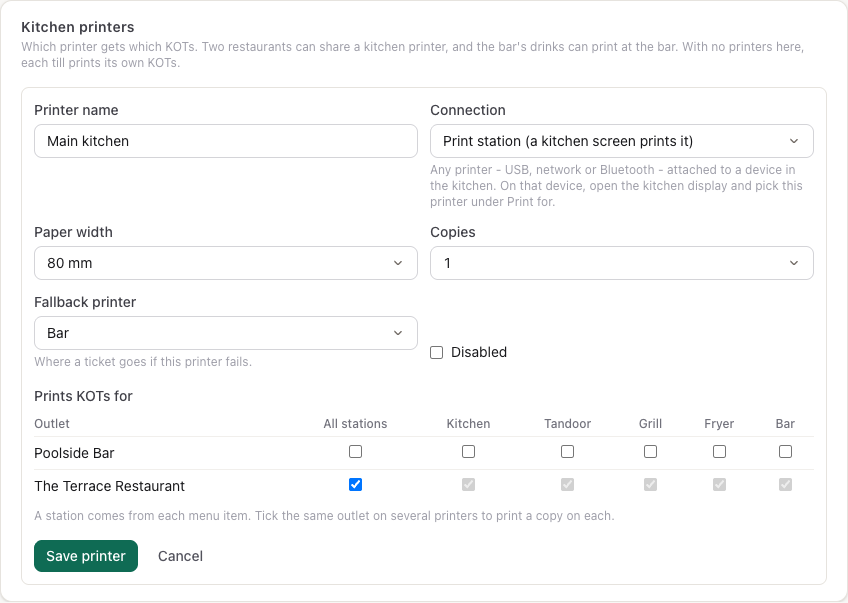
When an order is sent, Kamra splits it by each dish's station and sends each printer only its own lines, with the outlet, station, table and KOT number at the top. Lines no printer is set up for print at the till as before.
Connect the printer: print station
Works with any printer - USB, network (LAN/Wi-Fi) or Bluetooth - and with Kamra in the cloud.
- Put a device next to the printer (a tablet, mini-PC or old laptop) and install the printer on it as its default printer.
- Start Chrome on that device with silent printing (see Print without a dialog).
- Sign in, open F&B → Kitchen Display, and in the header choose Print for → Main kitchen.

That screen now prints the printer's tickets as soon as they're sent, and still works as a kitchen display. The choice is saved on the device. A green dot means it's printing; Settings → F&B → Kitchen printers shows "A kitchen screen is printing for it".
One device prints for one printer. Three printers need three devices, or three Chrome profiles on one computer, each with its own default printer. Because the kitchen screen connects out to Kamra, the printer can be anywhere with internet - a central kitchen in another building works the same as one next door.
Connect the printer: direct IP
When Kamra runs on a server on the hotel's own network, it can send the ticket straight to a network thermal printer (ESC/POS on port 9100). Choose Direct IP and enter the printer's IP address and port. A Kamra server in the cloud can't reach a printer on a private network (192.168.x.x); use a print station there.
When a printer fails
- A ticket a printer couldn't print moves to its fallback printer, marked "for Bar". Without a fallback it stays failed; reprint it from the bill.
- A ticket a print station took but never confirmed is offered again after a minute.
- Finished print jobs are kept for 7 days for reprints and disputes, then deleted, because tickets carry guest names and delivery addresses.
Print without a dialog
A browser normally shows a print dialog for each ticket. On tills and print-station devices, start Chrome with --kiosk-printing so tickets go straight to the default printer. The POS shows a one-time tip if it sees a print waiting on a dialog.
- Windows: right-click the Chrome shortcut → Properties, and add
--kiosk-printingat the end of Target. Close every Chrome window, then start Chrome from that shortcut. - macOS: quit Chrome, then in Terminal run
open -a "Google Chrome" --args --kiosk-printing. - Set the thermal printer as the system's default printer, with 80 mm (or 58 mm) paper and no margins.
Guest QR ordering
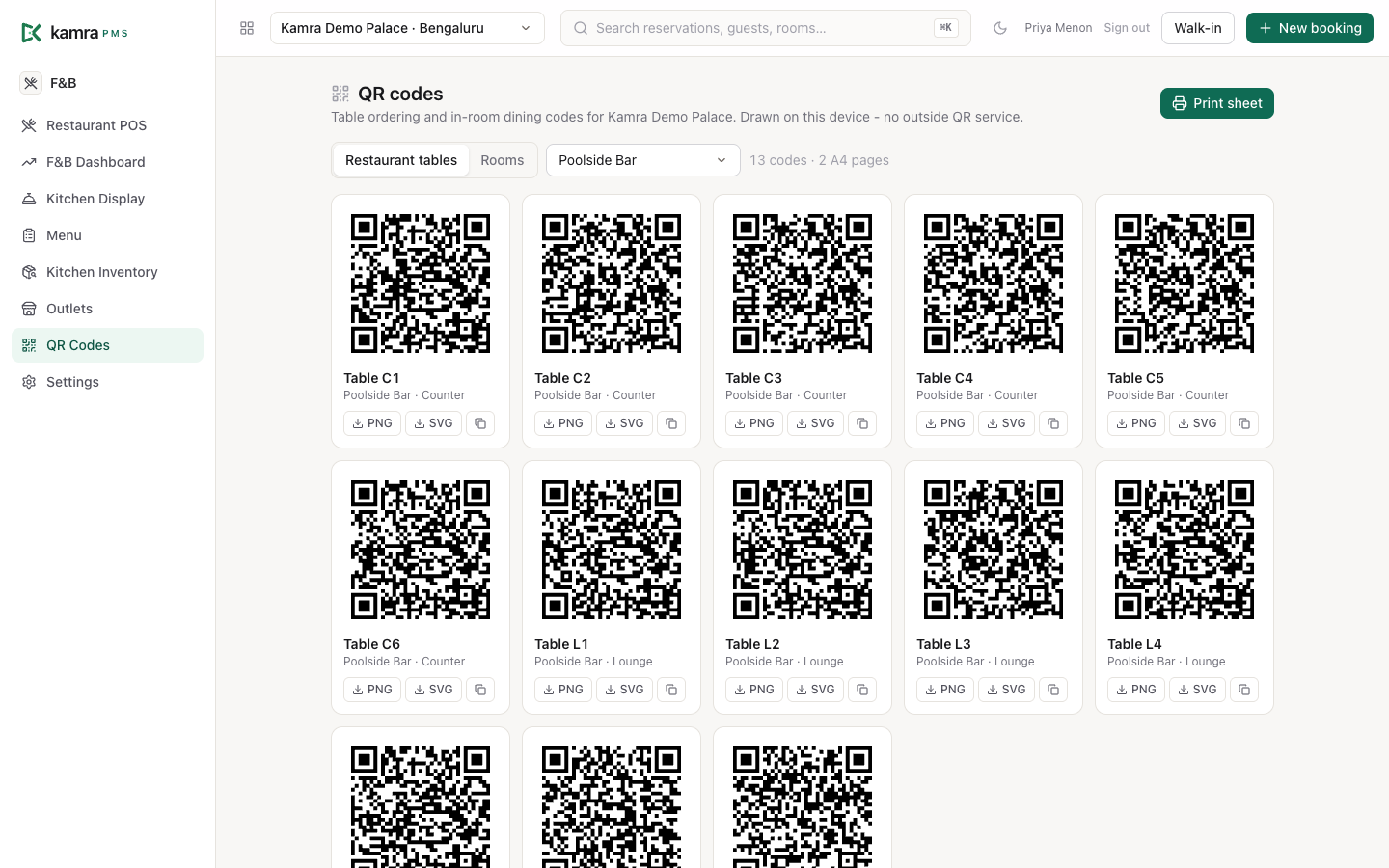
F&B → QR Codes makes a code for every restaurant table, and for every room (in-room dining from the Room Service outlet's menu). Download each as PNG or SVG, or Print sheet for A4 cards. The codes are drawn on your device; no outside QR service is used. Guests scan it, see the menu on their phone and place an order. The order waits on the POS until a captain confirms it; nothing goes to the kitchen on a guest's word alone.
Kitchen inventory
F&B → Kitchen Inventory keeps ingredients, a recipe for each dish and a stock ledger.
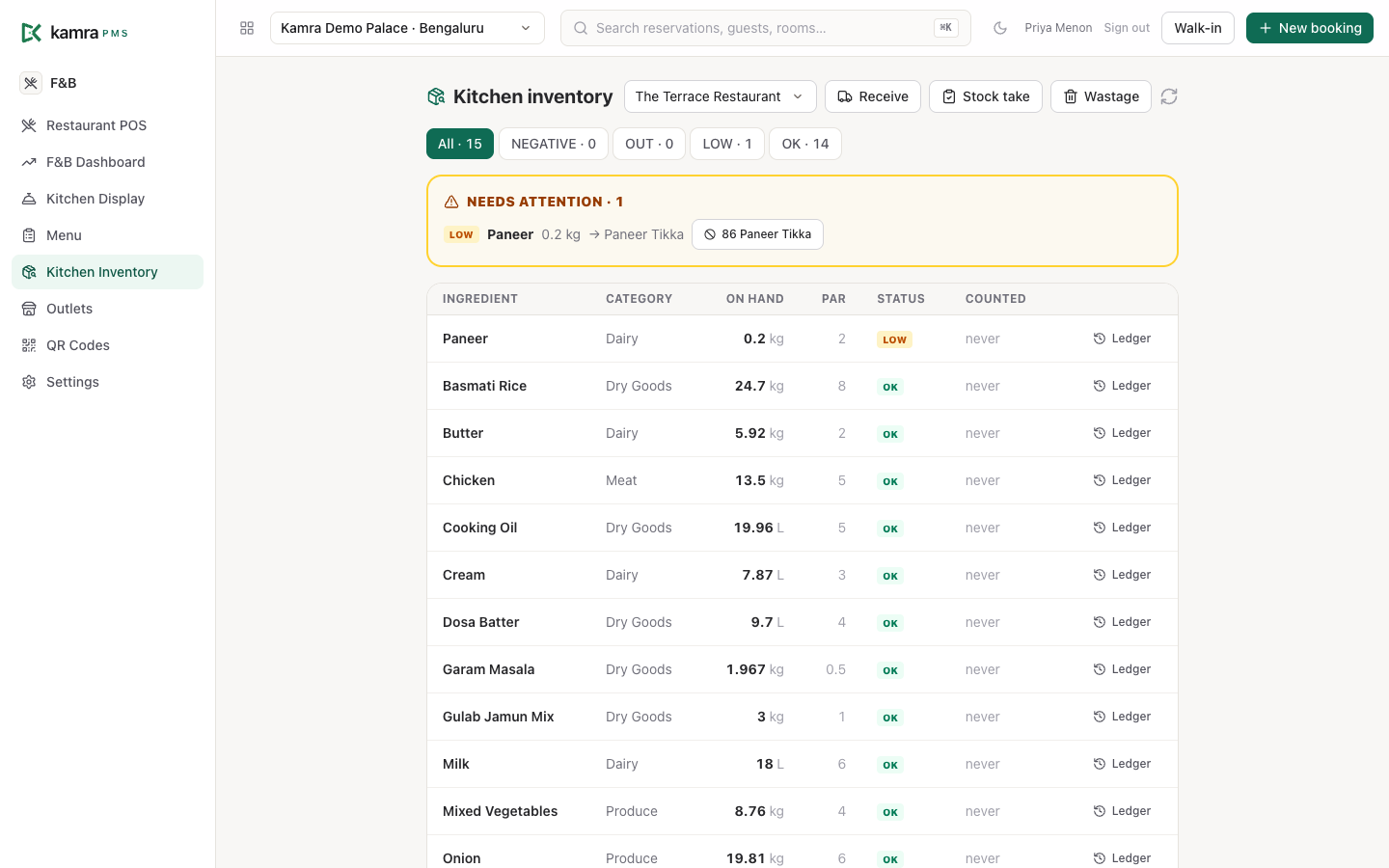
Use Receive for deliveries, Stock take for counts and Wastage for spoilage. Each ingredient shows its status (OK, low, out or negative) against its par level, and Ledger shows every movement. Recipes are set on the Menu screen (Recipes).
- Ingredients leave stock when the KOT is sent - when cooking starts - not when the bill is paid.
- A line voided after it was sent counts as wastage, not a reversal: the food was made.
- A shortage never blocks an order. It's reported, and a dish is never switched off automatically.
- A stock count is a deliberate entry, not a silent overwrite.
F&B dashboard
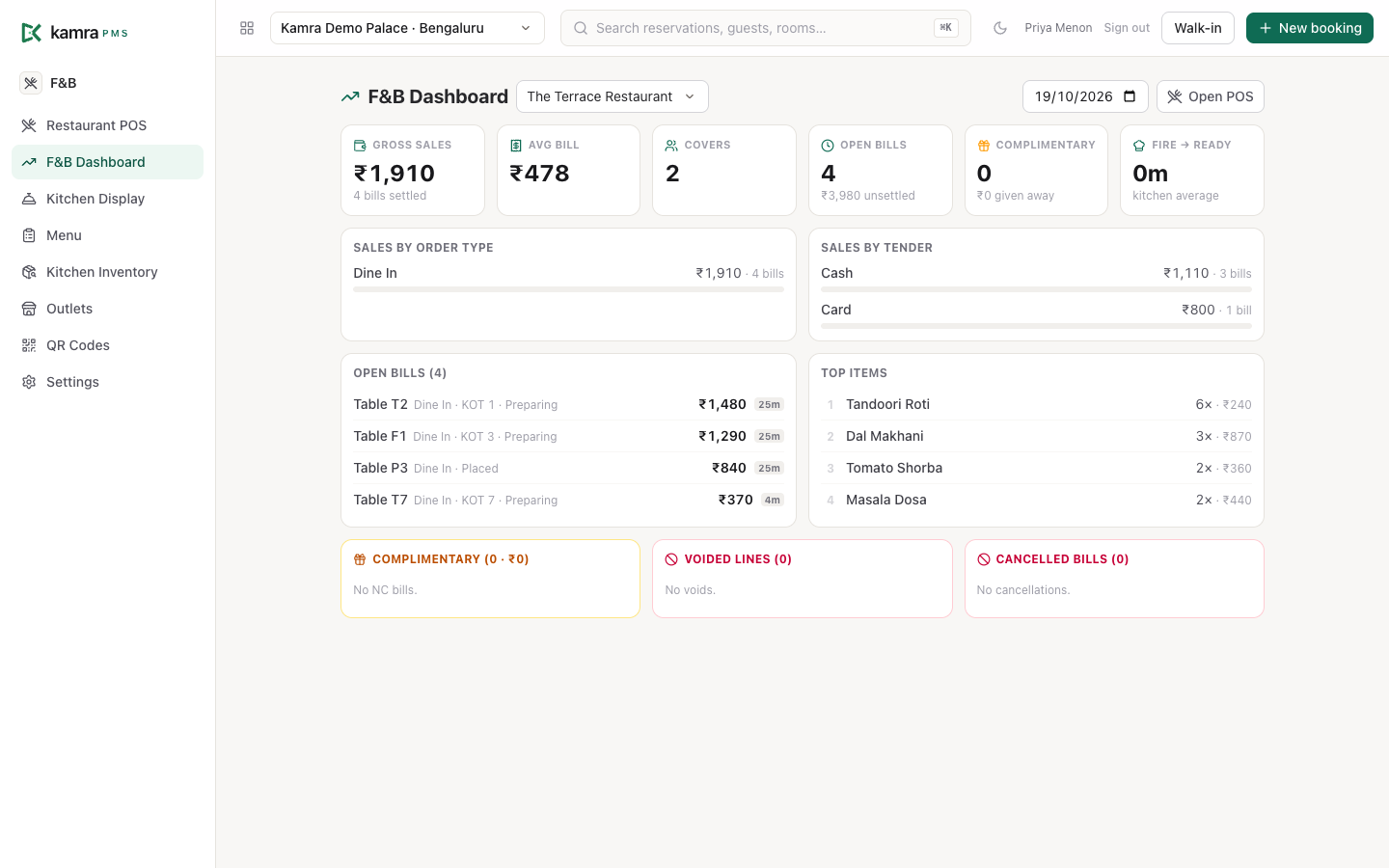
F&B → F&B Dashboard shows one outlet's day: gross sales, average bill, covers, open bills, complimentary bills, the kitchen's average send-to-ready time, sales by order type and by payment, top items, and every NC bill, voided line and cancelled bill with its reason.
Settings
All under Settings → F&B (Hotel Admin and Finance can change them):
| Setting | Default | What it does |
|---|---|---|
| Auto-accept and print KOT | Off | Sending an order prints the KOT and starts the ticket. Outlets can override it. |
| Print void slips in the kitchen | On | A line voided, or a bill cancelled, after its KOT was sent prints a VOID slip on the printer that had it. |
| Show a reservation from | 60 min before | When a table reservation starts showing on the table map. |
| Keep showing it until | 240 min after | When it stops showing. |
| Kitchen printers | None | Which printer prints which outlets and stations. |
Troubleshooting
The KOT didn't print.
- Is a kitchen printer set up for that outlet and the dish's station? The bar under the menu says where the KOT went.
- Print station: is the kitchen screen open, set to Print for that printer, with a green dot? Settings → F&B → Kitchen printers shows whether a screen is printing for it.
- Is the printer that device's default printer, with paper?
- No kitchen printers: is the till's KOT printer switch on, or auto-accept on?
A print dialog opens every time. Start Chrome with --kiosk-printing (how).
Orders take a while to reach the kitchen display. Run Settings → F&B → POS speed check on the slow till. It reports the network round trip, how long the server takes, and whether live updates reach the browser.
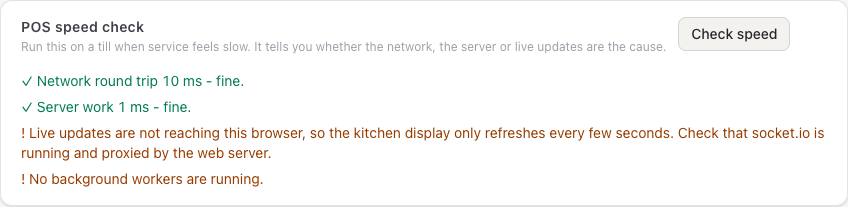
| What it flags | What to do |
|---|---|
| Network round trip over 300 ms | The server is far from the hotel or the connection is weak. Host in a region near the hotel. |
| Server work over 300 ms | The server is busy or too small. Add CPU or gunicorn workers. |
| Live updates not arriving | socket.io isn't running or isn't proxied by the web server (/socket.io). Until it is, the kitchen display checks every 5 seconds. |
| No background workers | Start the bench workers; direct-IP printing and other jobs wait for them. |
"Add at least one available item." The dish is marked unavailable on the menu, or it belongs to another outlet.
For developers
The POS and kitchen run on whitelisted endpoints in kamra/pos.py and kamra/printing.py; AI agents use the same calls as MCP tools (pos_send_order, pos_send_round, pos_fire_kot, pos_kitchen_queue, pos_pay_order and more). See the MCP tool reference and the API reference.