

Revenue - rates, seasons and offers
The Revenue app holds everything that decides what a room costs: room type prices, rate plans, seasons, meal plans, vouchers, experiences, the owner's rate guardrails and demand pricing, plus the companies and travel agents who sell your rooms. Revenue Managers and Hotel Admins see it. Room Types is in the Revenue app and in the Admin app.
How Kamra works out a price
Every quote - on the desk booking form, on the booking page, from the AI assistant or over the API - comes from the same code. No AI model ever calculates money. For each night of a stay:
- Room type price. The base price covers the adults included in it; extra adults and children add their own nightly price. A single guest pays the single occupancy price when one is set.
- Season. The season covering that date lifts, lowers or replaces the price. A season for one room type wins over a house-wide one; inside each group the highest Priority wins.
- Demand. When the house is filling up, the demand premium is added and the hurdle (minimum rate) holds. See Price by demand.
Then, for the whole stay:
- Rate plan. Its modifier works on the stay's room total.
- Meal plan. Price per adult and per child, per night.
- Voucher. Comes off the room and meal total.
- Fees and tax. Cleaning fee, pets, room levy, then tax. Tax rates and whether your prices include tax come from Settings → Finance and your country pack.
Once a booking is confirmed, its nightly rates are locked. A later season, rate change or demand premium never changes what a confirmed guest pays.
Set room type prices
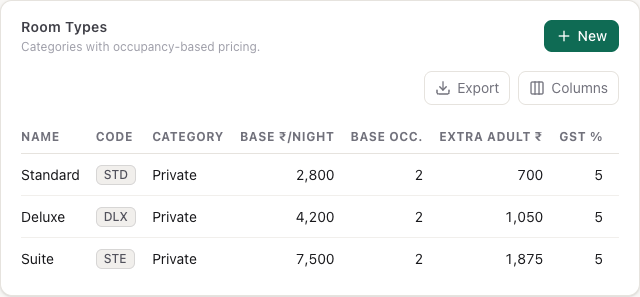
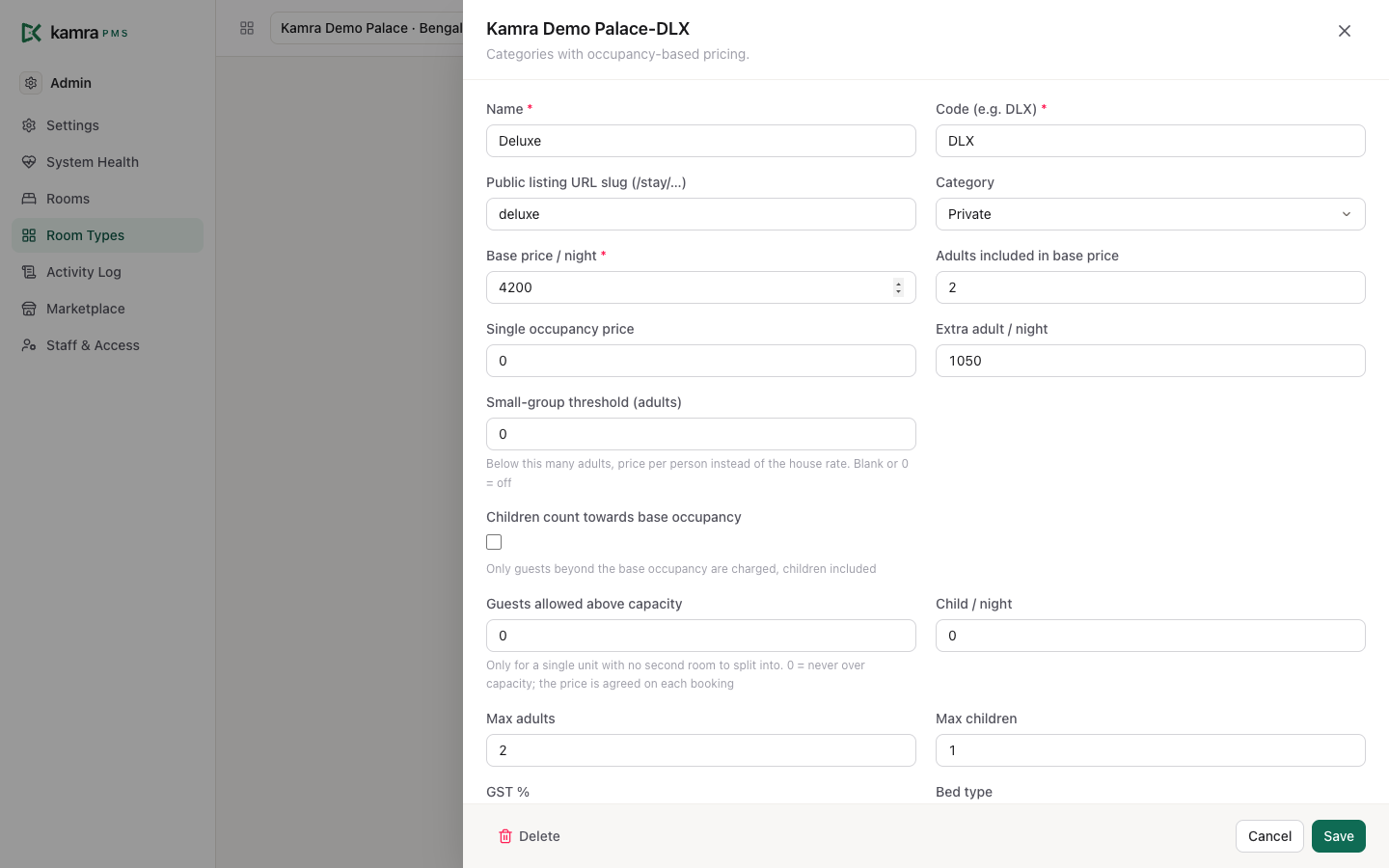
- Open Revenue → Room Types (or Admin → Room Types) and pick a room type, or click New.
- Set Base price / night and Adults included in base price.
- Set Extra adult / night, Child / night and, if you sell the room to one person for less, Single occupancy price.
- Set Max adults and Max children. The booking page won't sell more guests than this.
- Click Save.
Two optional prices:
- Small-group threshold (adults) and Small-group price / adult: below that many adults, charge per person instead of the room rate. Limit it to some days with Small-group days.
- Public listing URL slug (/stay/…) gives the room type its own page on the booking engine, for example
/stay/deluxe.
Add a season
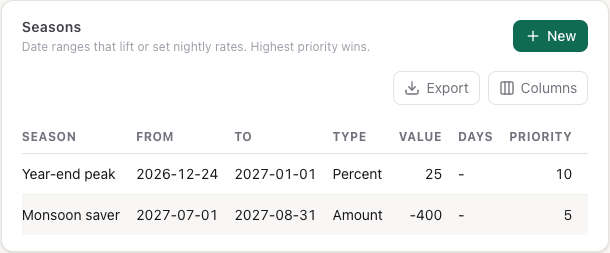
A season moves the nightly price between two dates.
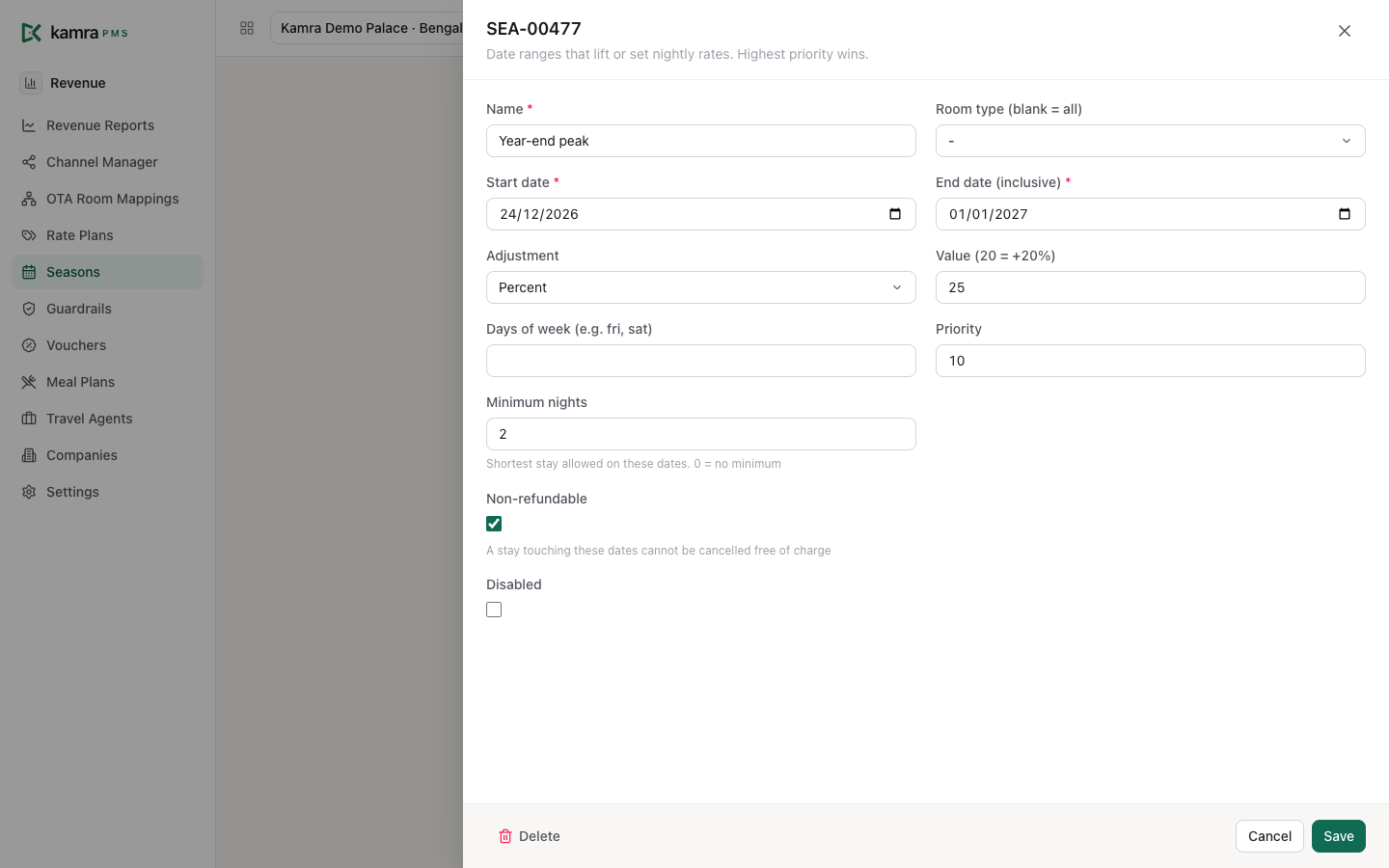
- Open Revenue → Seasons → New.
- Give it a Name, a Start date and an End date (inclusive).
- Pick a Room type (blank = all), or leave it blank for the whole house.
- Pick an Adjustment:
- Percent -
20adds 20%,-10takes 10% off. - Amount - adds (or, if negative, takes off) a fixed amount per night.
- Absolute - sets the nightly price to this value.
- Percent -
- Optional: Days of week (e.g. fri, sat) to apply it only on those days.
weekendmeans Saturday and Sunday;weekdaymeans Monday to Friday. - Optional: Minimum nights (shortest stay on these dates) and Non-refundable (a stay touching these dates can't be cancelled free of charge).
- Set a Priority and click Save.

Create a rate plan
A rate plan changes the whole stay's room total: Best Available Rate, non-refundable, corporate.
- Open Revenue → Rate Plans → New.
- Enter a Name and a Code.
- Pick a Modifier type and a Modifier value: Percent with
-10is 10% off; Amount adds a fixed amount to the stay; Absolute replaces the room total. - Optional: a Cancellation policy line, and Default plan.
- Click Save.
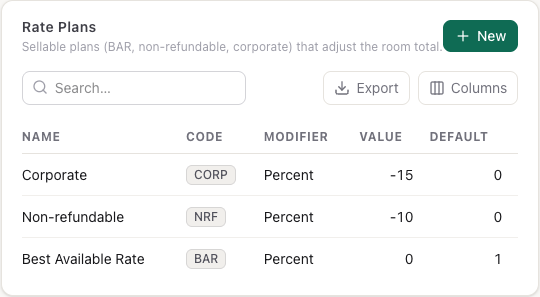
A booking uses a rate plan when it names one. On the desk New booking form, pick it in Rate plan; Standard rate (no plan) uses none. Bookings made through the AI assistant, the MCP tools, the API and a connected channel manager can name one too. The public booking page has no rate plan picker.
A booking for a company with a Negotiated rate plan gets that plan when no other plan is picked. The form then shows Company rate: … in Rate plan. The plan is saved on the booking, so a later change to the company's contract doesn't re-price it.
Add meal plans
- Open Revenue → Meal Plans → New.
- Pick a Code: EP, CP, MAP or AP.
- Give it a Label guests understand, such as "Bed & breakfast".
- Enter Price per adult / night and Price per child / night.
- Tick Default for the plan the desk booking form should start with.
- Click Save.
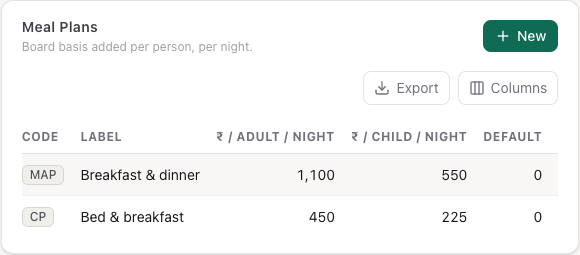
The booking page lists every meal plan, plus Room only.
Make a voucher
- Open Revenue → Vouchers → New.
- Enter a Code. Guests type it in any case; Kamra stores it in capitals.
- Pick a Type - Percent or Amount - and a Value.
- Optional: Valid from, Valid to, Minimum nights and Max uses (0 = unlimited).
- Click Save.
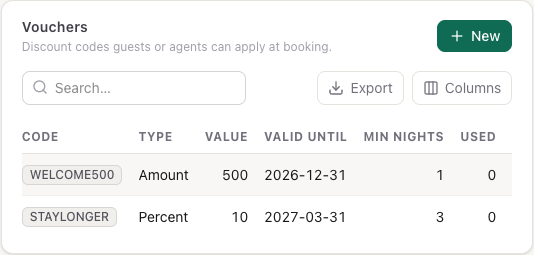
Guests enter a voucher under Have a code? on the booking page; the desk enters it on the booking form. Used counts each booking that redeemed it.
Add experiences
Experiences are add-ons sold with a stay: a spa ritual, a tour, a candlelit dinner, an airport transfer.
- Open Revenue → Experiences → New.
- Enter the Name, pick a Category (Spa, Tour, Dining, Activity, Transport, Other), and enter the Price and Tax %.
- Optional: Duration (e.g. 90 min, half day), Description (shown to guests) and a Photo.
- Tick Show on the public booking page to offer it on
/book. - Click Save.
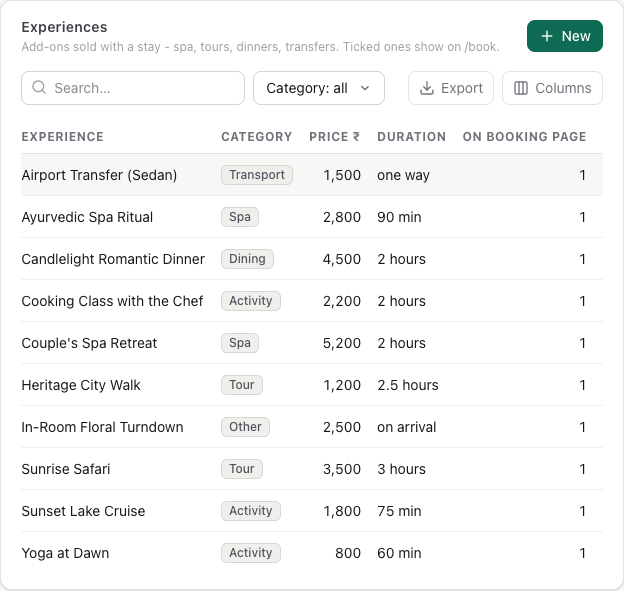
Tick Disabled to stop selling one without deleting it. See Booking engine for what guests see.
Set the floor and ceiling (guardrails)
Guardrails are the owner's limits on rate changes.
- Open Revenue → Guardrails → New.
- Pick a Room type (blank = all).
- Enter Floor price / night and Ceiling price / night.
- Optional: Days of week (e.g. fri, sat), so a weekend floor can sit above the midweek one.
- Click Save.
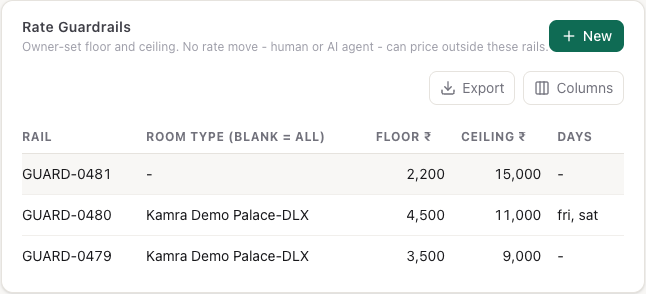
When more than one rail covers a day, the most specific one wins: room type and days, then room type, then house-wide with days, then house-wide.
Guardrails check rate changes made through the AI assistant, the MCP set_room_rate tool or the API. A change outside the rails is refused with the reason. Each accepted change is saved as a season named "Rate set …" with priority 100, so you can see it and undo it on the Seasons screen. Guardrails don't check seasons that staff create by hand.
Price by demand (hurdle rates)
- Open Revenue → Settings.
- Under Demand pricing (hurdle rates), click Add tier.
- Enter Occupancy ≥ (for example
80), a Premium + percentage and, if you want a floor, a Hurdle amount. - Under For, keep All room types, or pick one room type.
- Click Save.
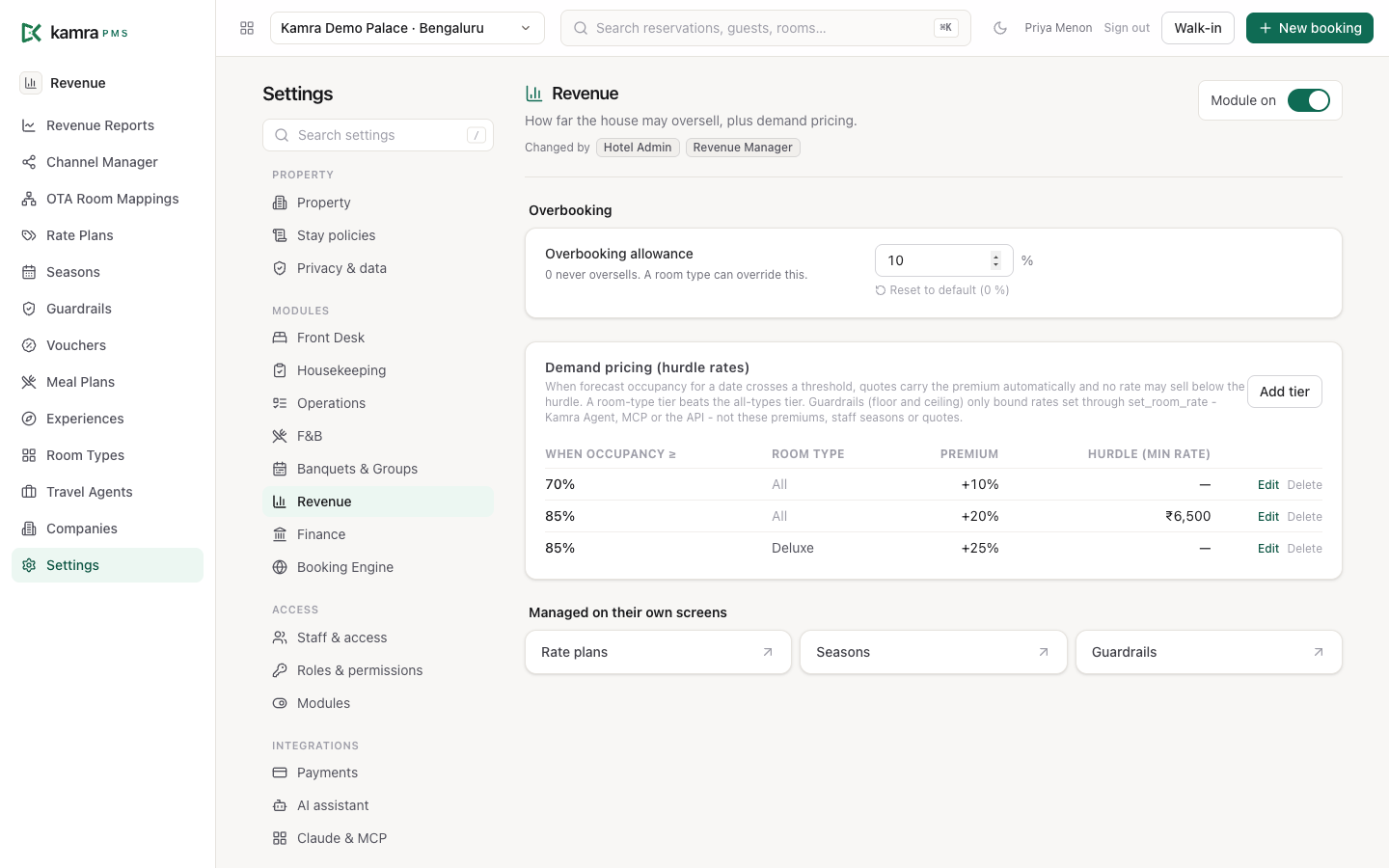
For each night, Kamra counts confirmed and checked-in bookings against the property's rooms. When that occupancy reaches a tier, the quote adds the premium on top of the season price, and the night never sells below the hurdle. The highest tier reached applies. A room type with its own tiers uses those: a room-type tier that is reached beats the all-types tiers. An AI or API rate change that undercuts the hurdle is refused.
Guardrails don't cap the demand premium. They only bound rates set through set_room_rate (Kamra Agent, MCP or the API), not demand premiums, staff seasons or quotes.
The same page holds Overbooking allowance: how far above capacity unassigned bookings may sell. 0 never oversells.
Add a company or travel agent
Companies are corporate accounts:
- Open Revenue → Companies → New.
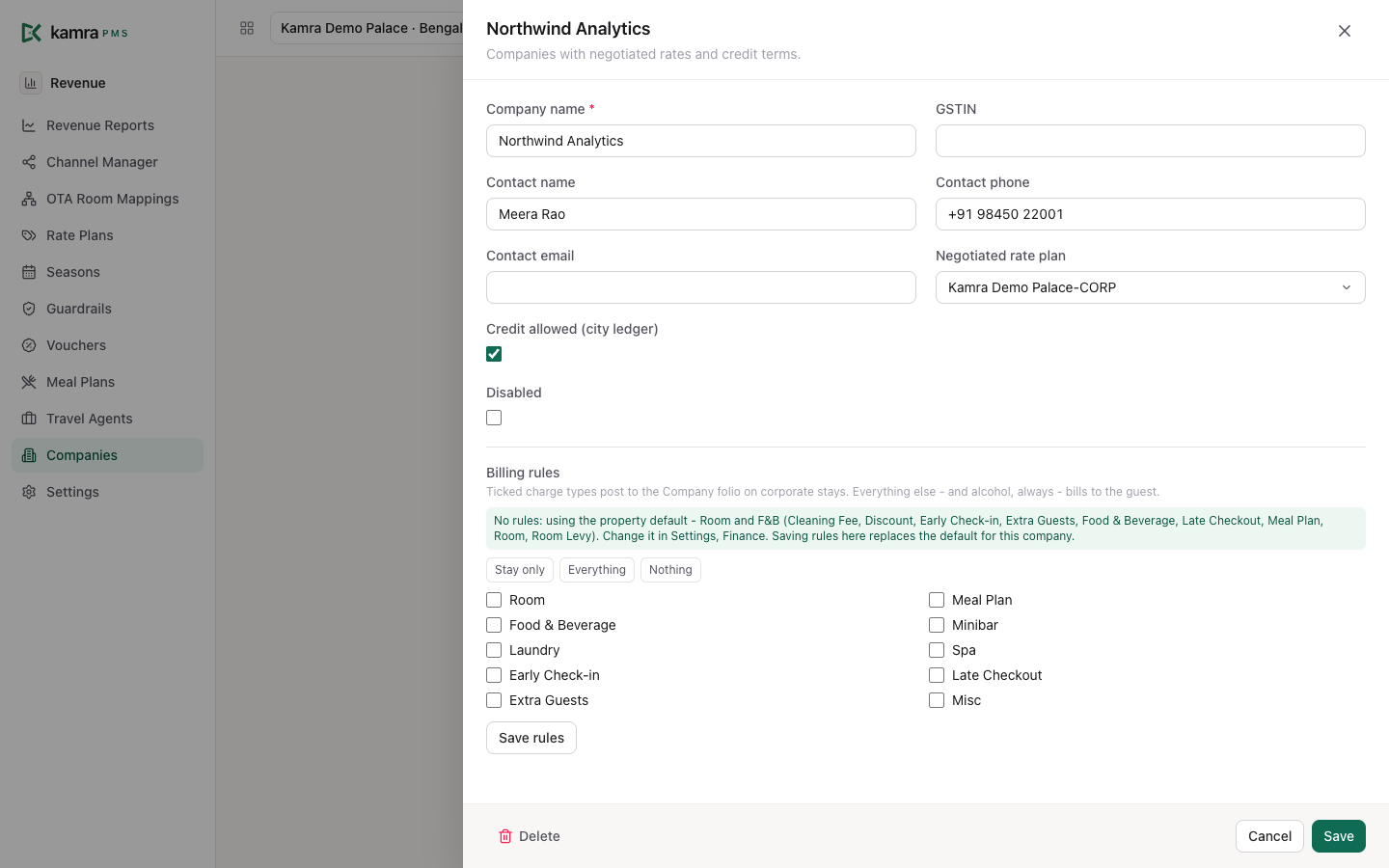
- Enter the Company name, tax number and a contact.
- Optional: a Negotiated rate plan. Bookings for the company get it when no other plan is picked.
- Tick Credit allowed (city ledger) if the company settles on account.
- Click Save, then open the company again to set its Billing rules - which charge types go on the company folio. See Billing.
Travel agents are booking sources with a commission. Open Revenue → Travel Agents → New, enter the Agent name, Type (Travel Agent, OTA, Tour Operator, Corporate Desk) and Commission %. The desk picks the agent on the booking form, and Kamra works out the commission on that agent's bookings.
Settings
| Setting | Where | Default | What it does |
|---|---|---|---|
| Overbooking allowance | Settings → Revenue | 0% | How far above capacity unassigned bookings may sell. |
| Demand tiers | Settings → Revenue | none | Premium and hurdle by forecast occupancy, for all room types or one. |
| Displayed rates include tax | Settings → Finance | off | When on, your prices are tax-inclusive and Kamra backs the tax out. |
| Tax mode, slab threshold and rates | Settings → Finance | from the country pack | The tax on room nights. |
| Cleaning fee, pet charge, room levy | Settings → Finance | 0 | Extra lines on every quote. |
Good to know
- A season with Absolute sets the price before the demand premium, so a busy night can still sell above it.
- Minimum nights and Non-refundable on a season apply to any stay that touches those dates, not only stays inside them.
- A voucher can't discount more than the room and meal total. It doesn't discount cleaning, pet or levy lines.
- A demand tier applies to the whole house unless you pick a room type under For.
- A company's Negotiated rate plan applies to a new booking for that company when the booking names no other plan. At a sister property, the plan with the same Code applies; with none, the stay is priced without a plan.
Troubleshooting
A season isn't changing the price. Check the dates (the end date is inclusive), Days of week, Disabled, and whether a season for that room type, or one with a higher Priority, covers the same night.
"Voucher … needs a stay of at least … nights". The voucher has a Minimum nights larger than the stay. Other refusals name the reason: not started, expired, fully redeemed or no longer active.
The AI assistant says a rate is "Blocked by guardrail". The rate is outside a guardrail for that room type and day. Change the rate, or the guardrail on Revenue → Guardrails.
For developers
Quotes come from kamra/pricing.py (quote). Rate changes go through kamra.api.set_room_rate, which checks guardrails and hurdles. AI agents use the quote, booking_options and set_room_rate tools - see MCP tools and the API reference.