
Settings
Everything a property configures lives in Settings (the gear in the side bar). Each part of Kamra has its own page, and each page says who may change it. Every change is checked against its limits and written to the Activity Log with the old and new values.
Find a setting
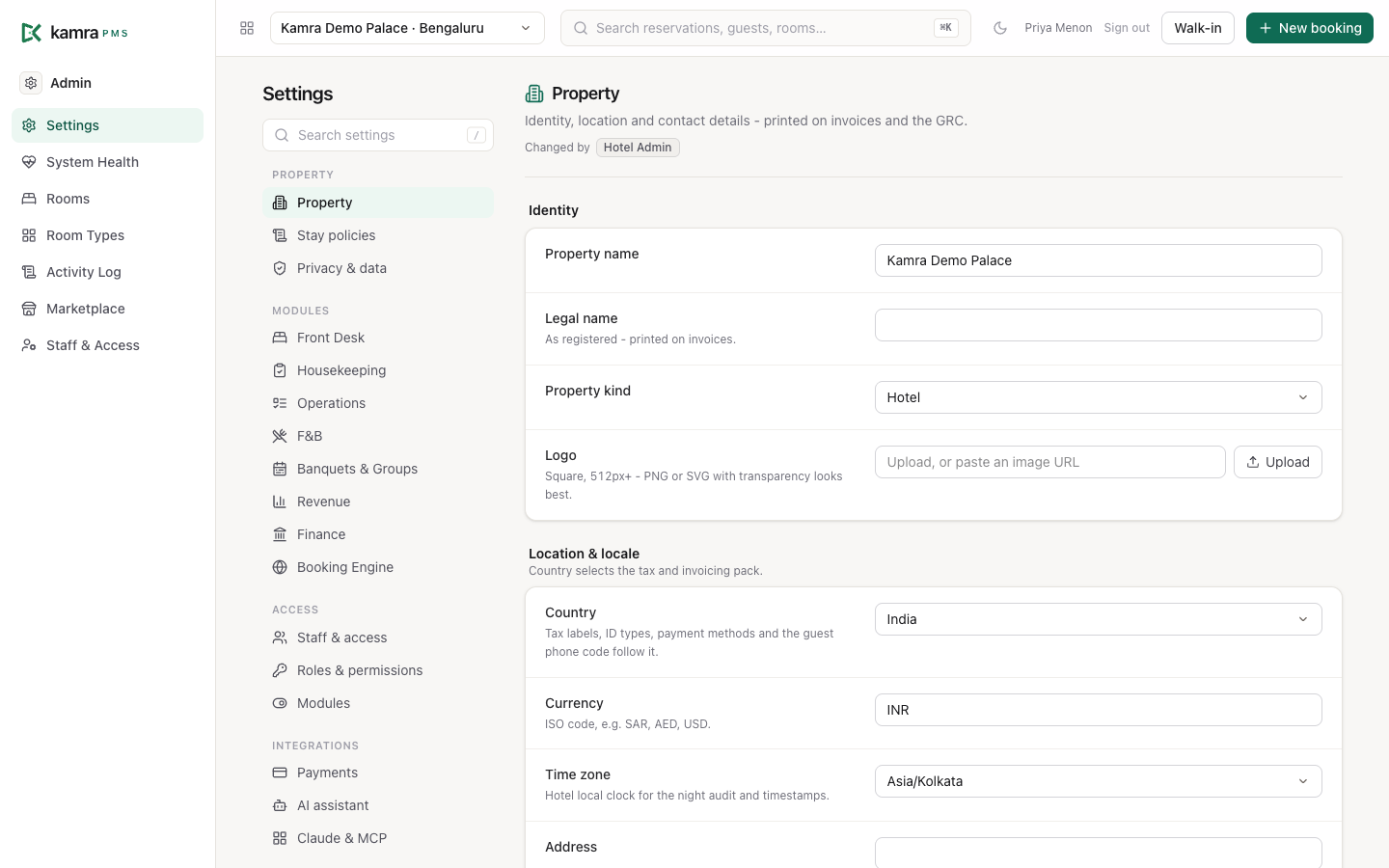
Type in Search settings (or press /) and pick the result. It opens the right page and scrolls to the setting.
Change a setting
- Open the page (for example Front Desk).
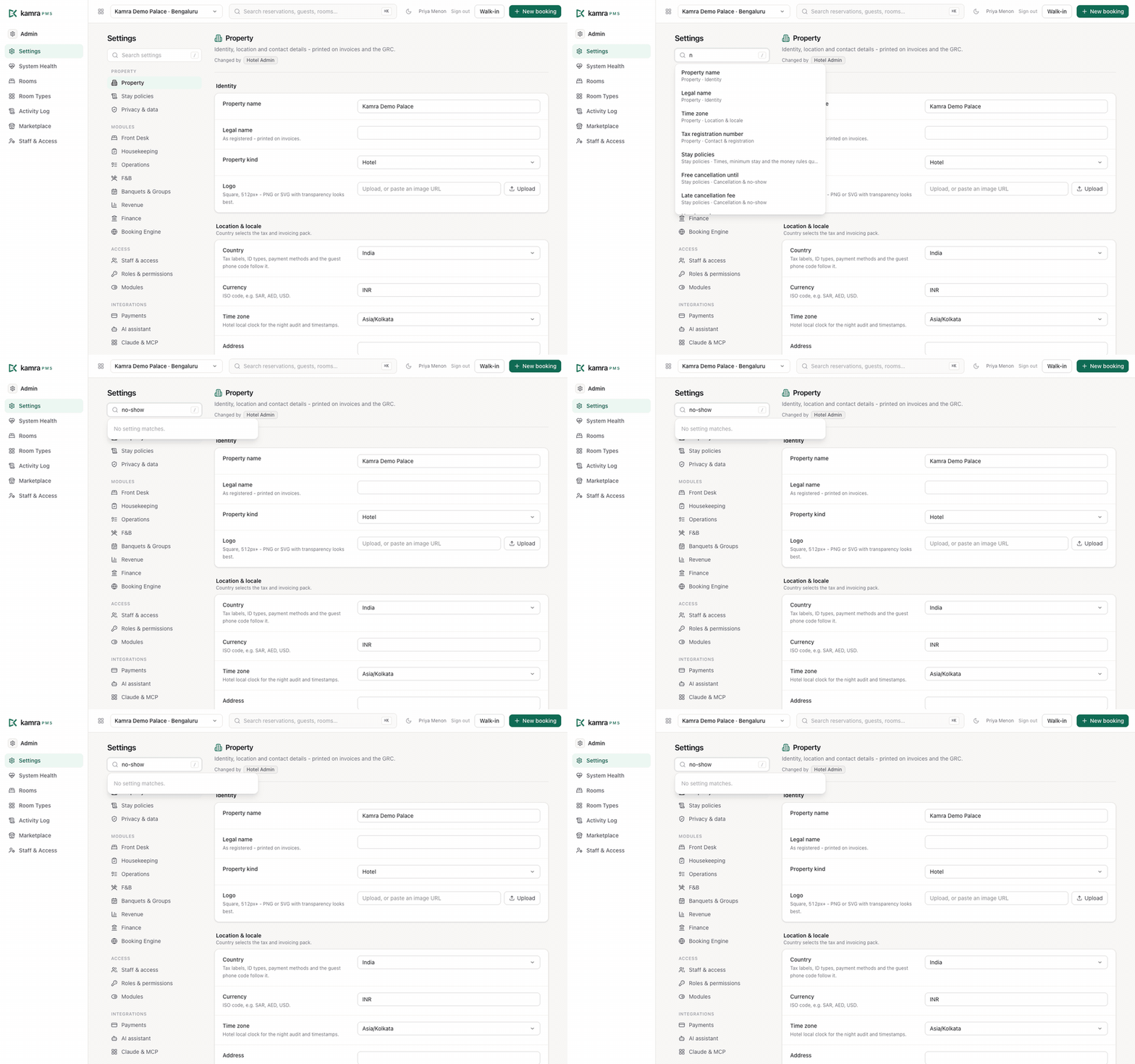
- Change the values. Each changed setting gets an amber dot, and a bar at the bottom counts the unsaved changes.
- Press Save changes in that bar (or Discard). If a value is out of range ("can't be above 60"), nothing is saved and the page says which one.
A setting that isn't at its default shows Reset to default under it.
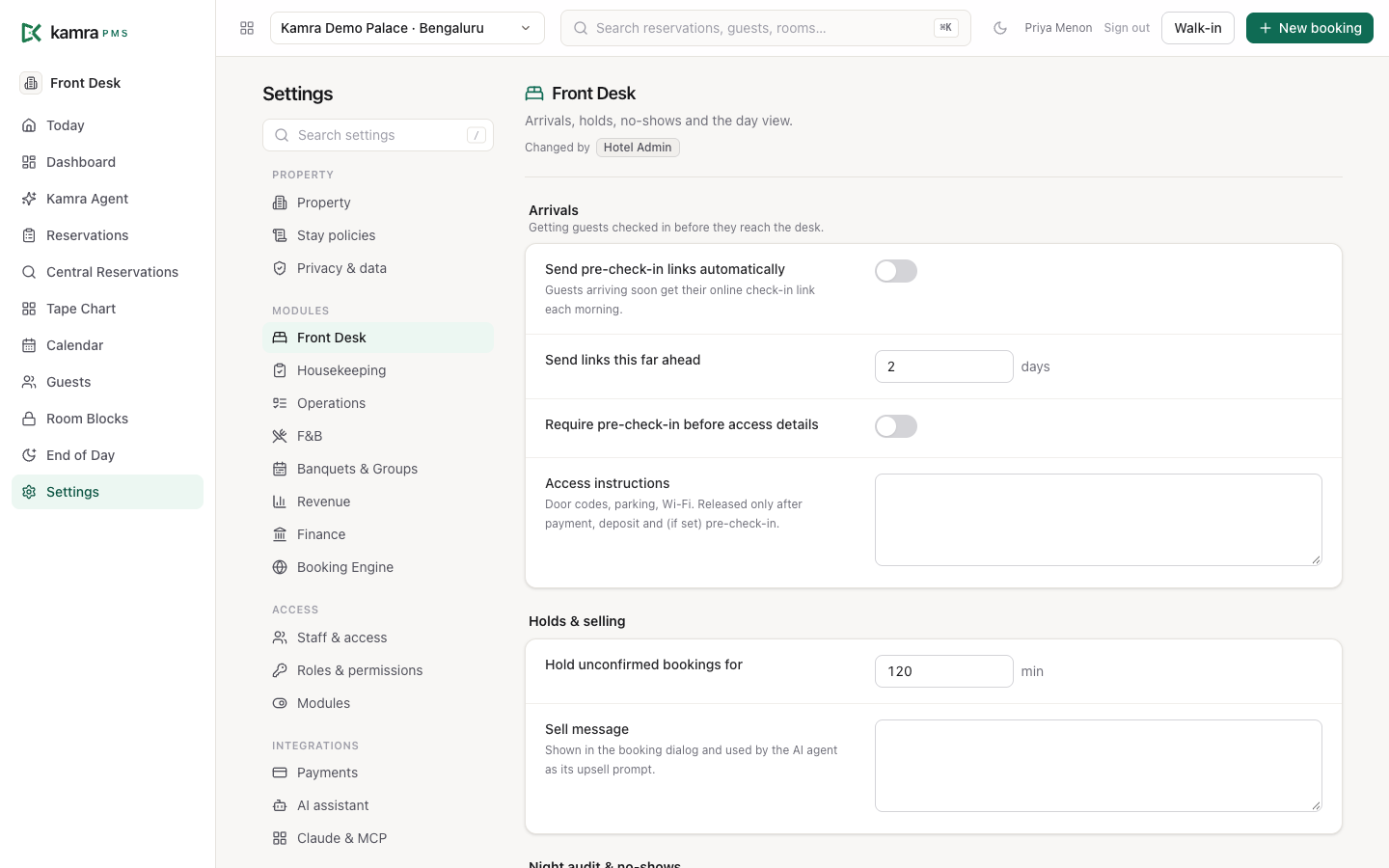
You only see the pages your role may change. The Changed by line under each page title lists those roles; Hotel Admin can change all of them.
The pages
| Page | What's on it | Guide |
|---|---|---|
| Property | Name, legal name, logo, country (which selects the tax and invoicing pack), currency, time zone, address, tax registration number | Country setup |
| Stay policies | Check-in and check-out times, minimum stay, free cancellation window, cancellation and no-show fees, deposits | Reservations |
| Privacy & data | How long guest data and messages are kept, the privacy contact | |
| Front Desk | Arrivals, holds, no-shows and the day view | Front desk |
| Housekeeping | Task deadlines, room turnover and laundry pricing | Housekeeping |
| Operations | Guest request deadlines by priority | Operations |
| F&B | Auto-accept KOT, void slips, table reservation window, kitchen printers, POS speed check | F&B |
| Banquets & Groups | Quotation margins, payment milestones, follow-ups | Banquets |
| Revenue | How far the house may oversell, demand pricing | Revenue |
| Finance | Room tax, fees, cashier controls (PIN, cash refund limits) | Billing |
| Booking Engine | The public /book page: on or off, instant or request to book, how guests pay | Booking engine |
Pages for the parts of Kamra you can switch off (Housekeeping, Operations, F&B, Banquets, Revenue, Booking Engine…) have a Module on switch at the top. Only Hotel Admin can switch modules. A module that's off disappears from the side bar for everyone, and its tools are hidden from AI agents.
Add staff and give access
Settings → Staff & access lists everyone who can sign in, with their roles and the properties they can reach.
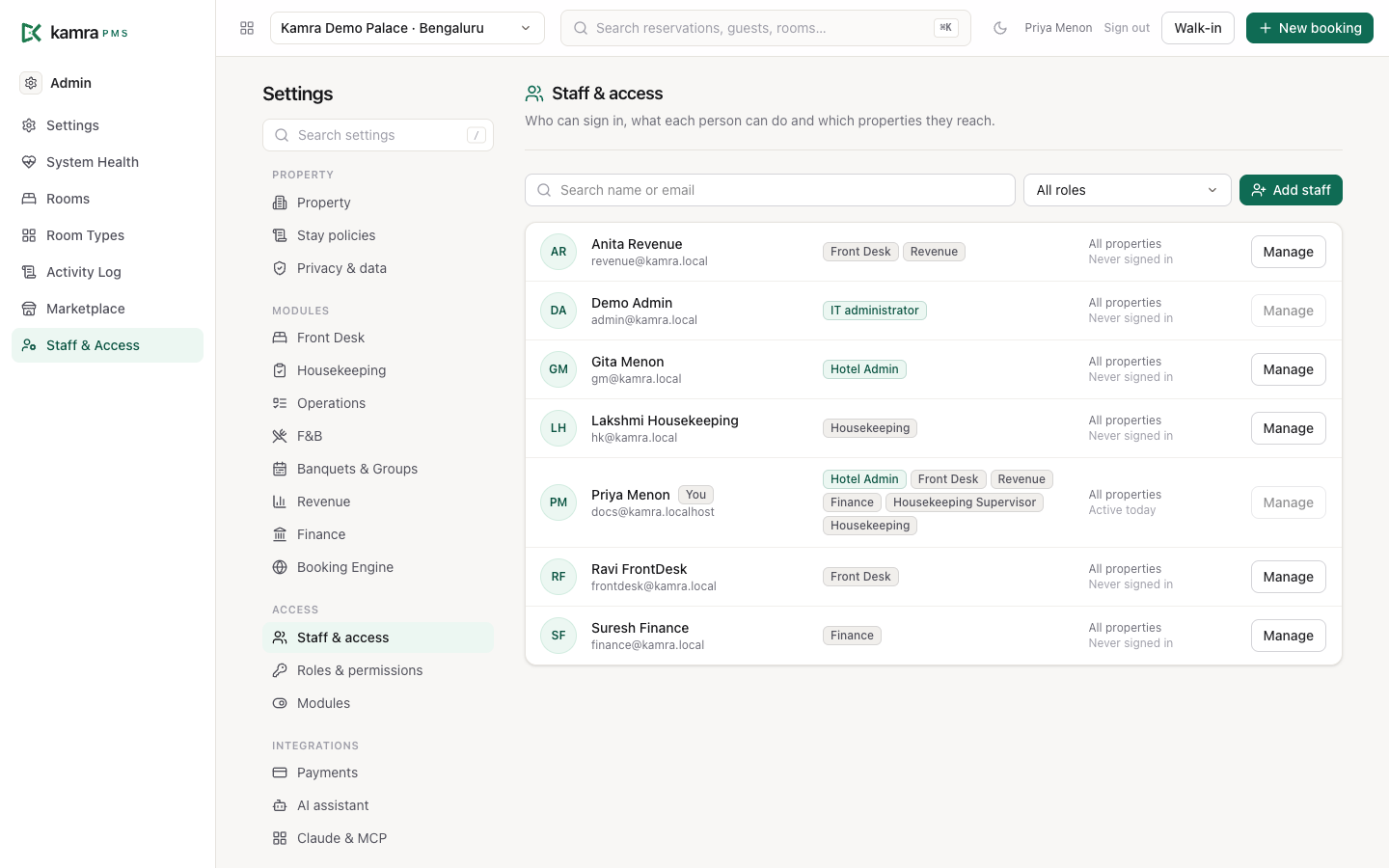
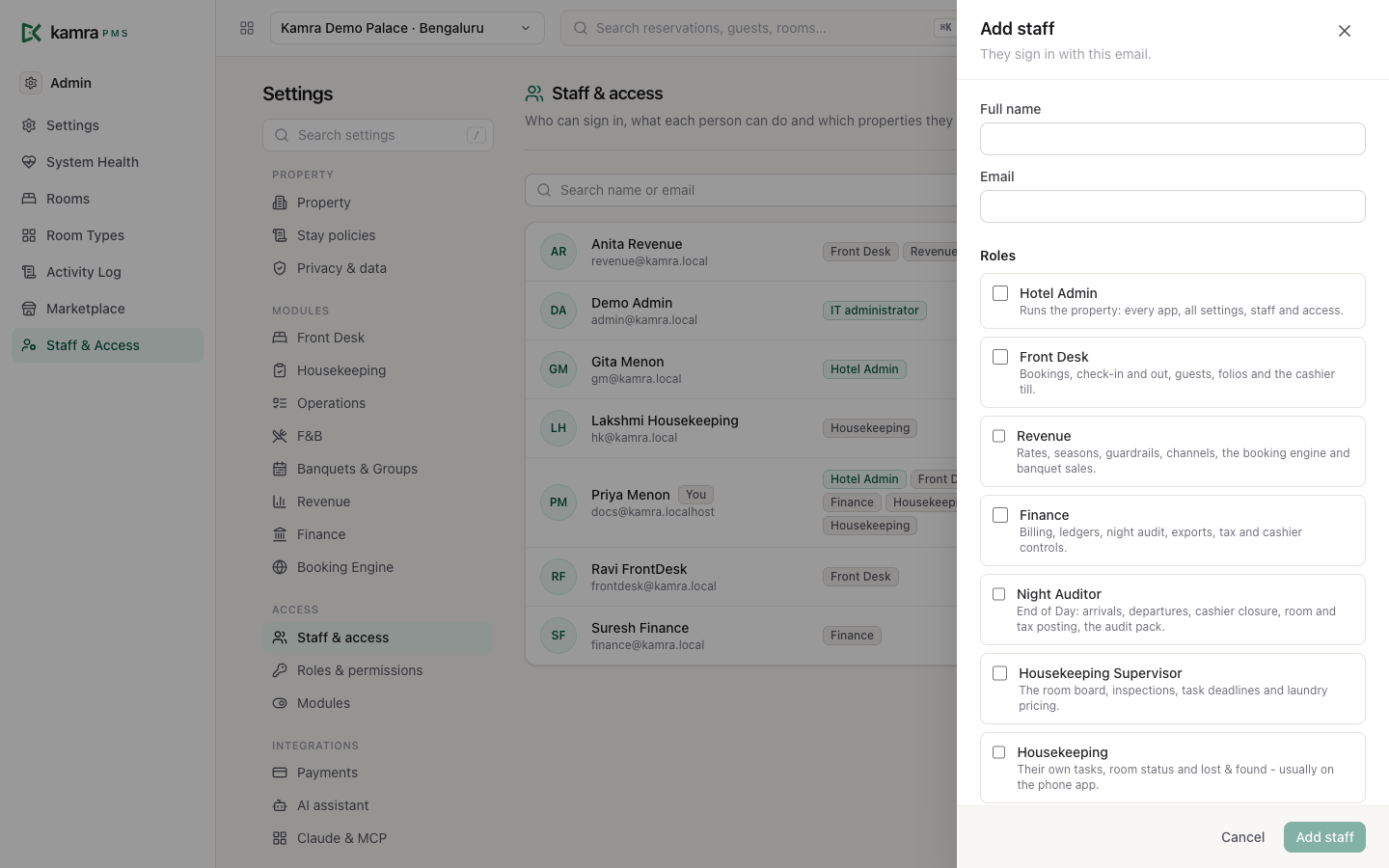
- Press Add staff.
- Enter their Full name and Email (they sign in with it).
- Tick their Roles. Each role says what it opens.
- Choose Property access: all properties (including ones added later), or only some.
- Leave Email them a link to set a password on to send an invite, or turn it off and share access yourself.
To change someone later, press Manage on their row. From there you can change roles and properties, Reset cashier PIN, or Deactivate them. Deactivated staff can't sign in, and their history stays. You can't change your own access, and only IT can change an IT administrator.
What each role can do
Settings → Roles & permissions shows which apps each role opens and which settings pages it may change. Roles are fixed bundles: every screen, API call and AI tool checks them on the server.
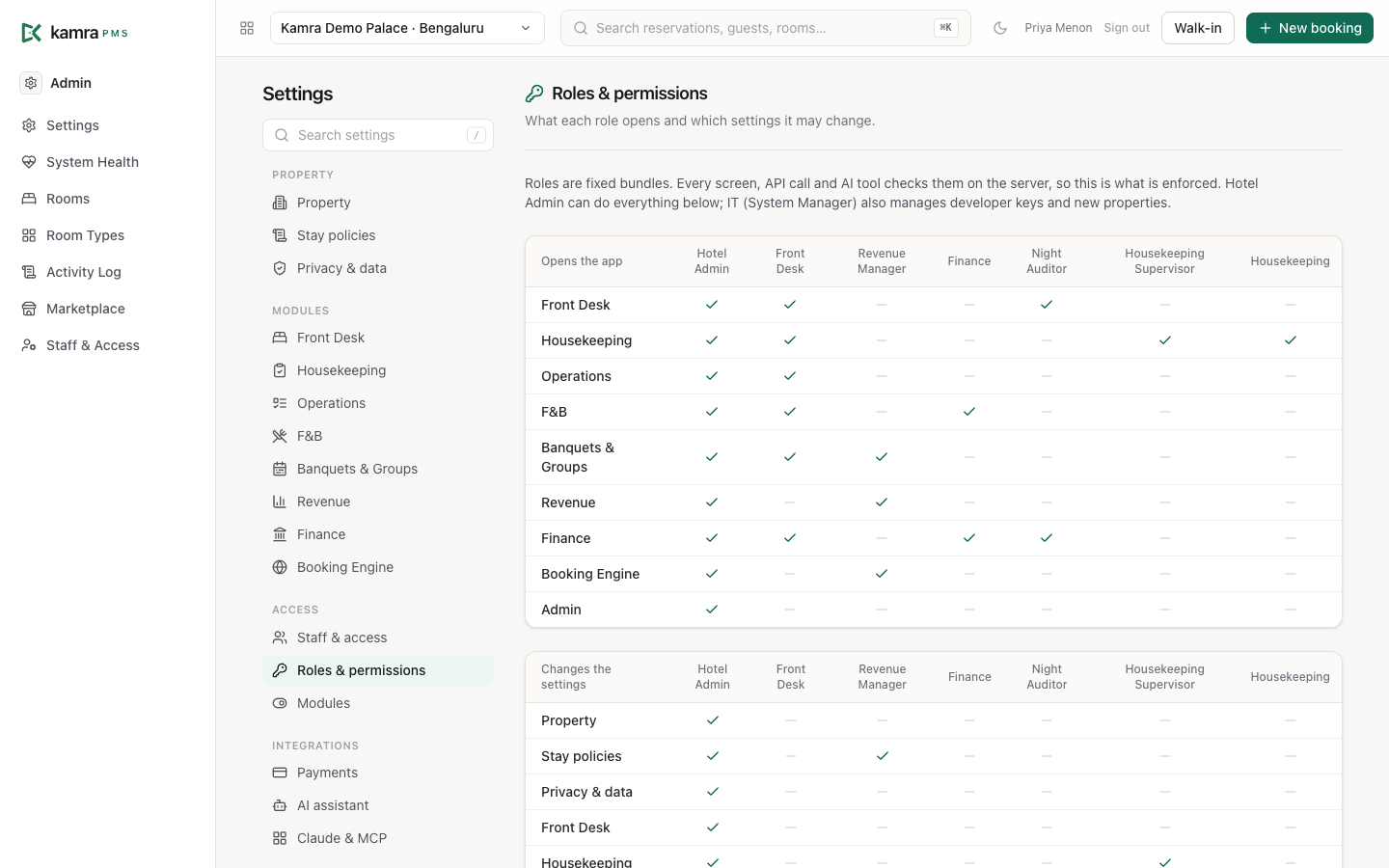
| Role | Day to day |
|---|---|
| Hotel Admin | Runs the property: every app, all settings, staff and access |
| Front Desk | Bookings, check-in and out, guests, folios, the cashier till |
| Revenue Manager | Rates, seasons, guardrails, channels, the booking engine, banquet sales |
| Finance | Billing, ledgers, night audit, exports, tax and cashier controls |
| Night Auditor | End of Day: arrivals, departures, cashier closure, the audit pack |
| Housekeeping Supervisor | The room board, inspections, task deadlines, laundry pricing |
| Housekeeping | Their own tasks, room status, lost & found, usually on the phone app |
IT (System Manager) also manages developer keys and adds properties.
Switch modules off
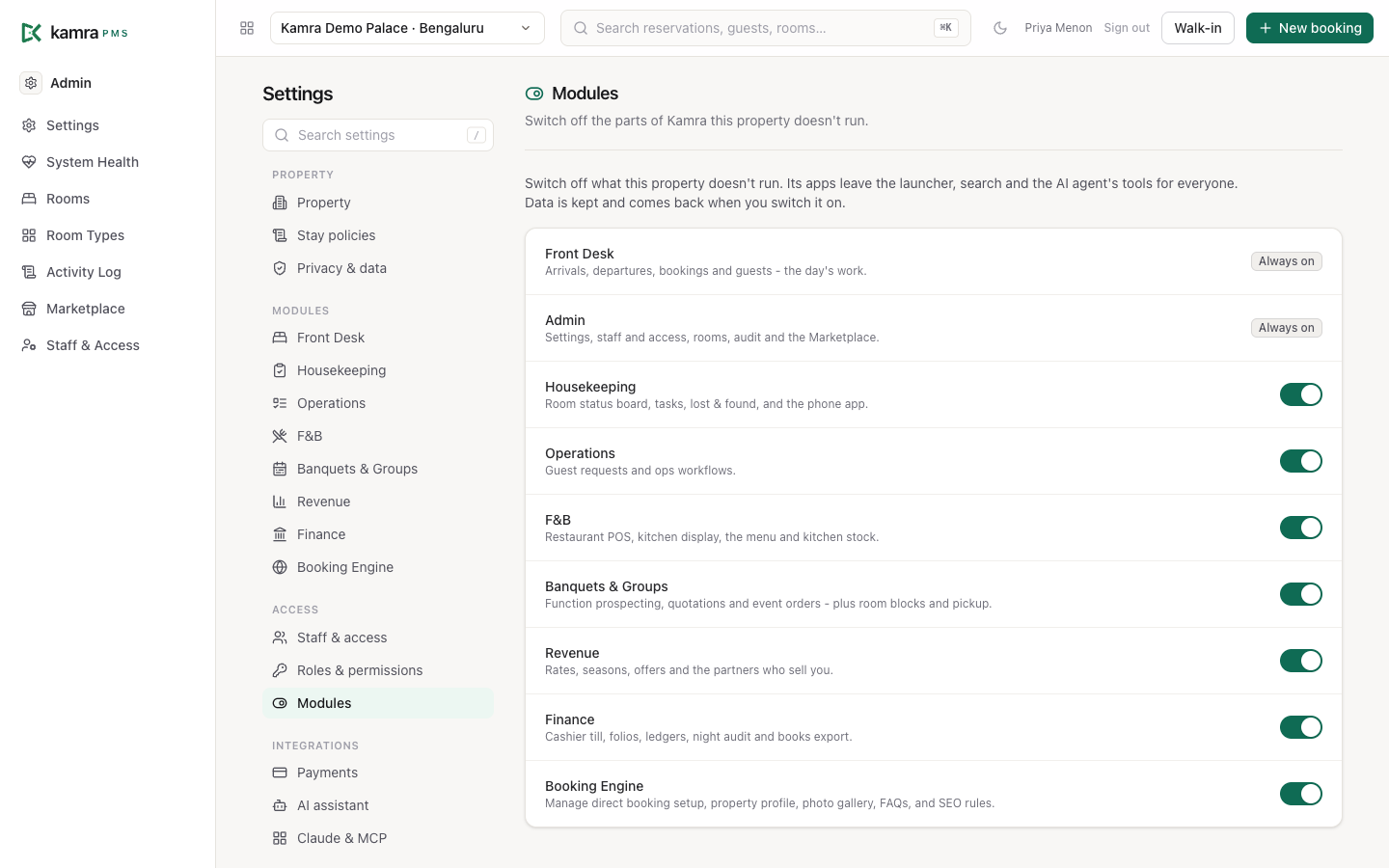
Settings → Modules lists every module with its switch, so you can turn off what this property doesn't run (a guesthouse with no restaurant turns F&B off). Its apps leave the launcher, search and the AI agent's tools for everyone. Front Desk and Admin are always on. Nothing is deleted; switching a module back on brings it back as it was.
Integrations
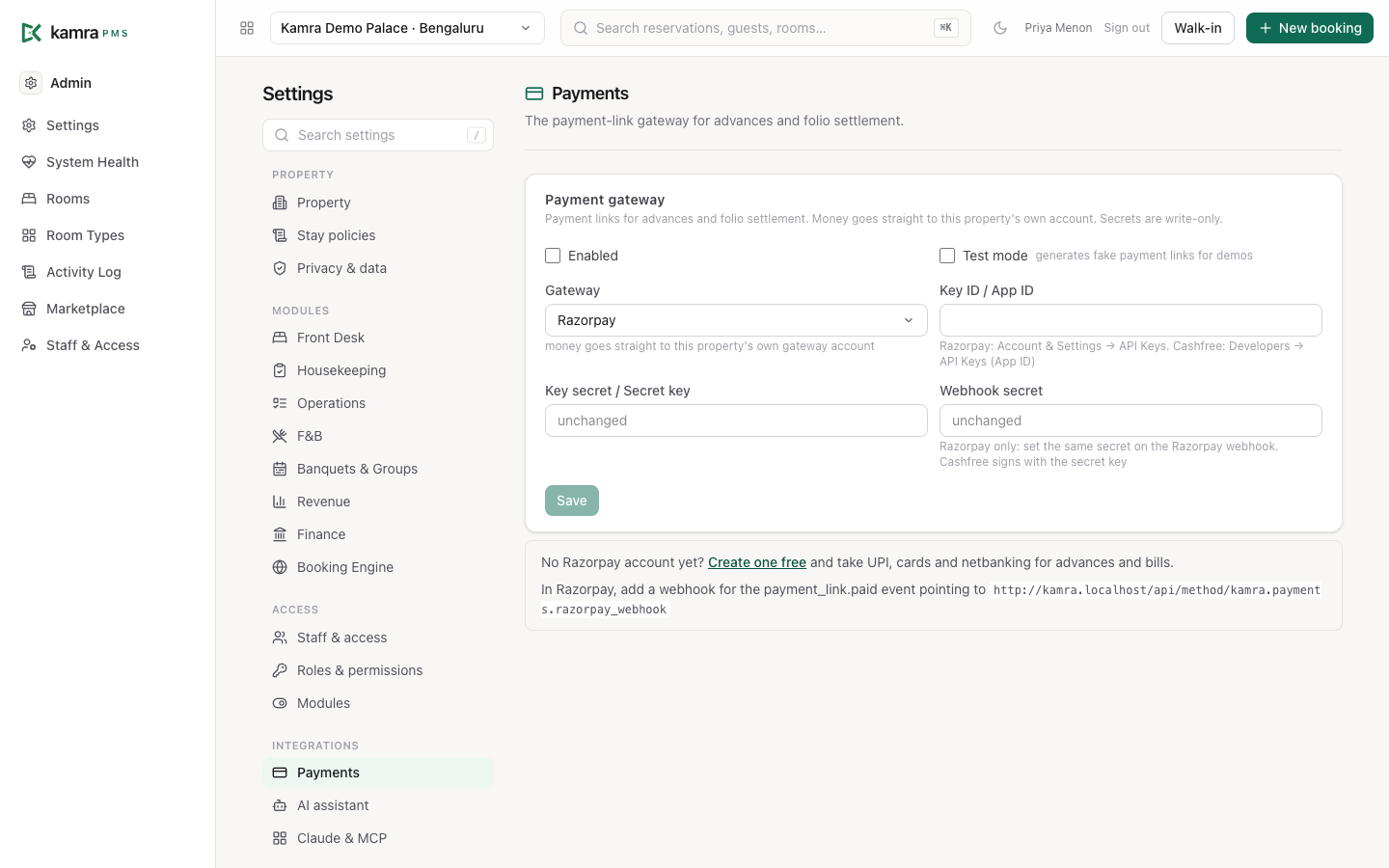
Payments: the gateway used for payment links (advances, deposits, folio settlement). Which gateways are offered depends on the country pack. See Billing.
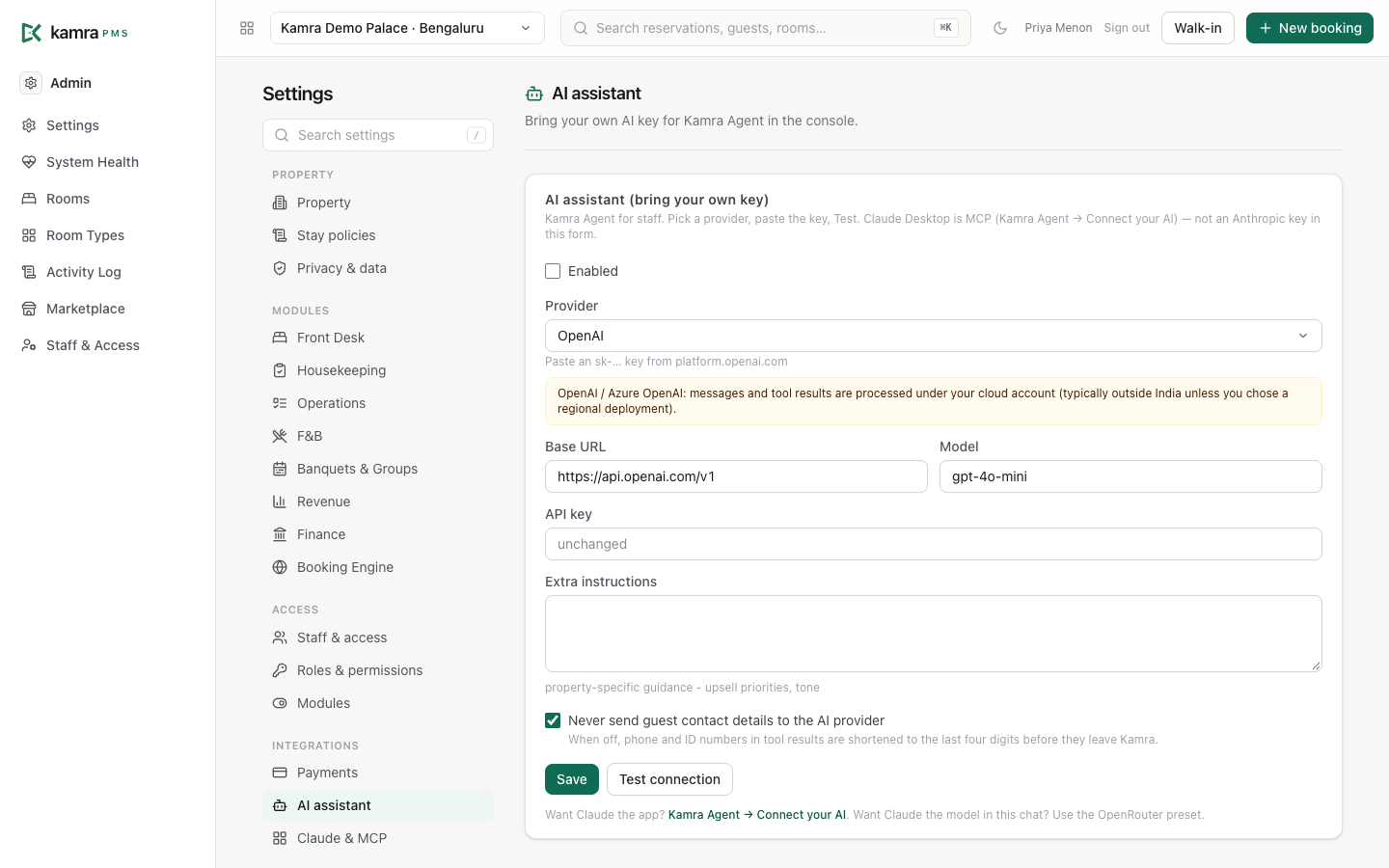
AI assistant: bring your own AI key (any OpenAI-compatible service) for Kamra Agent in the console. Guest contact and ID fields are removed before anything is sent to the model.
Claude & MCP: let staff connect Claude to this property's tools. See Connect your AI.
ZATCA e-invoicing: shown for Saudi Arabia only. See Country setup.
Appearance
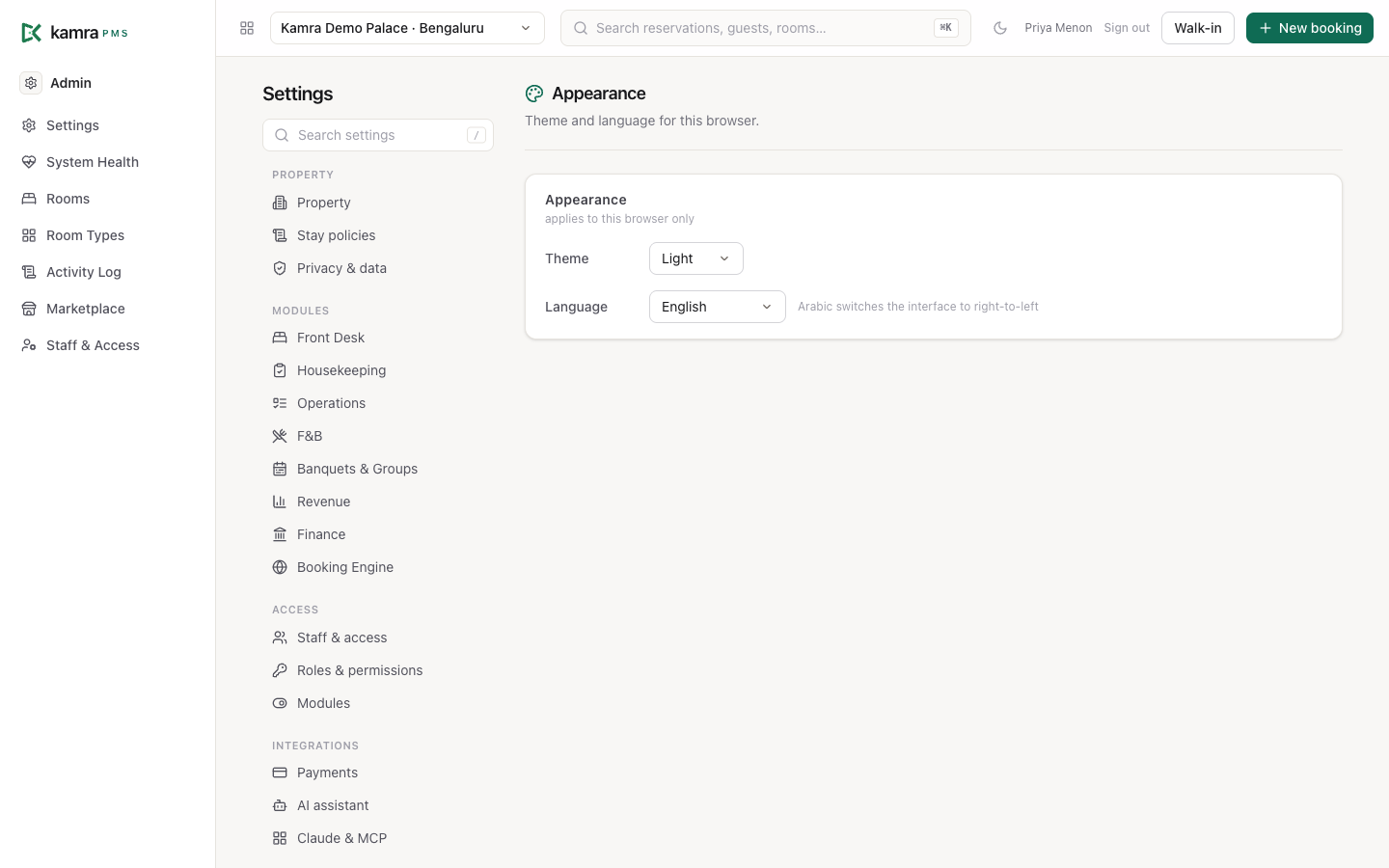
Settings → Appearance sets the theme (light, dark or follow the system) and the language for this browser only. Choosing Arabic switches the layout to right to left.
Good to know
- Settings are per property. With several properties, switch property at the top of the screen before changing them.
- Nothing else writes these values: the night audit, booking engine and POS all read the same settings, so a change takes effect at once.
- The Activity Log (Admin → Activity Log) shows who changed which setting, when, from what to what.
For developers
Pages and values come from one registry in kamra/settings.py (settings_schema, save_settings); code reads a value with get_setting(property, key). Staff and roles are in kamra/staff.py. See the API reference.