

Banquets & Groups - functions from enquiry to close-out
The Banquets & Groups app runs the function business: weddings, conferences, launches, parties. One function sheet carries a function from the first call through the quotation, the event order and the money, to closing the hall on the night. Front Desk and Revenue Manager staff work on functions; Finance and Housekeeping can read them.
Before you start
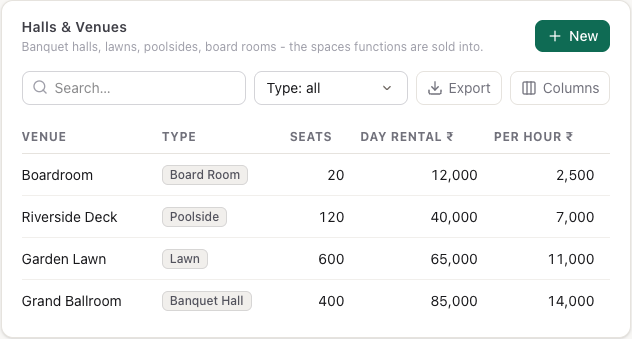
Add your halls. Banquets & Groups → Halls & Venues → New. Enter the Venue name, Type, Seats (maximum pax), Minimum pax it's worth opening for, Day rental, Hourly rental, Minimum hours, the rental tax rate and Layouts it takes.
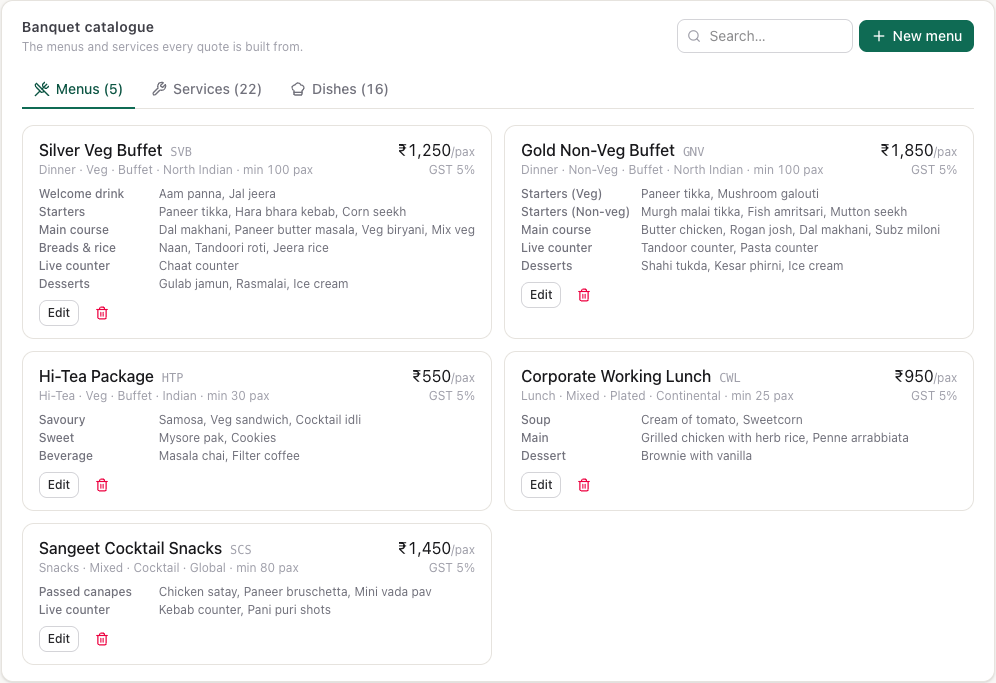
Build the catalogue. Banquets & Groups → Menus & Services. A menu has a Rate per pax, a Minimum pax and its courses. A service is everything else - LED wall, podium, DJ, decor, bar, staffing - with a rate and whether it's Chargeable by default. Dishes hold recipes, so the margin can count food cost.
Check the defaults. Banquets & Groups → Settings: target and floor margin, the default payment milestones and how soon to follow up an enquiry. See Settings.
Find a free hall
- Month Availability shows every hall by session (morning, afternoon, evening) for a month. Click an open slot to start an enquiry on it. The bar at the top counts the weekend evenings still open.
- Function Diary shows each hall for a fortnight. Click a day to check it, or a function to open it. Check a date looks up one date.
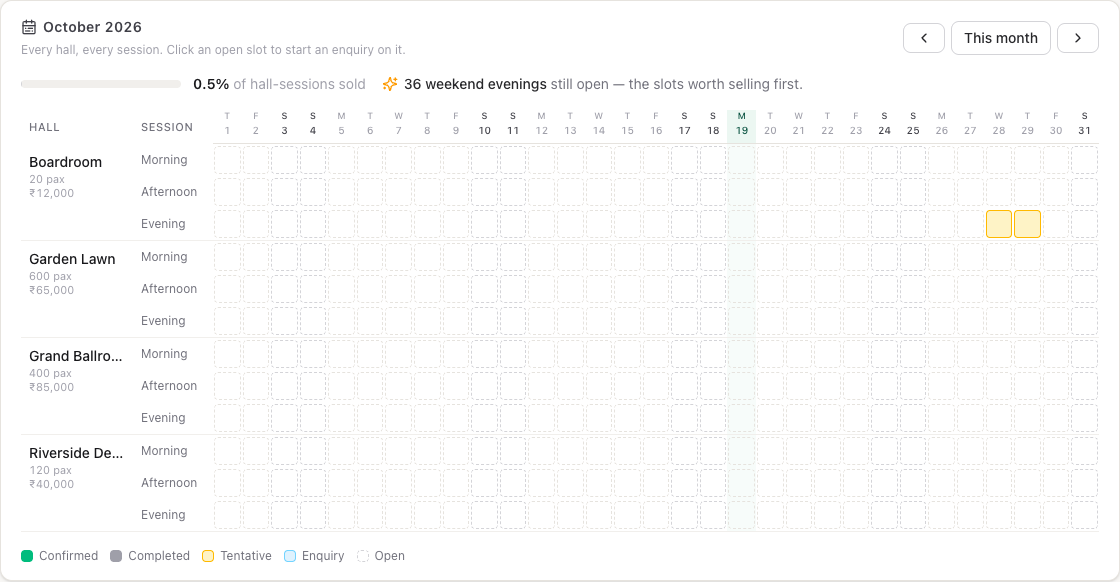
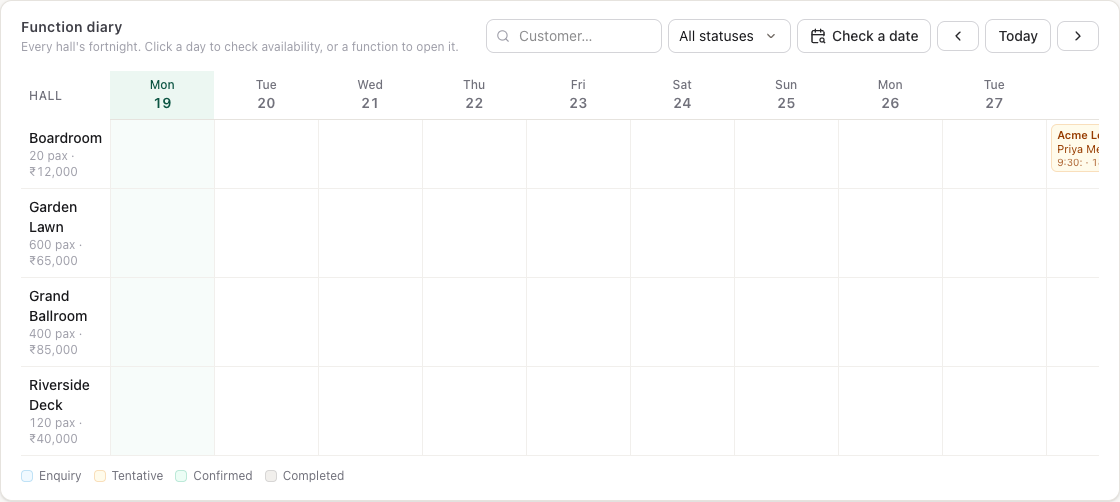
A confirmed function owns the hall. A tentative hold is a soft hold: the hall shows as held, but you can still sell over it. Two functions can share a hall on one day as long as their hours don't overlap.
Take an enquiry
- On Banquets, click New enquiry.
- Enter the Customer name, Phone and Email. Pick a Company for corporate business; it decides which folio the bill goes to.
- Pick the Event type, Date (and Ends for a multi-day function), Expected pax and Session. A session (Evening and so on) sets the hours and is saved on the function. Choose Custom Hours to give your own From and To.
- Pick where the guest Came from.
- Under Which hall, pick a hall. Halls that are taken can't be picked; Kamra warns when a hall is smaller than the pax count.
- Write What they asked for in the guest's words.
- Click Open the enquiry.
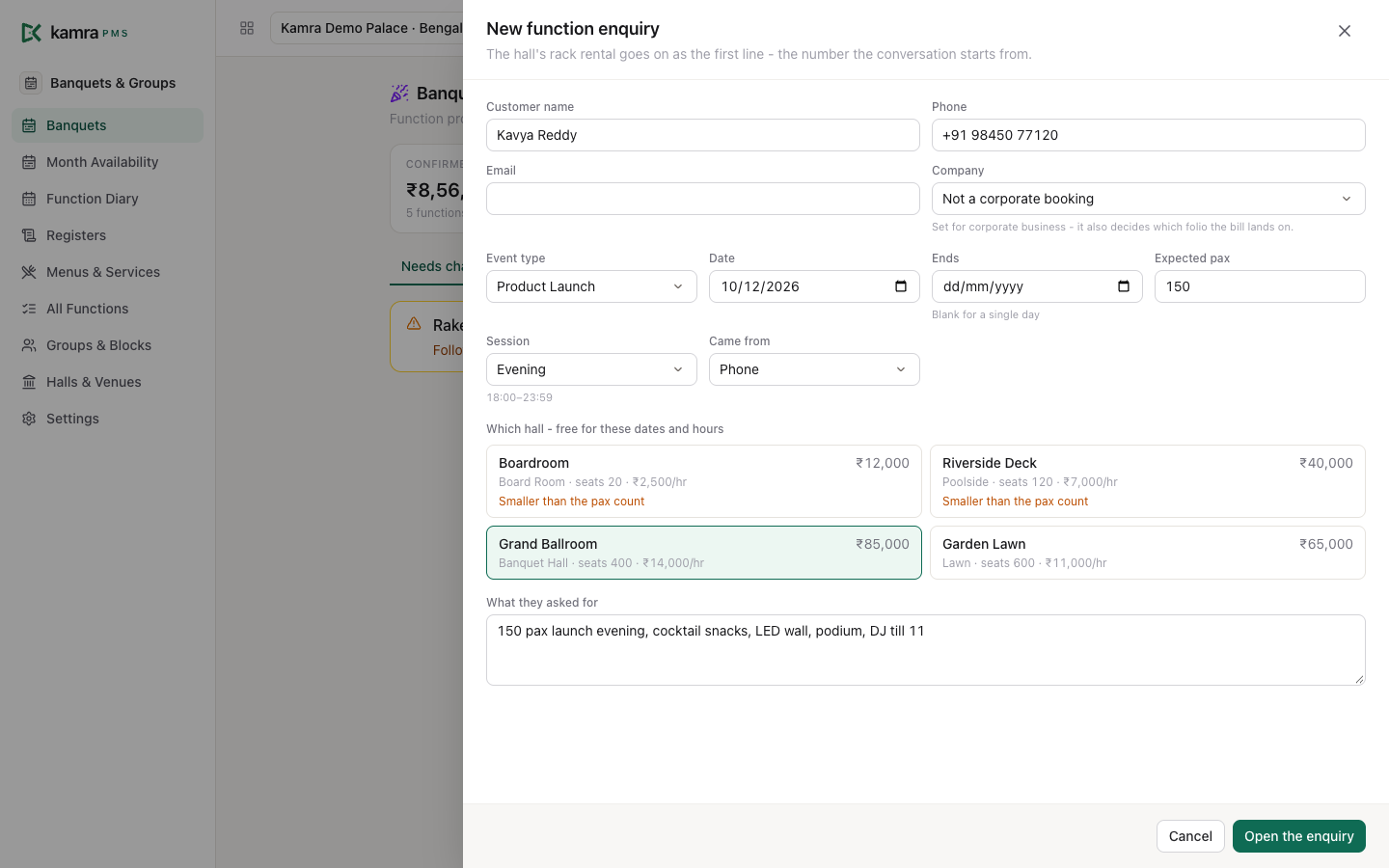
The hall's rental goes on the quote as the first line, and a follow-up date is set (2 days by default).

Work through the function sheet
The sheet has six steps across the top. Each one shows a tick when it's done, or the one thing still missing. You can open any step at any time.
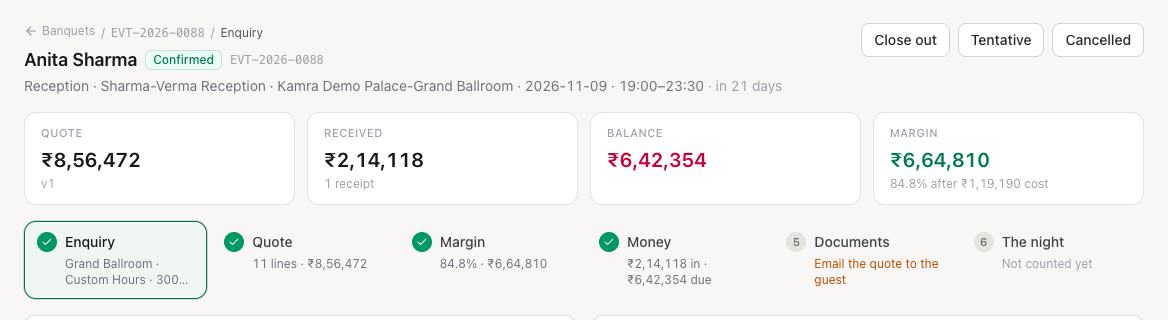
| Step | What you do there |
|---|---|
| Enquiry | Event details, setup style, guaranteed pax, contact, billing and tax details, green room, notes. |
| Quote | The lines, discount and service charge. |
| Margin | Revenue against cost, and the kitchen indent. |
| Money | Payment terms and receipts. |
| Documents | Quotation, contract, event order, pack list, invoice. |
| The night | Count what was served, damages, deposit, close-out. |
Build the quote
- Open the Quote step.
- Click + Menu and Add a menu package. Its quantity follows the guaranteed pax.
- Click + Service and Add what they're buying. Click Free instead to give it away: it costs nothing on the quote but still prints on the event order and pack list.
- Change Agreed to the negotiated rate on any line. The Rack column keeps the list price.
- Optional: Discount on the whole quote and Service charge %.
- Click Save & reprice.
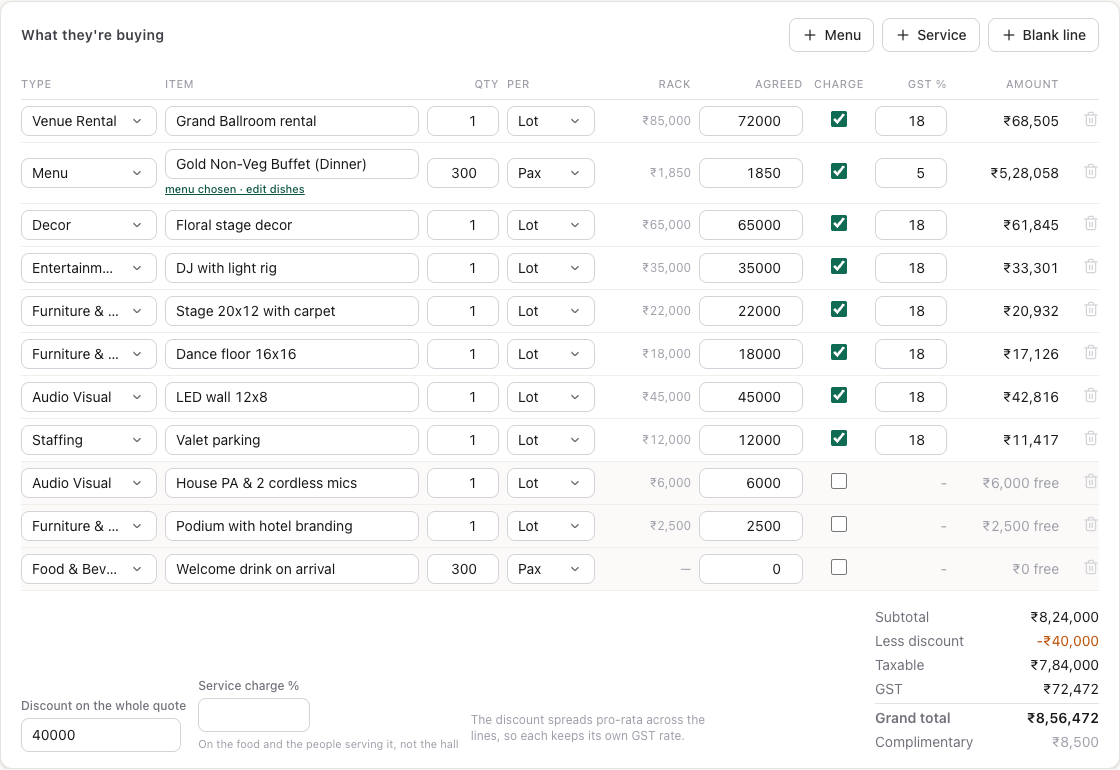
A discount on the whole quote spreads across the lines in proportion, so each line keeps its own tax rate. Every change is recorded under How the price moved, with what the quote was worth before and after. Things still being agreed go under Open items, each with what agreeing it would do to the price.
The Margin step shows revenue, cost and margin. Choose the menu's dishes (or put a cost on the services in the catalogue) for the margin to count them. Quotes below the floor margin are flagged.
Send the quotation
- Open the Documents step.
- Click Stamp quote v1. This numbers the quotation and sets it valid for 15 days. Stamp again after a change to issue the next version.
- Click Email to guest or WhatsApp guest. Email needs a customer email on the Enquiry step; WhatsApp needs a phone and a connected WhatsApp number.
- Click Open on any document to view or print it.
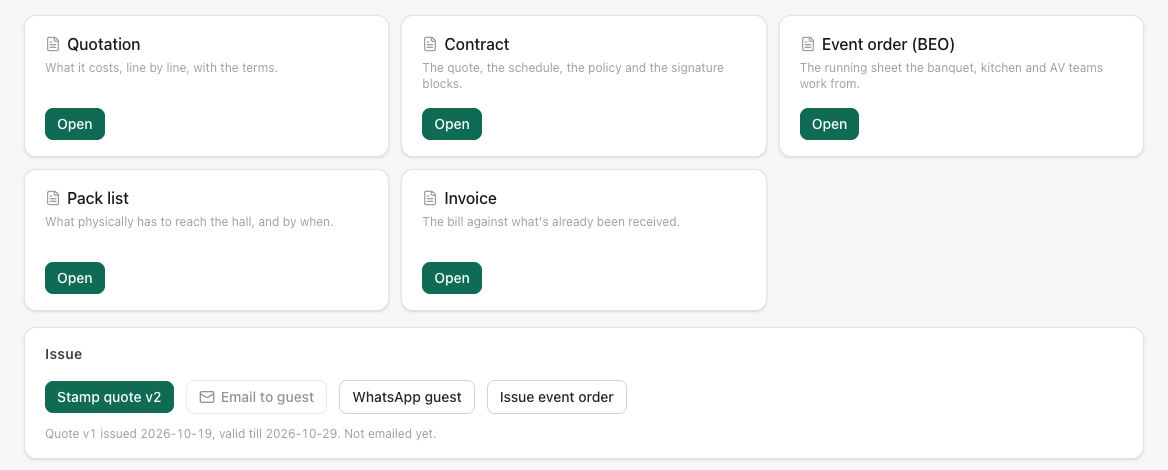
If a quote goes 3 days with no reply, the function shows on the morning list, and Kamra emails the guest a reminder when it has their email.
Record the guest's answer and confirm
- On the function, click Guest response.
- Pick the Outcome (Confirmed, Changes Requested, Declined) and how you Heard via (phone, email, WhatsApp).
- Leave Also move the function to Confirmed ticked to confirm it now.
- Click Save response.
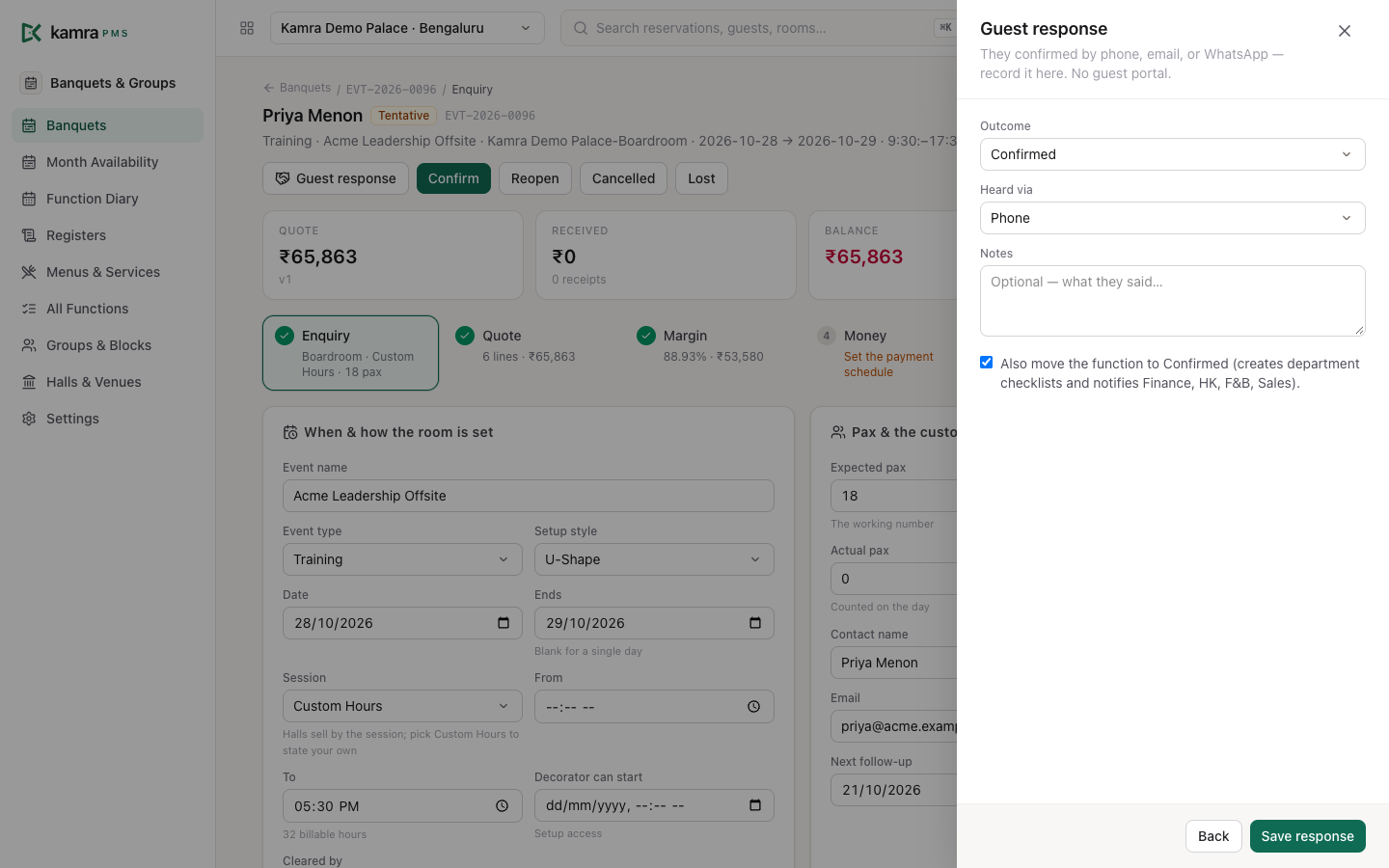
You can also move a function with the buttons at the top: Tentative, Confirm, Cancelled, Lost, and Reopen to bring a tentative, cancelled or lost function back to an enquiry. Cancelled and Lost ask why; the reason is kept for the pipeline report. On a confirmed function, Close out opens The night step (see Close out the night).
When a function is confirmed, Kamra creates the Department checklist
- Sales, Finance, Housekeeping and F&B tasks with due dates counted back from the event - and tells those teams.
Take payments
- Open the Money step.
- Click Use the usual schedule to set the default milestones (advance at confirmation, an interim payment, the balance on completion), or Add your own. Click Save terms.
- When money comes in, click Record money in. Enter the Amount, What is it (Advance, Payment, Security Deposit, Refund), How, a Reference, and which milestone it Ticks off.
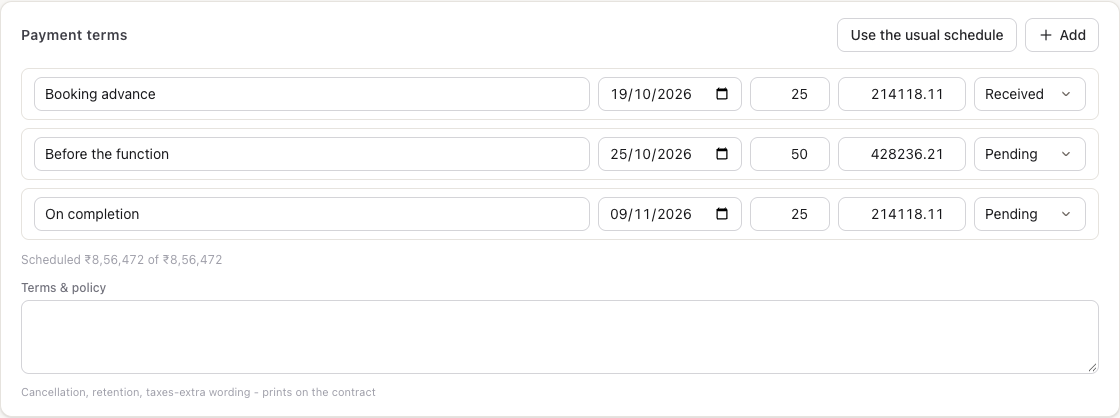
A percentage milestone follows the quote when it changes; a fixed amount stays put. A security deposit is held money, not payment: it never comes off the bill.
Put the function on the group's bill
To put the function on the same bill as the guests' rooms, tie it to their group booking:
- In Group booking (on the Enquiry step's billing card, or on the Money step next to Post to the bill), pick the group.
- Click Tie to group.
- Once the function is confirmed, click Post to the bill. It posts to the group's master folio (see Billing).

The list shows this hotel's groups, not cancelled, staying within a month either side of the event. A group already tied to another function is greyed out. Pick Not tied to a group and click Untie to undo it. Once the function is billed or completed, its group can't change.
Issue the event order
- Confirm the function.
- On Documents, click Issue event order.
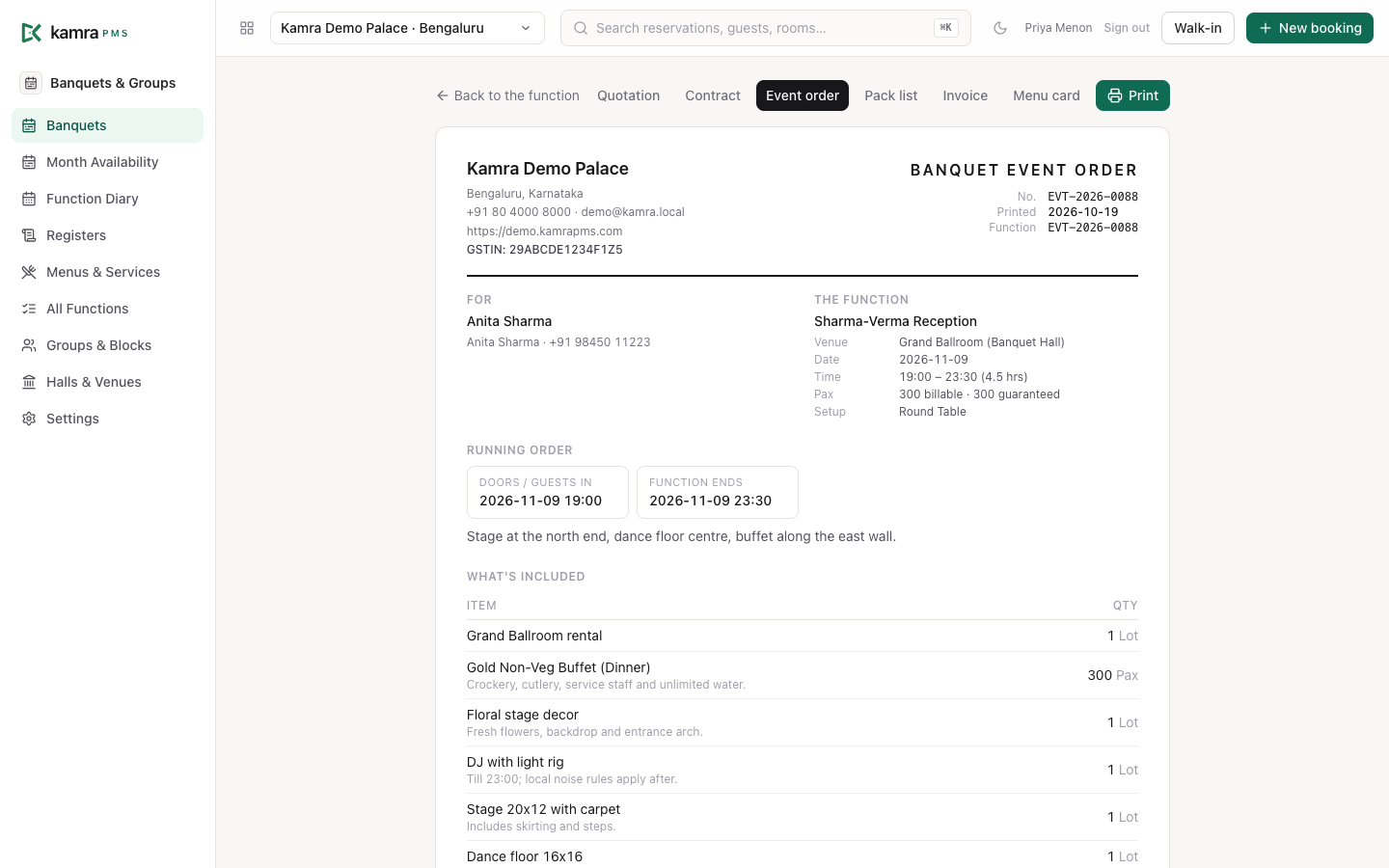
- Click Open on Event order (BEO) and Print.
The event order is the running sheet for the banquet, kitchen and AV teams: venue, timings, pax, setup, every line (free ones too) with menus expanded into courses, and the event order notes. The Pack list says what has to reach the hall and by when.
Close out the night
- After the function, open The night.
- Click Close out the function.
- Enter Covers actually served. The bill uses the guaranteed pax or the actual count, whichever is higher.
- If something was broken, enter what to Deduct from the deposit and What was damaged.
- Leave Return the deposit balance now ticked to refund the rest, and pick how.
- Click Close it out.
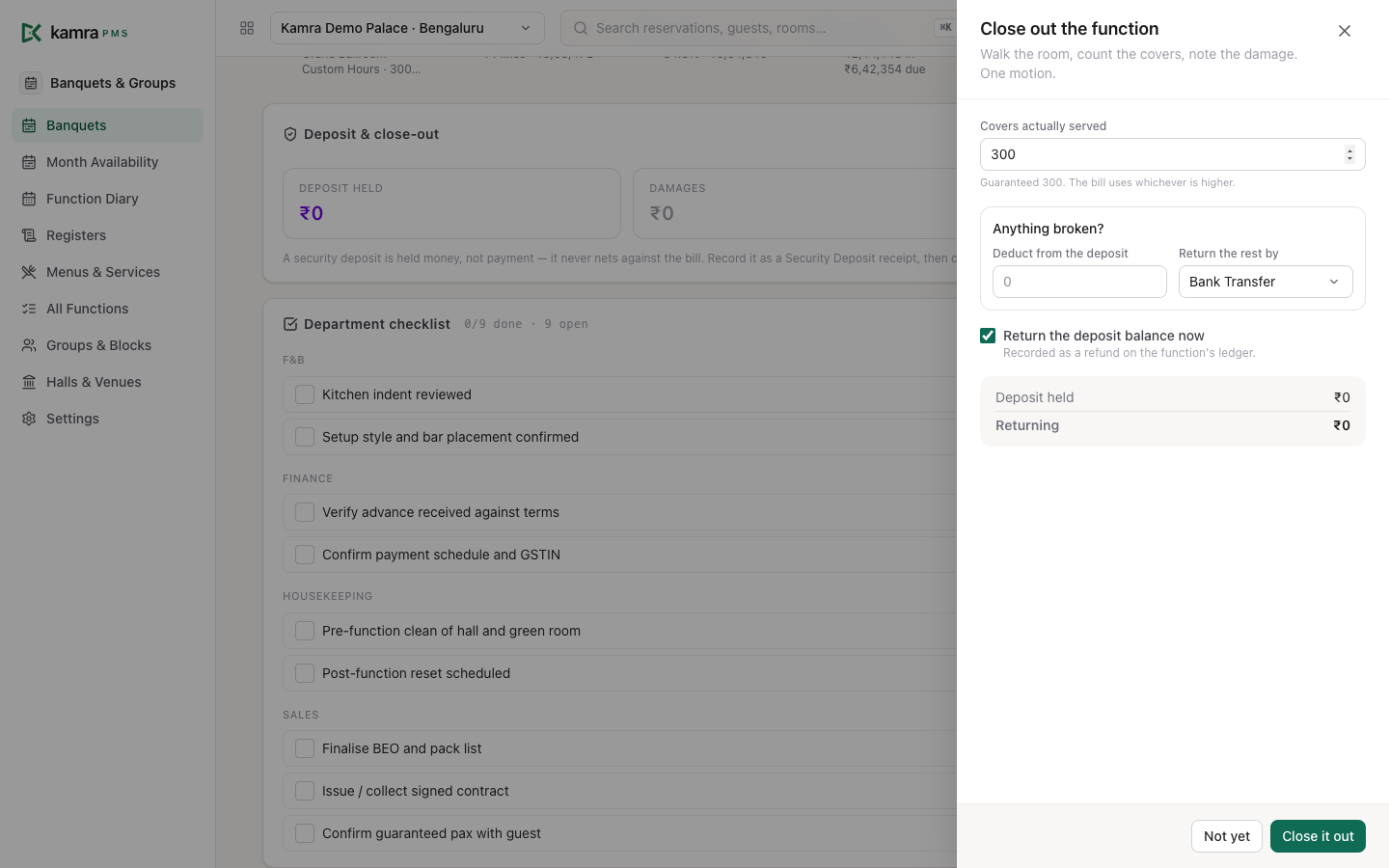
The function becomes Completed. Damages are kept as a charge on the function, and the refund is a line on its ledger.
Reopen a closed function
A Revenue Manager, Finance or Hotel Admin user can reopen a Completed function to correct the sheet:
- Click Reopen at the top of the function.
- Write Why reopen it? (required) and click Reopen.
The function goes back to Confirmed, and the reason goes on its notes and the activity log. Receipts, refunds and damages already recorded stay as they are. On The night, click Close it again: this time it only re-counts the covers. Bill anything further as a line on the function. A function already posted to a folio can't be reopened; correct the bill on the folio instead.
Print the registers
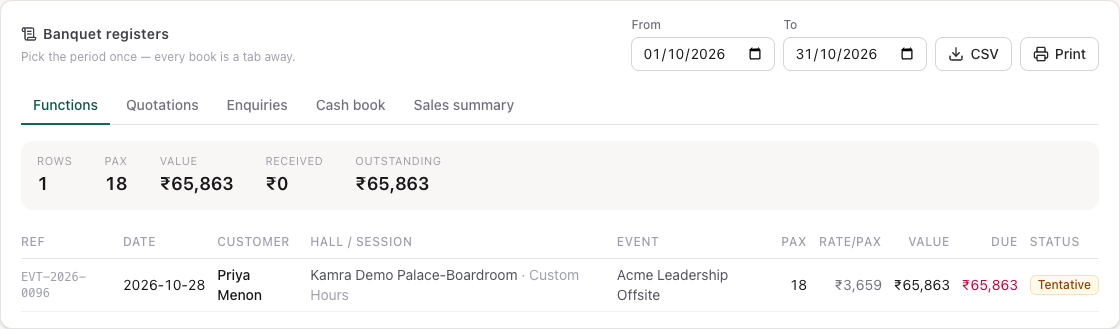
Banquets & Groups → Registers: pick the period once, then switch between Functions, Quotations, Enquiries, Cash book and Sales summary. Each has CSV and Print.
Block rooms for a group
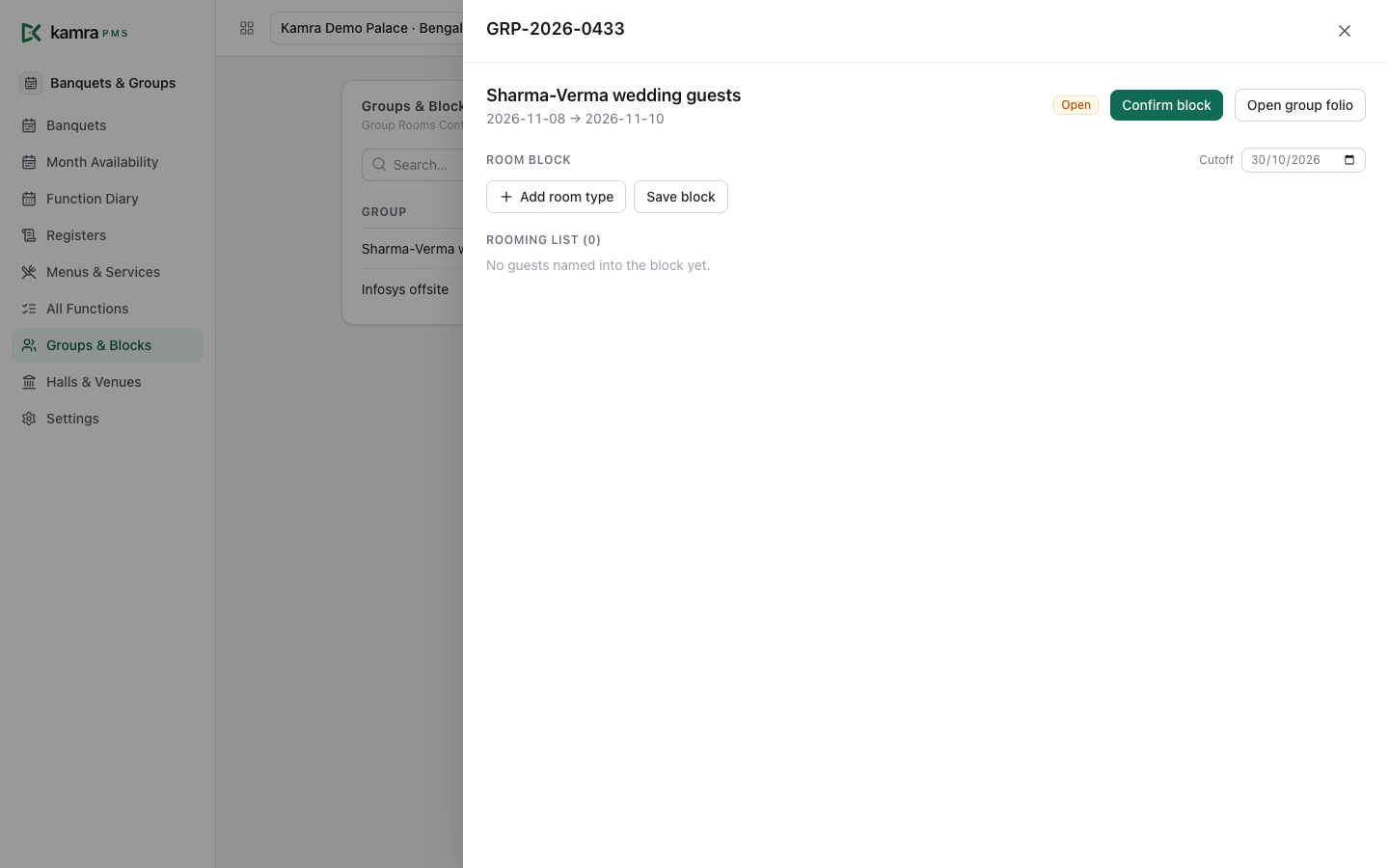
For the guests' rooms, use Groups & Blocks:
- Click New, enter the Group name, Arrival, Departure and Block cutoff, and Save.
- Open the group. Click Add room type, enter how many rooms, and Save block.
- Click Confirm block when the guest agrees.
- As names come in, use Pick up a room to book a guest into the block. Unsold blocked rooms go back on sale after the cutoff.
To hold a changing room for the wedding party, use Green room on the function's Enquiry step. It puts a real room block on that room, so it leaves sellable inventory.
Settings
Banquets & Groups → Settings:
| Setting | Default | What it does |
|---|---|---|
| Target margin | 40% | The margin quotes aim for. |
| Floor margin | 25% | Quotes below this are flagged for approval. |
| Advance at confirmation | 25% | First milestone on a new function. |
| Interim payment | 50% | Second milestone. |
| Interim due | 15 days before | When the interim falls due. |
| Follow up an enquiry after | 2 days | The follow-up date on a new enquiry. |
Good to know
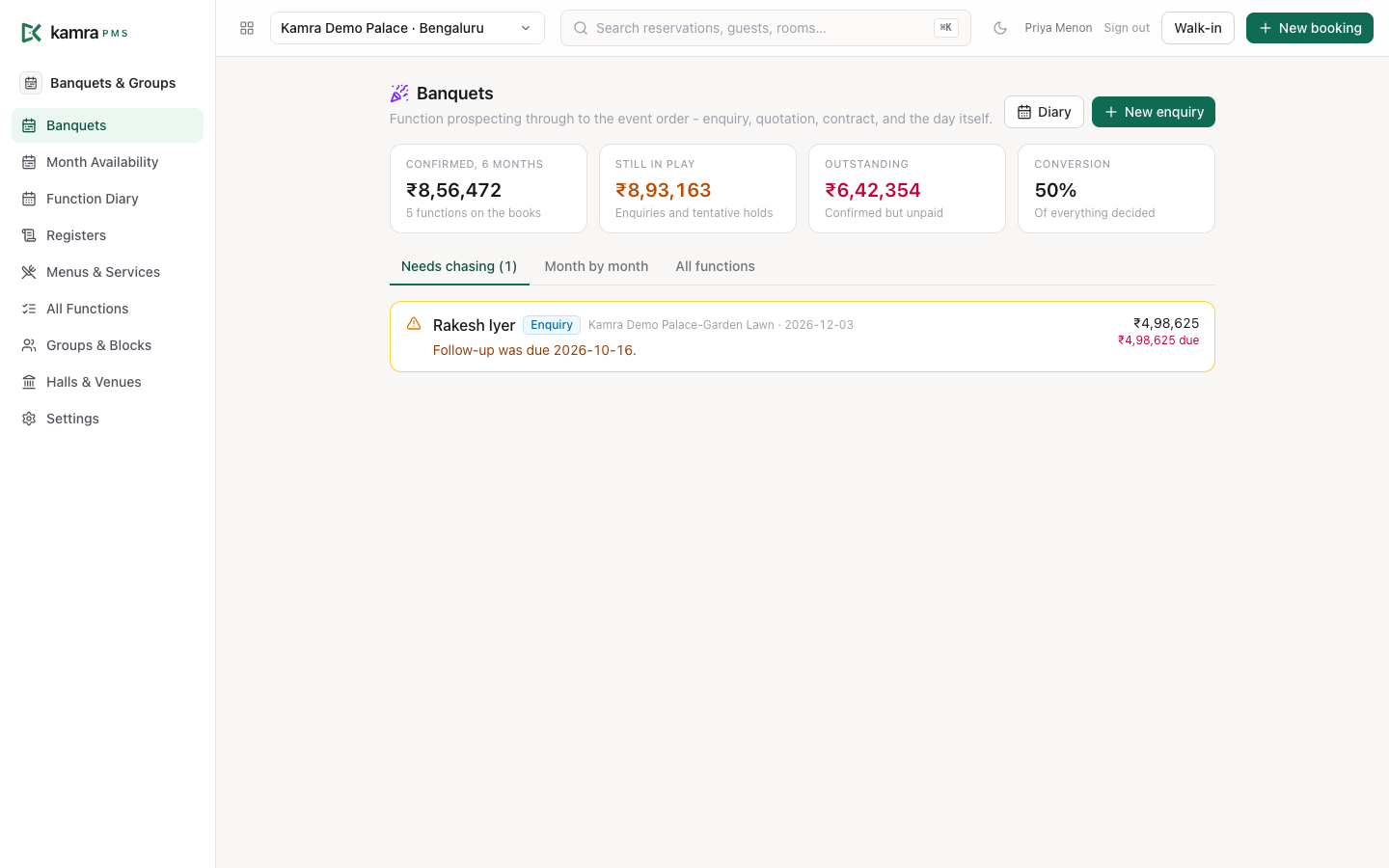
- Needs chasing on the Banquets home lists what each open function needs: follow-ups due, a quote with no reply for 3 days, tentative holds running out within 3 days, payments due, a confirmed function with no event order 7 days out, no guaranteed pax 3 days out, an unsigned contract or nothing received 14 days out, and functions that have passed but aren't closed.
- Every morning at 08:30 Kamra sends the urgent items for the next 45 days to the function's owner by WhatsApp when a number is connected, or to the Front Desk team.
- Confirming without a guaranteed pax uses the expected pax as the guarantee.
- Only a confirmed function gets an event order or can be closed out.
- A Completed function can't be edited until someone reopens it (see Reopen a closed function).
- The only way to Completed is the close-out on The night, so the covers and the deposit are always settled. The Close out button at the top takes you there.
- Alcohol never goes on a company or group bill. Post to the bill leaves those lines out, to be settled separately.
Troubleshooting
"… is already confirmed for … on …". Another confirmed function holds that hall for overlapping hours. Move one of them, or pick another hall.
Email to guest is greyed out. Stamp the quote first, and add the customer's email on the Enquiry step.
Post to the bill is greyed out. The function isn't tied to a group booking (pick one in Group booking and click Tie to group), or it's still an enquiry.
"Only a closed (Completed) function can be reopened …" or "This function is already billed to …" when reopening. Only a completed function that isn't on a folio yet can be reopened.
The margin looks too good. The yellow note on the Margin step lists the lines that have no cost yet. Choose the menu's dishes, or add a cost to the service in the catalogue.
For developers
Functions live in kamra/banquet.py and kamra/banquet_ops.py (the Venue Booking doctype). AI agents use the banquet_* tools - banquet_availability, banquet_enquiry, banquet_add_menu, banquet_quote, banquet_status, banquet_record_receipt, banquet_link_group, banquet_close_out and more. Reopening a closed function is kamra.banquet.reopen_function (no MCP tool). See MCP tools and the API reference.