
Booking engine - your direct booking page
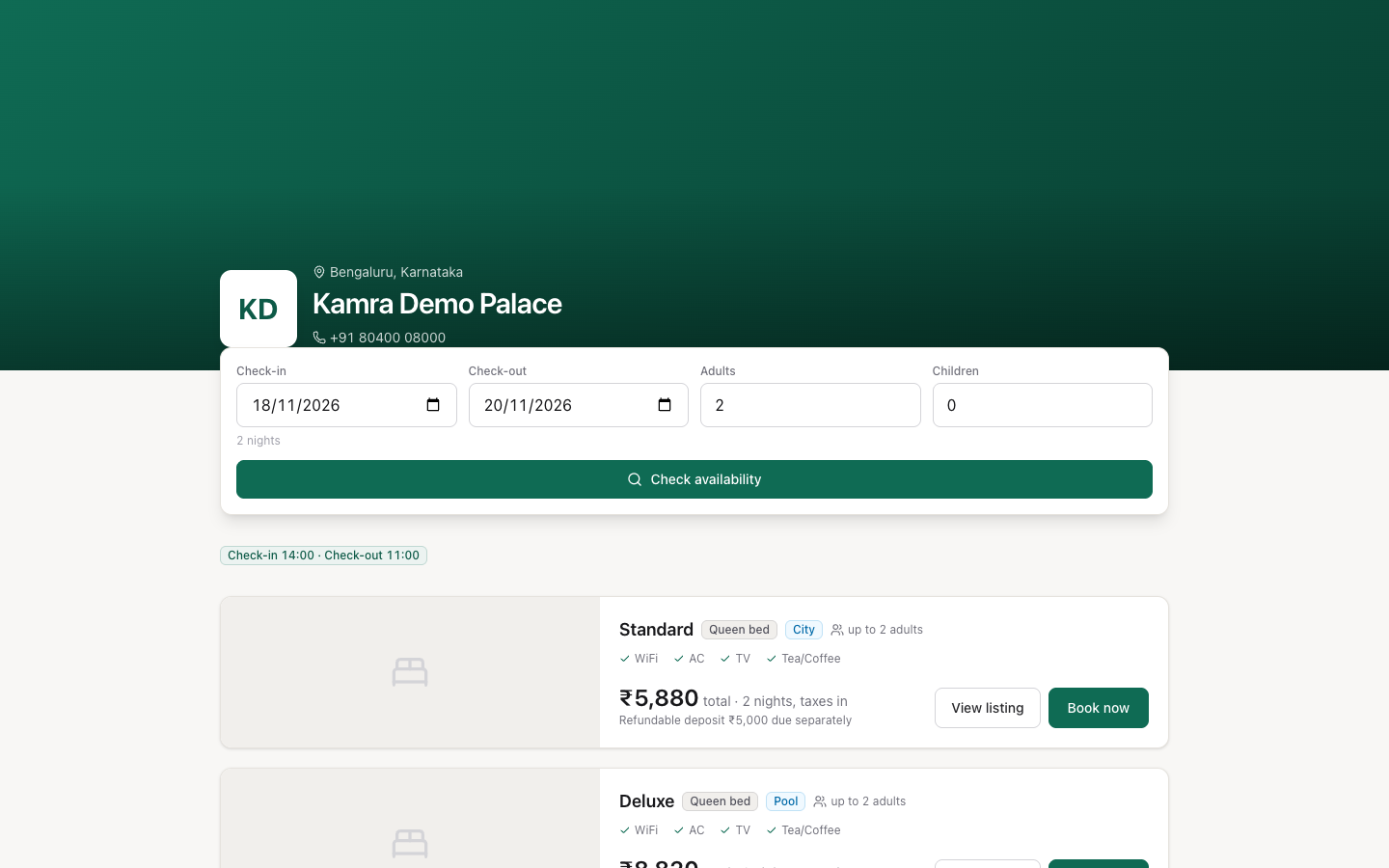
The booking engine is your hotel's own booking page. Guests open /book, pick dates, see live prices and book without an account. Each booking lands in Kamra like any other, with Website as its source. Revenue Managers and Hotel Admins set it up in the Booking Engine app.
Before you start
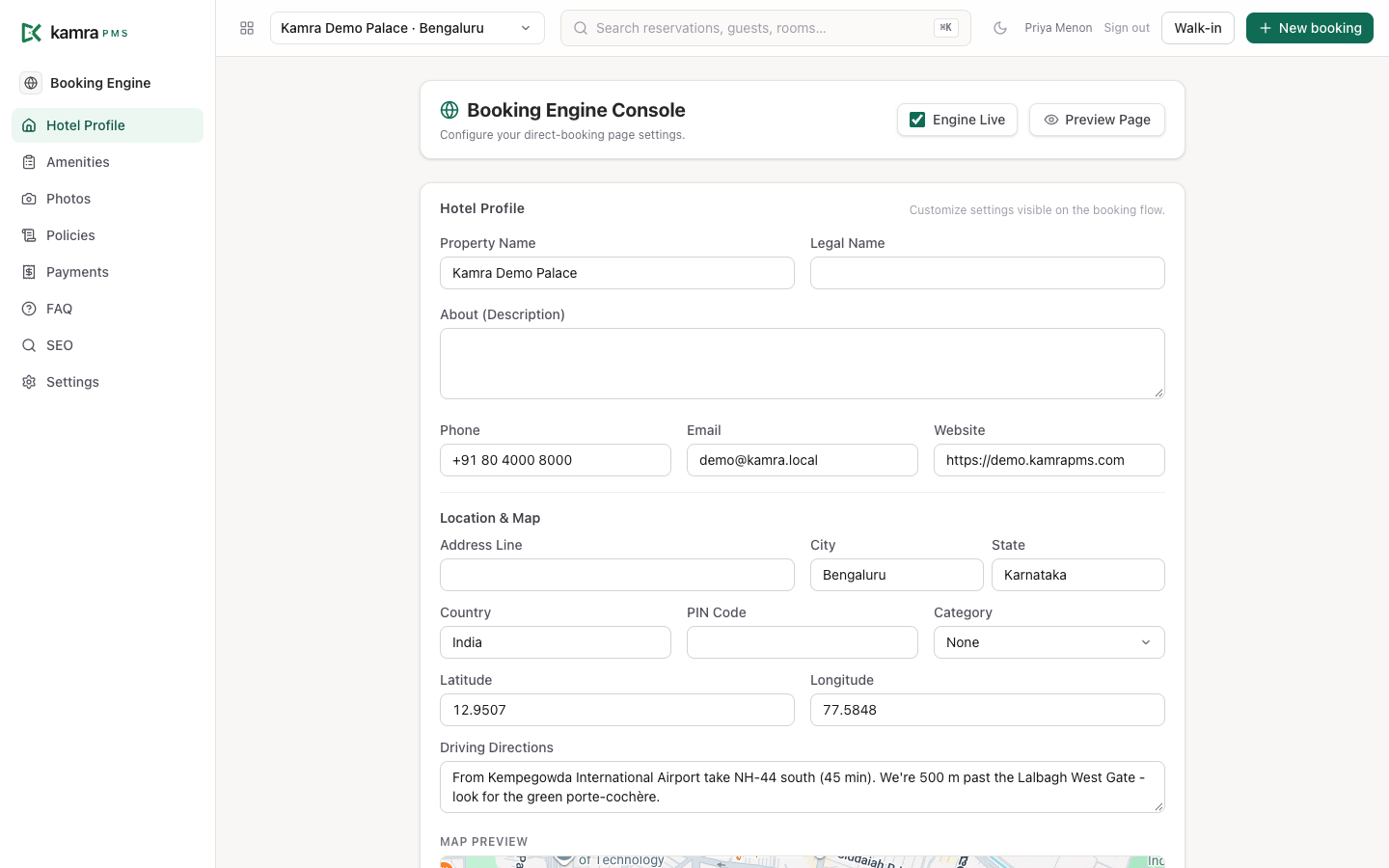
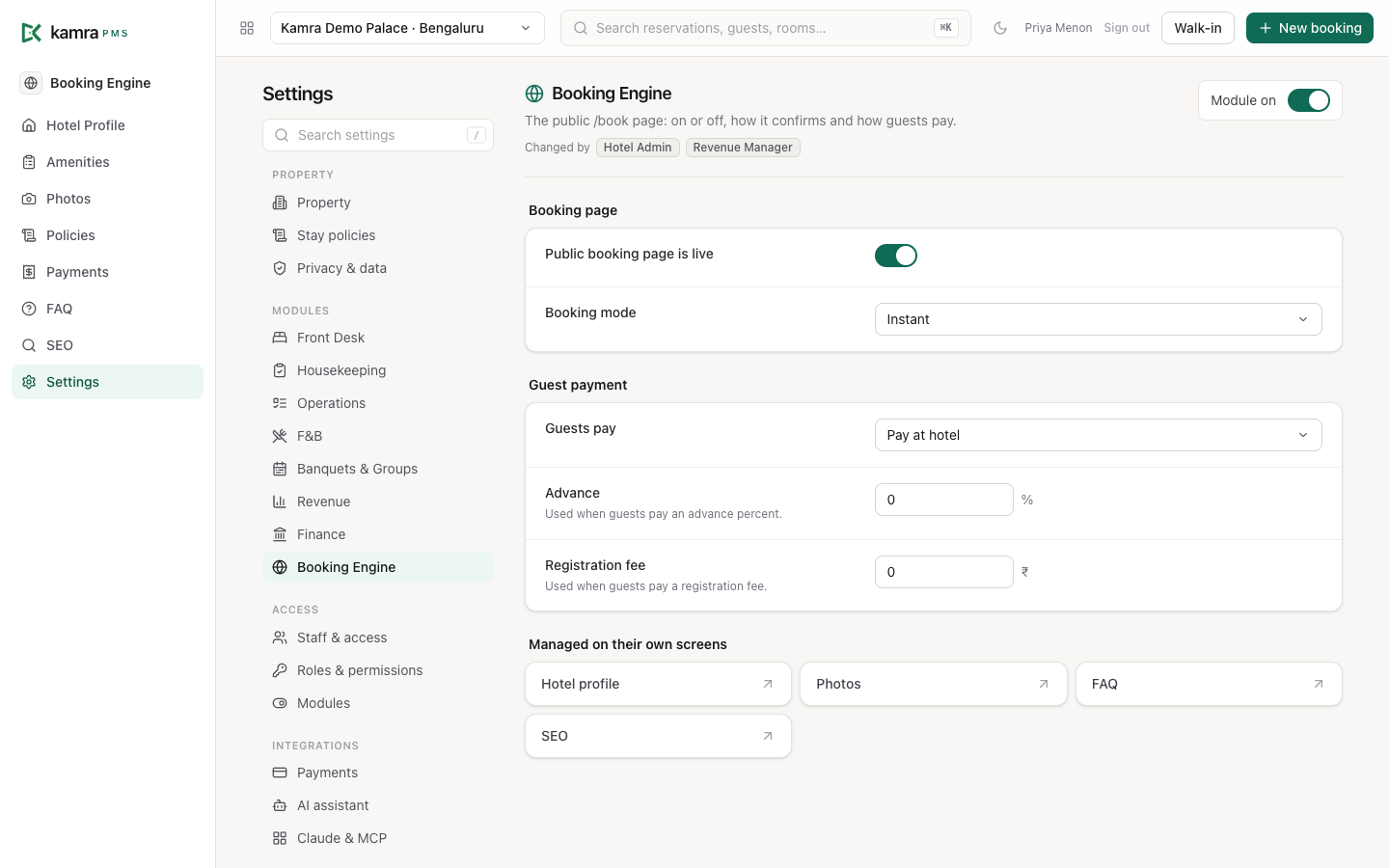
Turn the page on. Booking Engine → Settings: switch on Public booking page is live and pick a Booking mode. The Engine Live box on the console does the same.
Fill in the hotel profile. Booking Engine → Hotel Profile: name, description, contact details, address and map position, and driving directions. Click Save Changes at the bottom.
Add photos. Booking Engine → Photos: Logo, Hero showcase image, the photo gallery and the Accent colour the page uses. Uploads save on their own.
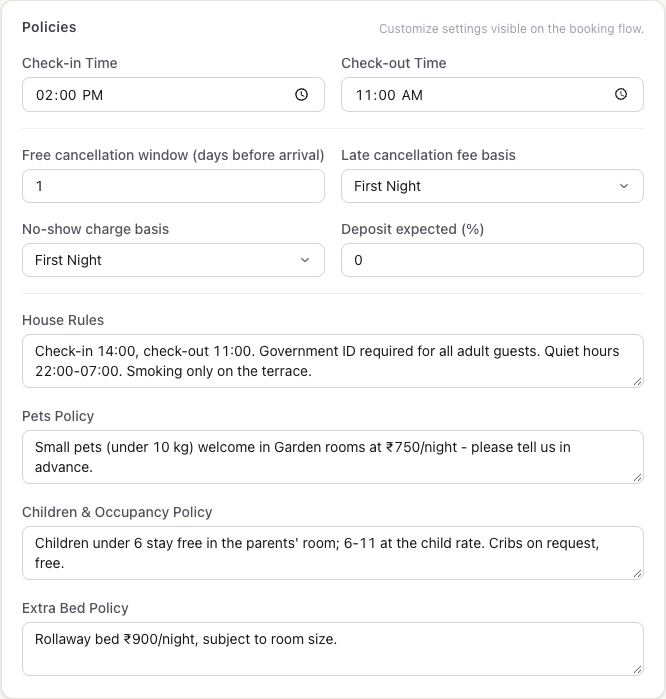
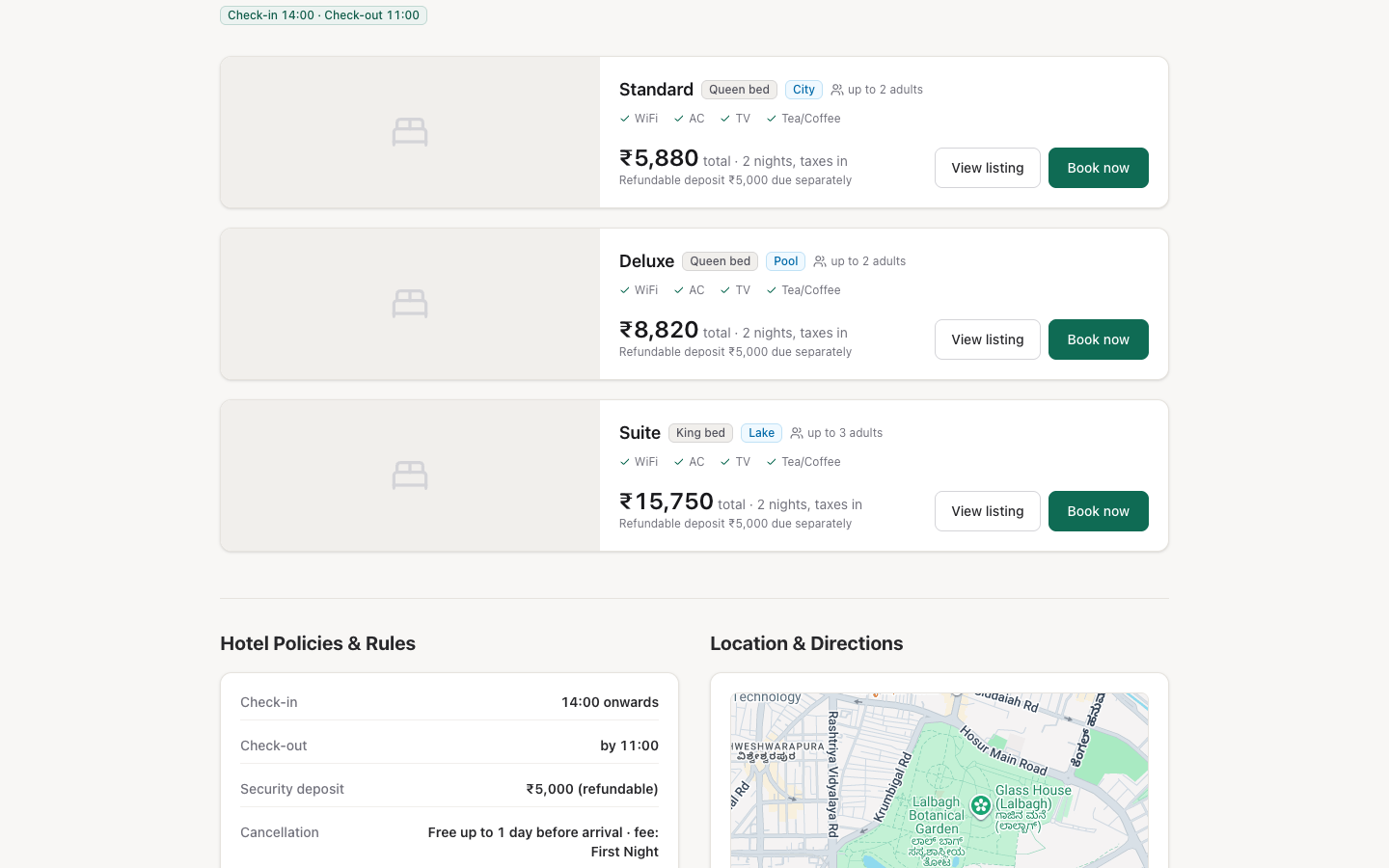
Write the policies. Booking Engine → Policies: check-in and check-out times, the free cancellation window, the late-cancellation and no-show charge, the deposit, and house rules, pets, children and extra-bed policies. These show on the page and are quoted with every booking.
Optional: Amenities (one per line), FAQ (questions and answers), SEO (Meta Title, Meta Description, share image).
Room types, prices, meal plans and vouchers come from Revenue. Give a room type a Public listing URL slug to give it its own page.
Click Preview Page to open /book in a new tab.
Choose how bookings confirm
Booking Engine → Settings → Booking mode:
- Instant - the booking is made at once. With nothing to pay now it is Confirmed. If an advance is due, it is Pending Payment and the room is held for 2 hours (Settings → Front Desk → Hold unconfirmed bookings for). A hold that isn't paid in time is released.
- Request to Book - the guest sends a request. It holds no room until you accept it. Open the booking and click Accept (Kamra checks availability again and gives it a room) or Decline with a reason (cancelled, no fee). See Reservations.
Choose what guests pay online
Booking Engine → Payments → Collect on booking (or Guests pay in Settings):
| Option | What the guest pays when booking |
|---|---|
| Pay at hotel | Nothing. The whole stay is paid at the hotel. |
| Advance percent | The Advance percentage of the total; the rest at the hotel. |
| Registration fee | A fixed amount; the rest at the hotel. |
| Full online | The whole stay. The button reads Confirm & pay. |
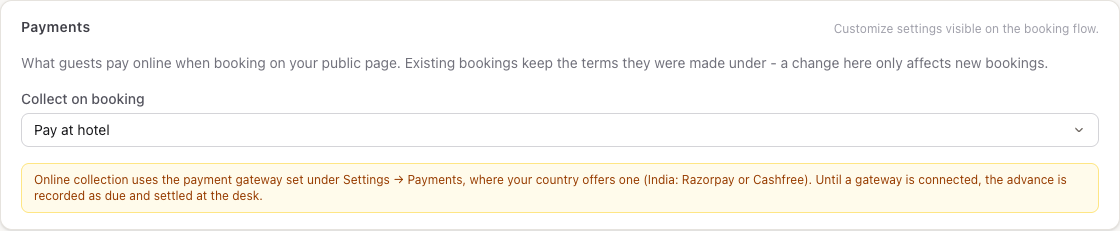
Online payment uses the gateway under Settings → Payments, where your country pack offers one. Until a gateway is connected, the advance is recorded as due and the desk collects it. Each booking keeps the payment terms it was made under; a later change only affects new bookings.
What the guest does
- Open
/book, pick Check-in, Check-out, Adults and Children, and click Check availability. - Pick a room and click Book now. (On a short-term rental the button reads Book this listing; in Request to Book mode, Request to book.)
- Enter Full name and Phone; Email (optional).
- Pick a Meal plan, or Room only.
- Optional: Add experiences, a voucher under Have a code?, and Special requests.
- Click Book now. The page shows the booking number and what's due now and at the hotel.
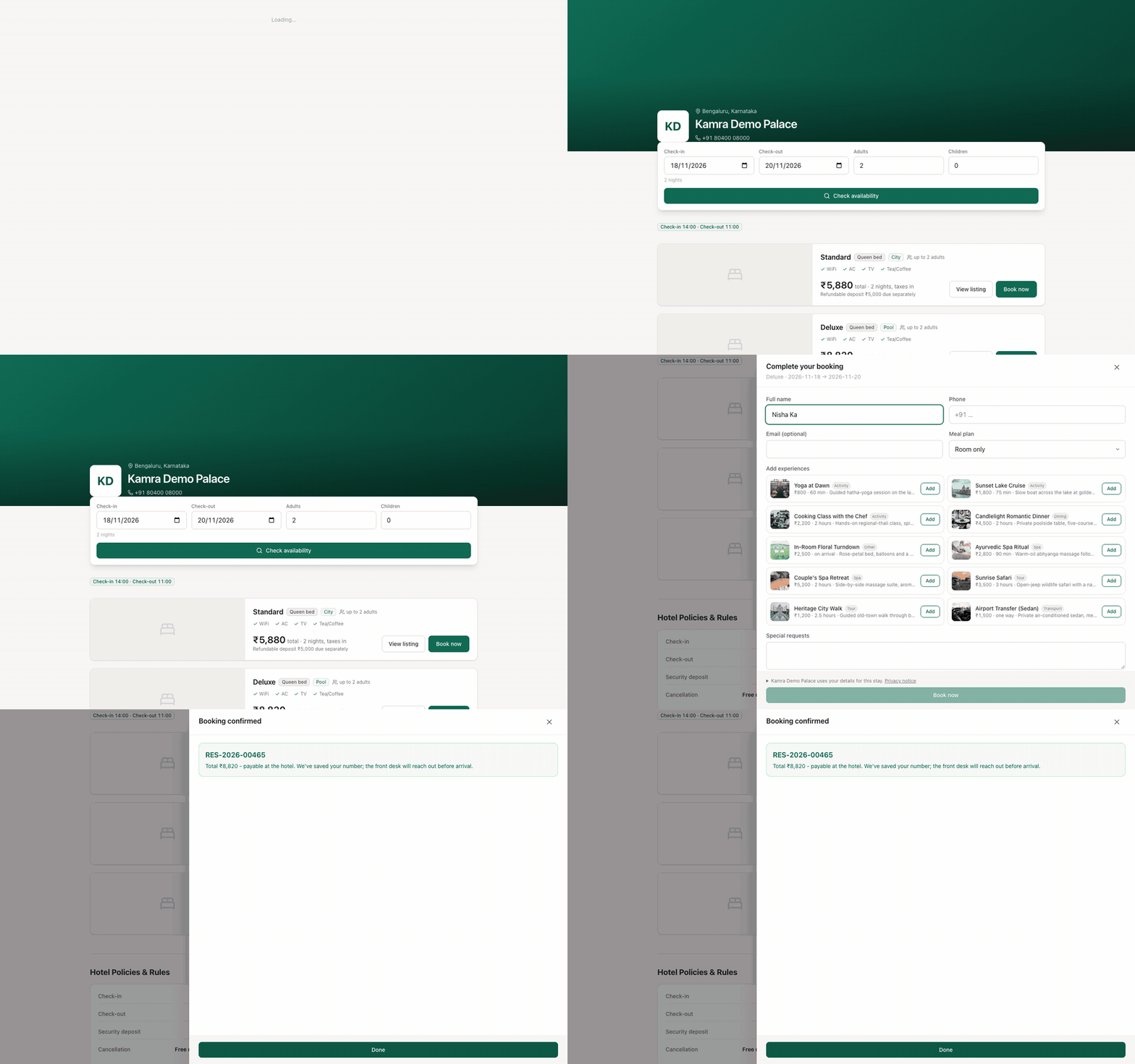
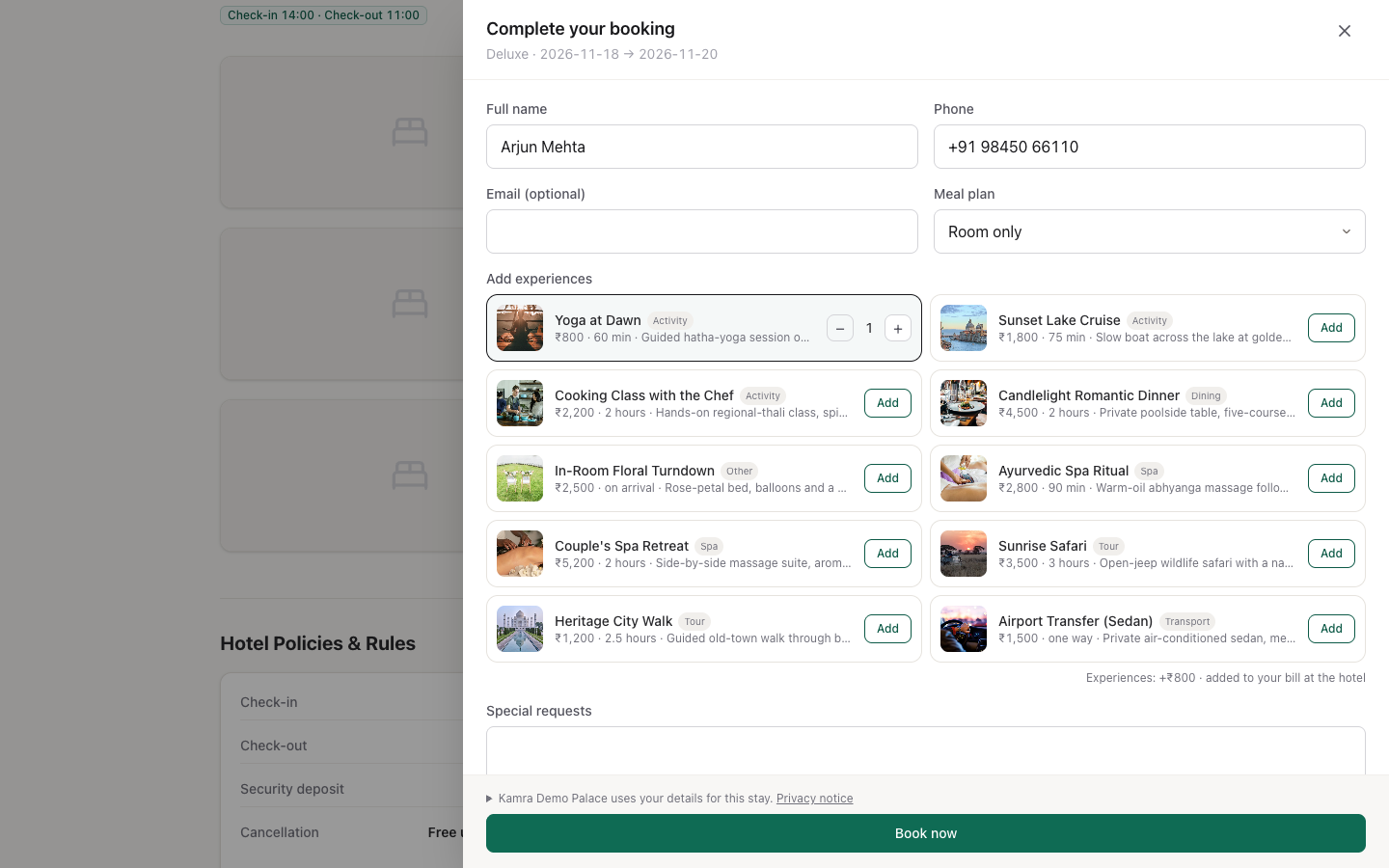
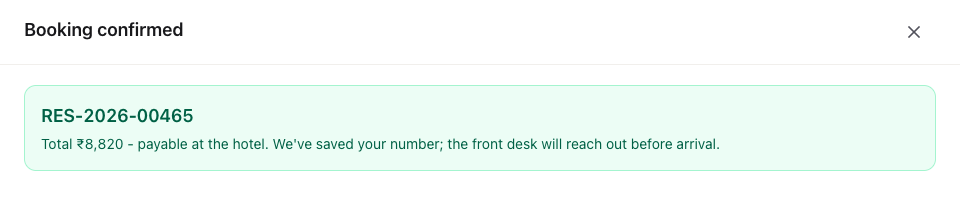
The dates and guest count are part of the address, for example /book/2026-11-18/2026-11-20/2/0, so you can link straight to a stay.
Offer experiences
Experiences are add-ons such as a spa ritual, a safari or a candlelit dinner. Add and edit them in Revenue → Experiences (see Revenue). Each has a name, a category, a price, a duration, a description and a photo. Tick Show on the public booking page to offer it on /book. The guest only picks how many; the price is always yours. Experiences are added to the guest's bill at the hotel.
Listing pages (/stay)
A room type with a Public listing URL slug has its own page at /stay/<slug>, for example /stay/deluxe: photos, what it sleeps, a map, and a booking box with Check availability and Reserve.
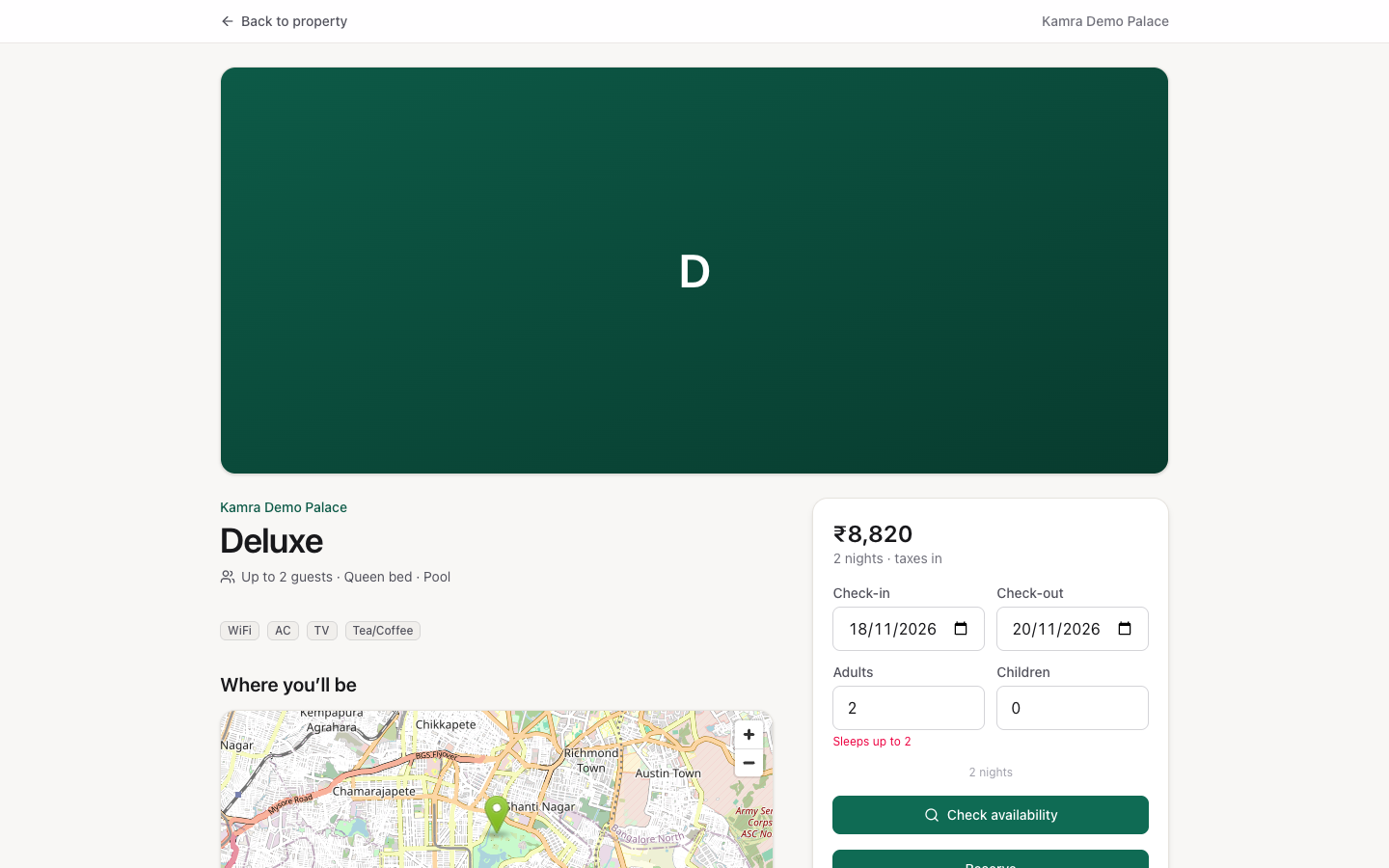
For villas and homestays (property kind Short Term Rental), each listing is a place: a room, or the whole house. Booking the whole house takes its rooms off sale. Quotes add the cleaning fee and show the refundable deposit.
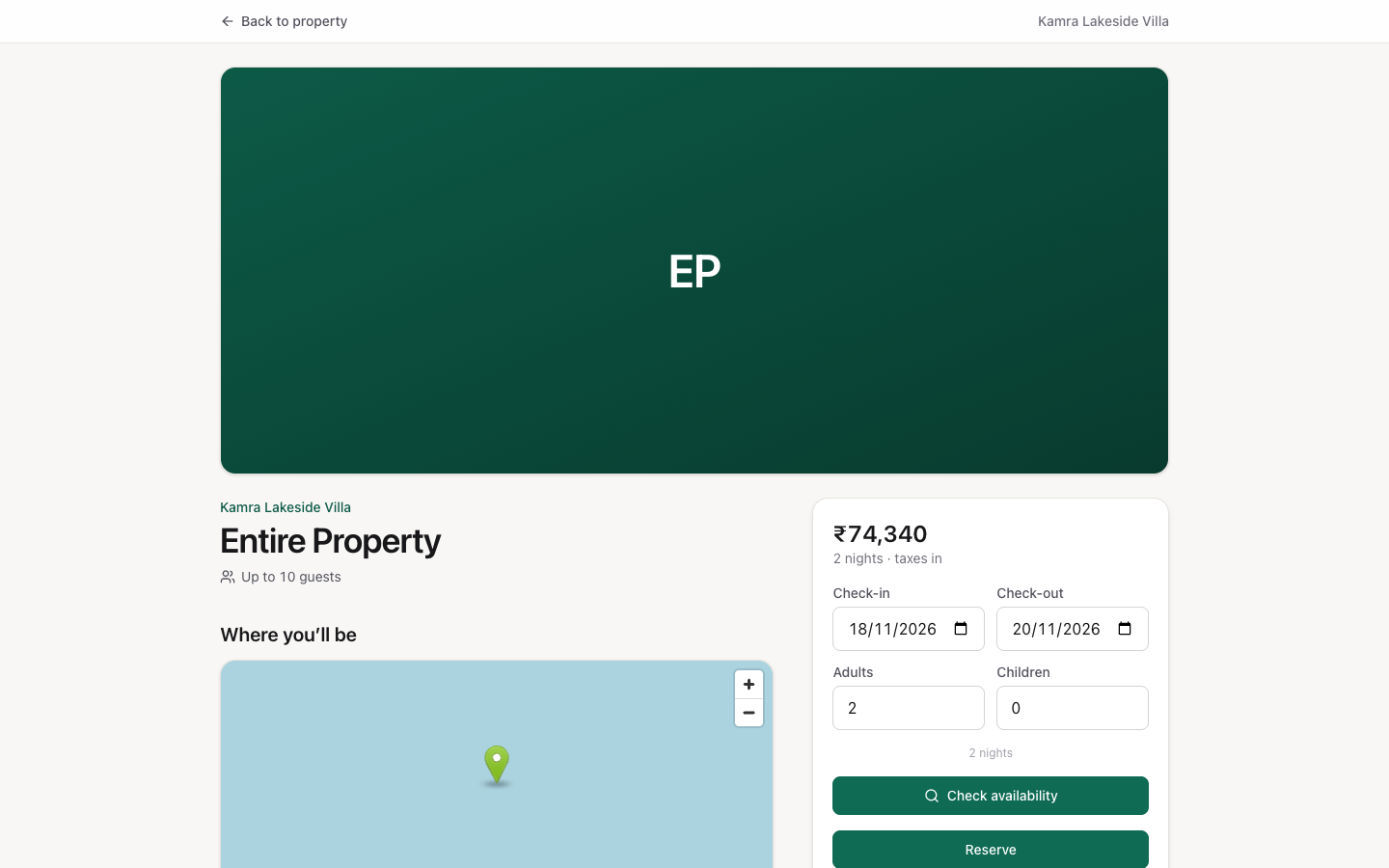
When a property has only one listing with a slug, /book goes straight to its /stay page.
Several properties on one booking page
When more than one property on the same Kamra has its booking page live, /book first shows Places to stay: a card per property with its photo, city, type, description and lowest base price per night. The guest clicks View & book → to open that property's page, with any dates already in the address kept.
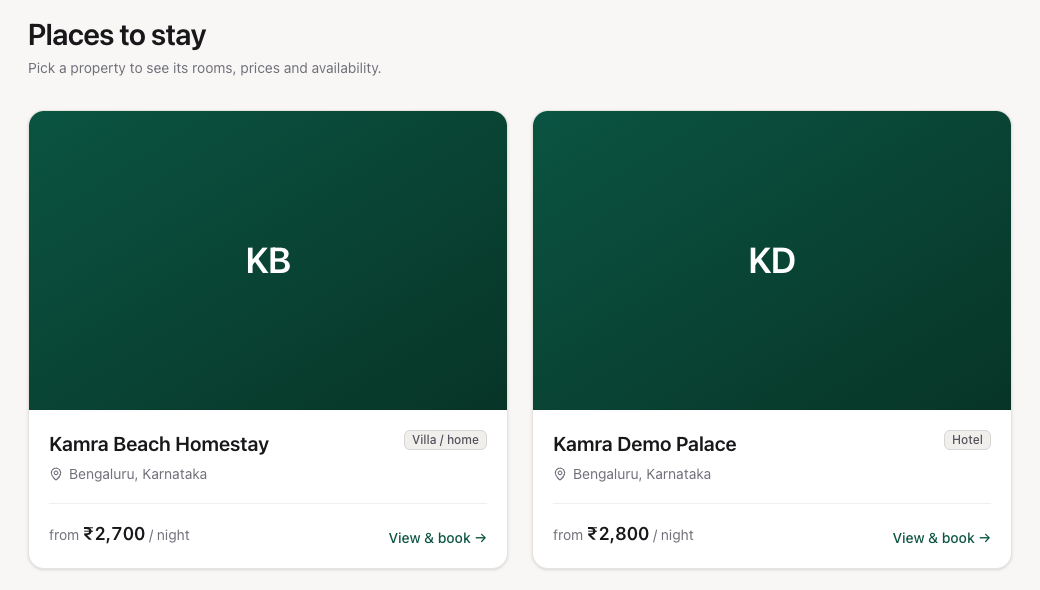
To link straight to one property, use /book?property=<slug> or /stay/<slug>. The slug is the Page Slug Prefix under Booking Engine → SEO, or, when that is empty, the property's name in lower case with dashes (for example kamra-demo-palace).
Online check-in (/checkin)
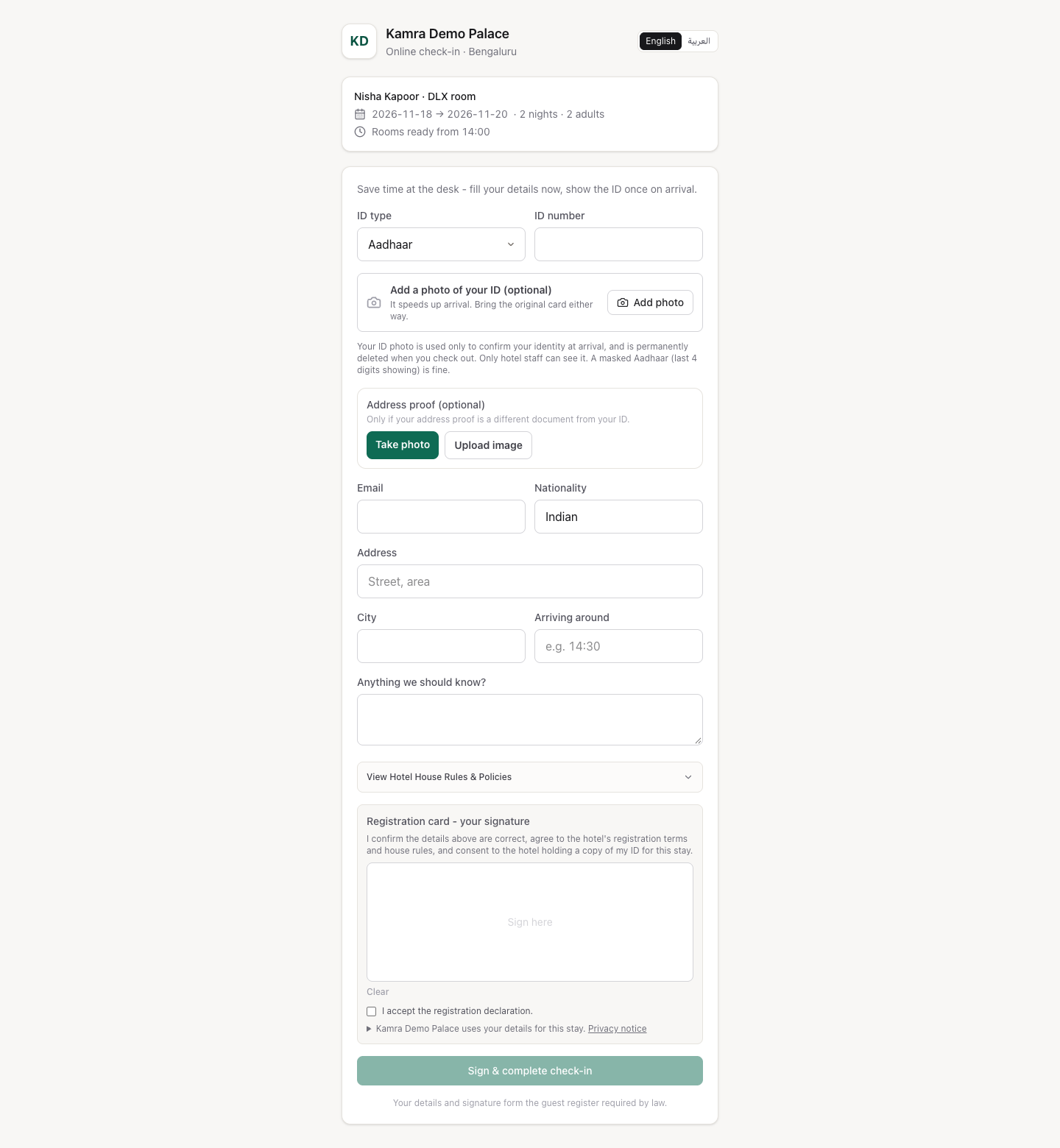
Every booking gets a private check-in link, /checkin/<code>. The desk copies it from the arrivals list on Today (copy check-in link, see Front desk) and sends it to the guest.
On that page the guest enters their ID type and number (the types your country pack accepts), can add a photo of the ID and an address proof, fills in email, nationality, address and arrival time, signs the registration card, and clicks Sign & complete check-in. The desk sees the details as submitted and verifies them on arrival.
Settings
| Setting | Where | Default | What it does |
|---|---|---|---|
| Public booking page is live | Settings → Booking Engine | on | Shows or hides /book and /stay for this property. |
| Booking mode | Settings → Booking Engine | Instant | Instant or Request to Book. |
| Guests pay | Settings → Booking Engine | Pay at hotel | What is collected online. |
| Advance | Settings → Booking Engine | 0% | Used with Advance percent. |
| Registration fee | Settings → Booking Engine | 0 | Used with Registration fee. |
| Hold unconfirmed bookings for | Settings → Front Desk | 120 min | How long a Pending Payment booking holds its room. |
Good to know
- Prices on the page come from the same pricing as the desk: seasons, demand pricing, meal plans and vouchers apply. Rate plans don't; see Revenue.
- A guest can only add experiences you have ticked Show on the public booking page, and that aren't disabled, at your price.
- Kamra stores the guest's ID photo privately. Under the Verify & Discard retention setting it is deleted at checkout.
Troubleshooting
/stay/... says "Listing not found." Check that the room type has that Public listing URL slug, isn't disabled, and that its property's booking page is live. /stay/<slug> also accepts a property's slug, but only for a property whose booking page is live.
The booking stays Pending Payment. An advance is due and no gateway took it. Collect it at the desk and confirm the booking, or it is released when the hold runs out.
A room says "Sold out for these dates". Every room of that type is taken for at least one night of the stay, or blocked. Book now stays greyed out until the guest picks other dates.
A room type is missing from the page. It's disabled, or it belongs to another property.
For developers
The public pages call guest endpoints in kamra/public_api.py (catalog_index, showcase, search_stay, book, check_voucher, precheckin_info, precheckin_submit); /stay slugs resolve in kamra/booking_slugs.py. See the API reference and, for accepting requests, the booking_requests and accept_booking_request MCP tools.