

Front desk - arrivals, check-in and check-out
The Front Desk app is where the desk runs the day: who is arriving, who is leaving, who is in which room, and the paperwork in between. Front Desk, Night Auditor and Hotel Admin users see it. Making bookings is covered in Reservations.
Before you start
- Set your check-in and check-out times. Settings → Stay policies → Check-in & check-out. They print on the registration card and on the guest's online check-in page.
- Decide how self check-in links go out. Settings → Front Desk → Arrivals. Leave Send pre-check-in links automatically off to copy each link by hand, or turn it on to send them every morning (see Send the self check-in link).
- Open your till before you take money. A walk-in that pays at the desk, or a deposit, goes through your cashier session: Finance → Cashier → My Till. See Billing.
Read the Today screen
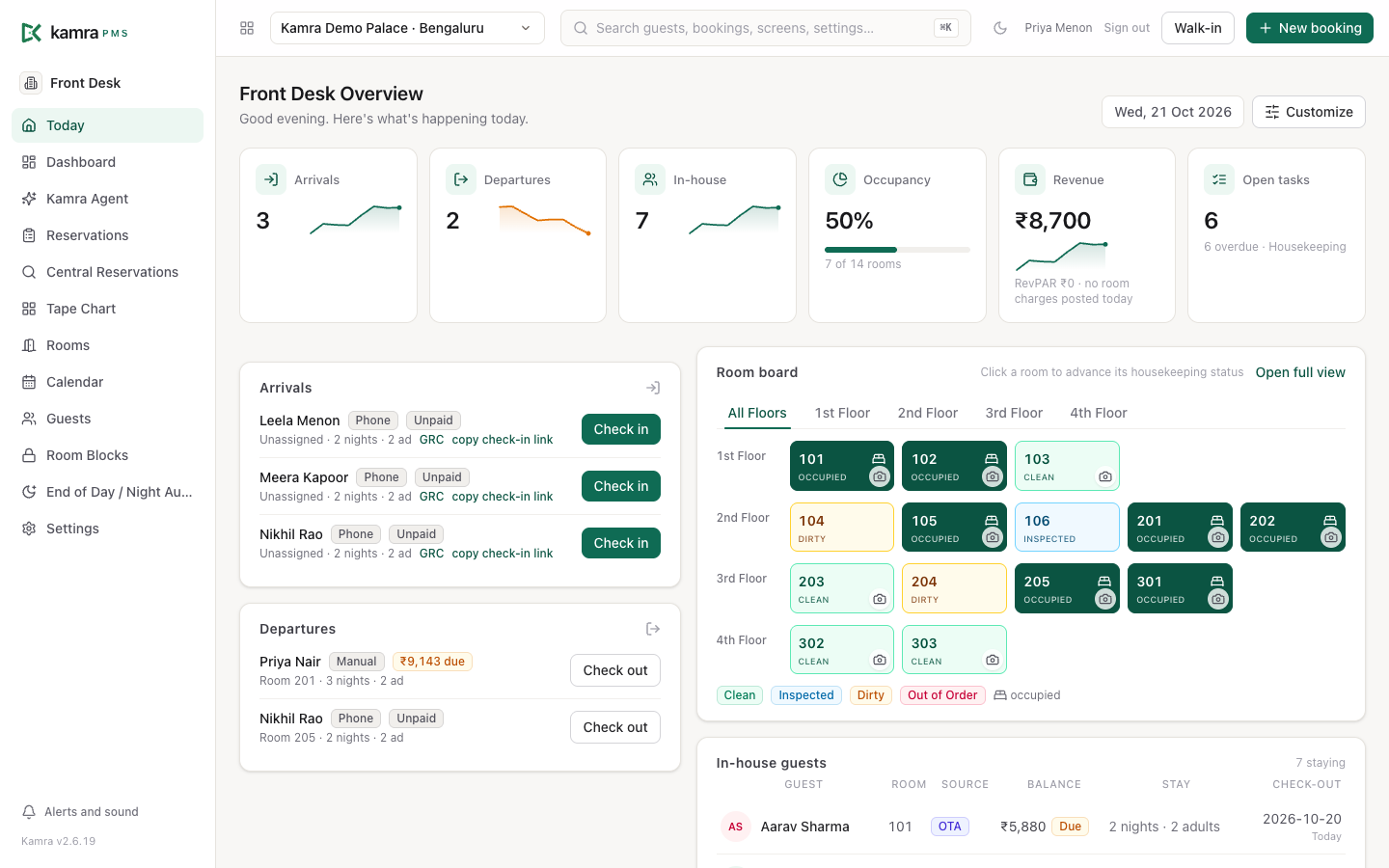
Front Desk → Today is the home screen. It refreshes itself every 30 seconds.
- The six counts across the top: Arrivals, Departures, In-house, Occupancy, Revenue (with RevPAR) and Open tasks for housekeeping.
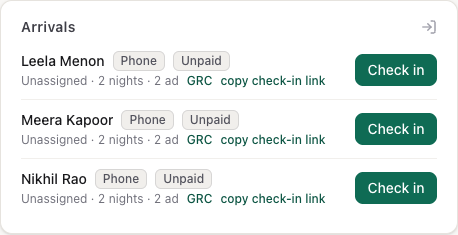
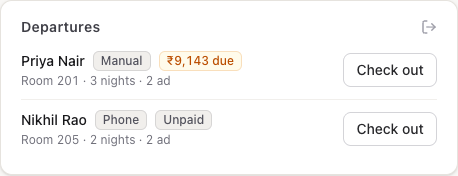
- Arrivals and Departures list today's stays. Each row shows the source (Website, Phone, OTA, AI Agent…), a payment chip (Paid, ₹… due or Unpaid) and Pre-checked-in when the guest has filled in the online form. "via Priya (Assistant)" means someone booked on the guest's behalf; hover it for the booker's phone.
- Room board shows every room by floor. Click an occupied room (dark green) for a menu: Check out, Folio and billing, Guest requests, Registration card or Room details. A room whose guest arrives today shows Arriving; click it for Check in. Click any other room to move its housekeeping status on one step: Dirty → Clean → Inspected → Out of Order → Dirty. Open full view opens the Rooms screen.
- In-house guests lists everyone staying, their balance and when they leave. Click a row for the registration card.
Choose what Today shows
Each person can pick which panels Today shows and in what order. Click Customize (next to the date).
- Tap a panel to show or hide it: Key numbers, Booking requests, Arrivals, Departures, Room board, In-house guests, Housekeeping and Open tasks (rooms with housekeeping work still open, and who has it).
- Use the up and down arrows to change the order, and the two-way arrow to move a panel between the narrow and the wide column.
- Click Save for me. Your layout is saved on the server, so it follows you to any computer or tablet you sign in on.
Use the hotel default drops your own layout. A Hotel Admin also sees Hotel default: Make this the hotel default sets what everyone at the hotel sees until they customise their own Today, and Reset the hotel default goes back to the standard layout. If nobody customises anything, Today looks the way it always has (Open tasks starts hidden).
Check a guest in
Check-in is a short list of steps, one screen each, in the order your property set. The same steps open from every Check in button: the arrival on Today, the booking under Reservations, a stay on the Tape Chart, an arrival in End of Day, and a walk-in.
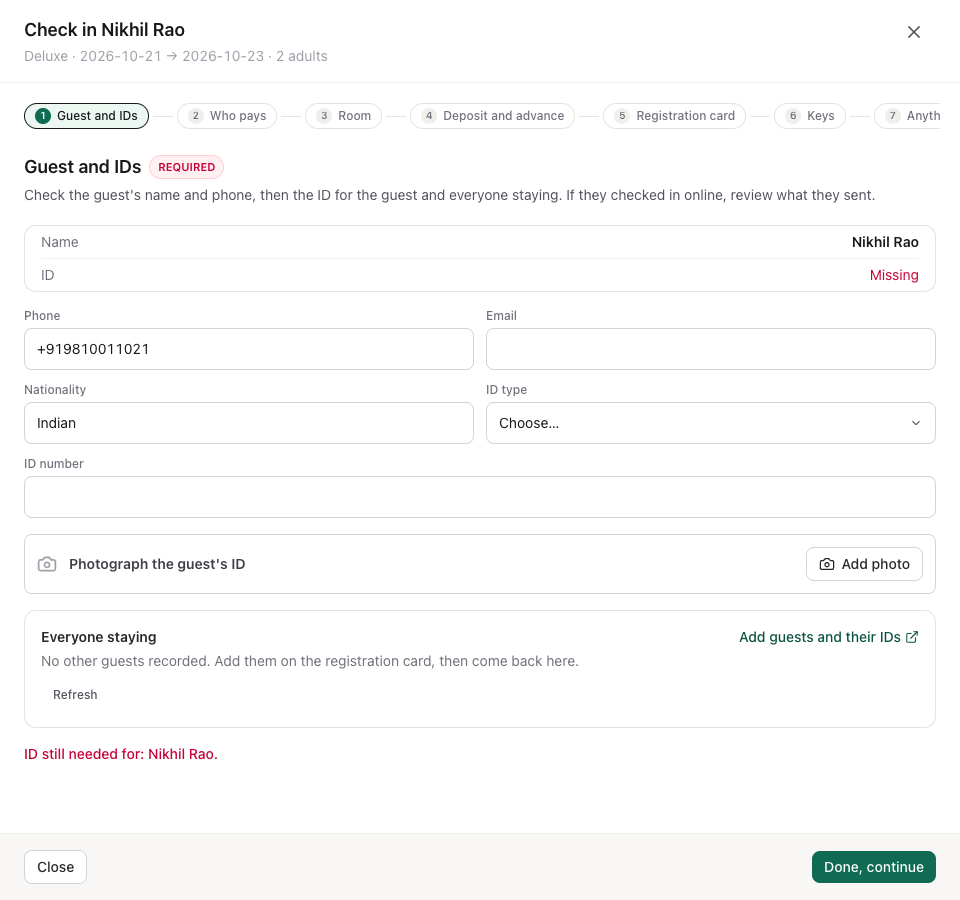
- On Today, find the guest under Arrivals and click Check in.
- Work through the steps at the top of the panel. Each step says what to do. A Required step has no Skip button. An Optional step does.
- Click Done, continue when a step is finished. Kamra checks it: for example, it will not move on from Guest and IDs while an ID is still missing.
- On the last screen, read the summary and click Check in to room 205 (the button names the room). A red step in the summary is required and not done yet: click Go to step to finish it.
The room turns occupied, the guest folio opens, and any deposit taken before arrival moves onto the stay's bill. The last screen links to the registration card to print.
The steps
| Step | What you do | Required by default |
|---|---|---|
| Guest and IDs | Check the name and phone, then the ID for the guest and everyone staying. If the guest checked in online you see Done online: check what they sent against the person. Add other guests and their IDs on the registration card (Add guests and their IDs). Children only need their ID where your country's register asks for it. | Yes |
| Who pays | Pick who pays: the OTA (already paid, or guest pays here), the guest, the company, or the group. You see the stay total, what is paid and what is left. | Yes |
| Room | Keep the assigned room, or pick a free room of the booked type. Clean rooms come first. Upgrade or another type shows the new price before you confirm. | Always |
| Deposit and advance | Take the security deposit, or waive it with a reason, and any advance still owed. Shown only when your property asks for a deposit or the booking owes an advance. | Yes |
| Registration card | Open the card to show or print. The guest signs on the screen, or on the printed card. | Yes in India, optional elsewhere |
| Keys | Note how many keys you gave and, if you like, the card numbers. | No |
| Wi-Fi and stay info | Tell the guest the Wi-Fi, breakfast and check-out times. Print it or Send on WhatsApp. Shown once you fill in Settings → Front Desk → Guest info at check-in. | No |
| Anything needed? | Tap what the guest asks for: extra bed, wake-up call, airport drop, dietary needs, special occasion. Each one becomes a task for the right team. | No |
| Charges to the room | Allow or block charges to the room. Blocked: the restaurant, laundry and minibar cannot put anything on this room, and the guest pays at the outlet. For an OTA prepaid stay with nothing held for extras, Kamra suggests blocking. | Yes |
Kamra records who did each step and when. The booking shows who assigned the room, who gave the keys and who checked the guest in, and every step is in the Activity Log.
Choose which steps are required
Settings → Front Desk → Check-in steps (Hotel Admin). Tick Required for each step your staff must never skip. Room is always required. A required step cannot be skipped at the desk, and Kamra will not check the guest in until it is done, whoever asks: the desk, the API or an AI agent.
Check in a walk-in
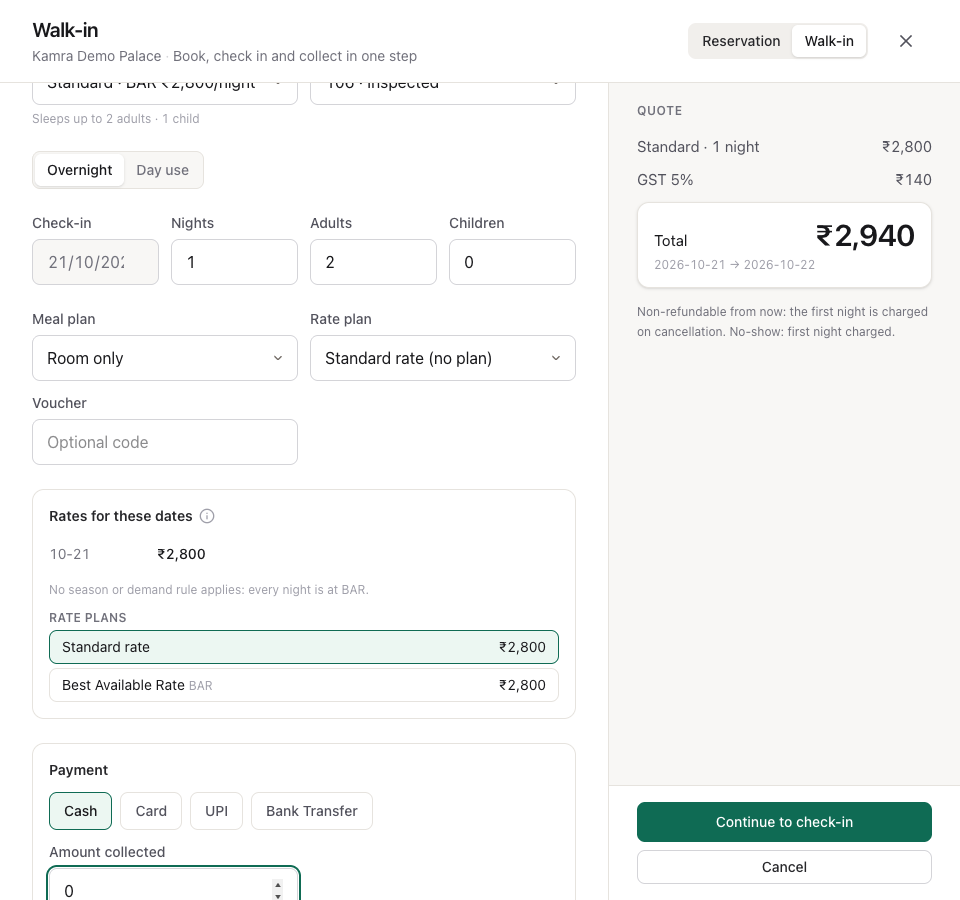
For a guest standing at the counter with no booking, use Walk-in in the top bar. One screen books the stay, records the ID, assigns the room and takes the payment. The check-in steps open right after.
- Click Walk-in (or switch New booking to Walk-in).
- Type the Guest name. If the guest has stayed before, pick them from the list so the stay joins their profile. Add the Phone.
- Choose the ID type, type the ID number and check the Nationality. The ID types come from your country pack.
- Pick the Room type, then the Room. The list shows rooms free tonight, clean ones first.
- Set Nights and the party size. For a few hours' stay, switch Overnight to Day use and set the time slot.
- Under Payment, pick how the guest pays and the Amount collected. It starts at the full total; lower it for a part payment, or set it to 0 to put everything on the bill.
- Click Collect ₹2,940 and continue to check-in (or Continue to check-in when nothing is collected).
- The check-in steps open. Who pays, the Room and the ID you typed are already done; finish the rest and click Check in to room 105.
If the room was just taken, or your till is closed, nothing is saved and the screen tells you why. If you close the check-in steps before the end, the booking stays booked with its room: click Finish check-in, or check the guest in from Today.
Send the self check-in link
Guests can fill in their registration before they arrive: ID type and number, a photo of the ID, address, arrival time, and a signature on the registration card.
- By hand: on Today, click copy check-in link on the arrival row and paste it into your message to the guest. Hover the link first: it tells you whether to send it to the guest, the booker, or both. The link shows for confirmed arrivals that have not filled the form yet.
- Automatically: turn on Settings → Front Desk → Arrivals → Send pre-check-in links automatically. Each morning Kamra sends the link to guests arriving within Send links this far ahead (2 days by default).
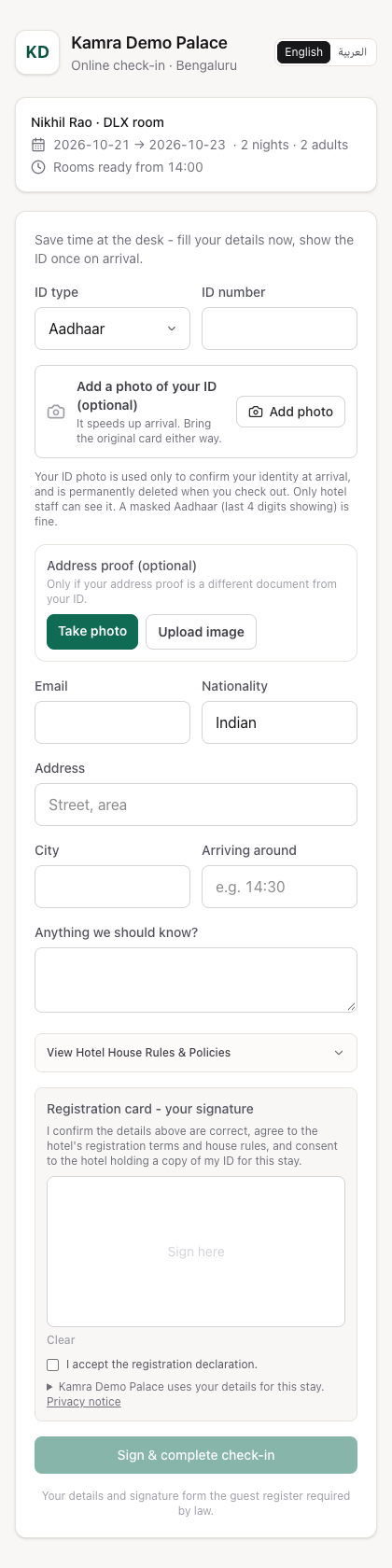
When the guest submits the form, the arrival shows Pre-checked-in. Before you hand over the key, compare the ID with the person: open the booking (Reservations → click it) and click Verify identity in the Identity card. After that, the guest can no longer change what they sent.
Complete the registration card
Every stay has a printable guest registration card (GRC). Open it from GRC on an arrival row, from a room on the room board, from an in-house guest, or with Registration card on the booking.
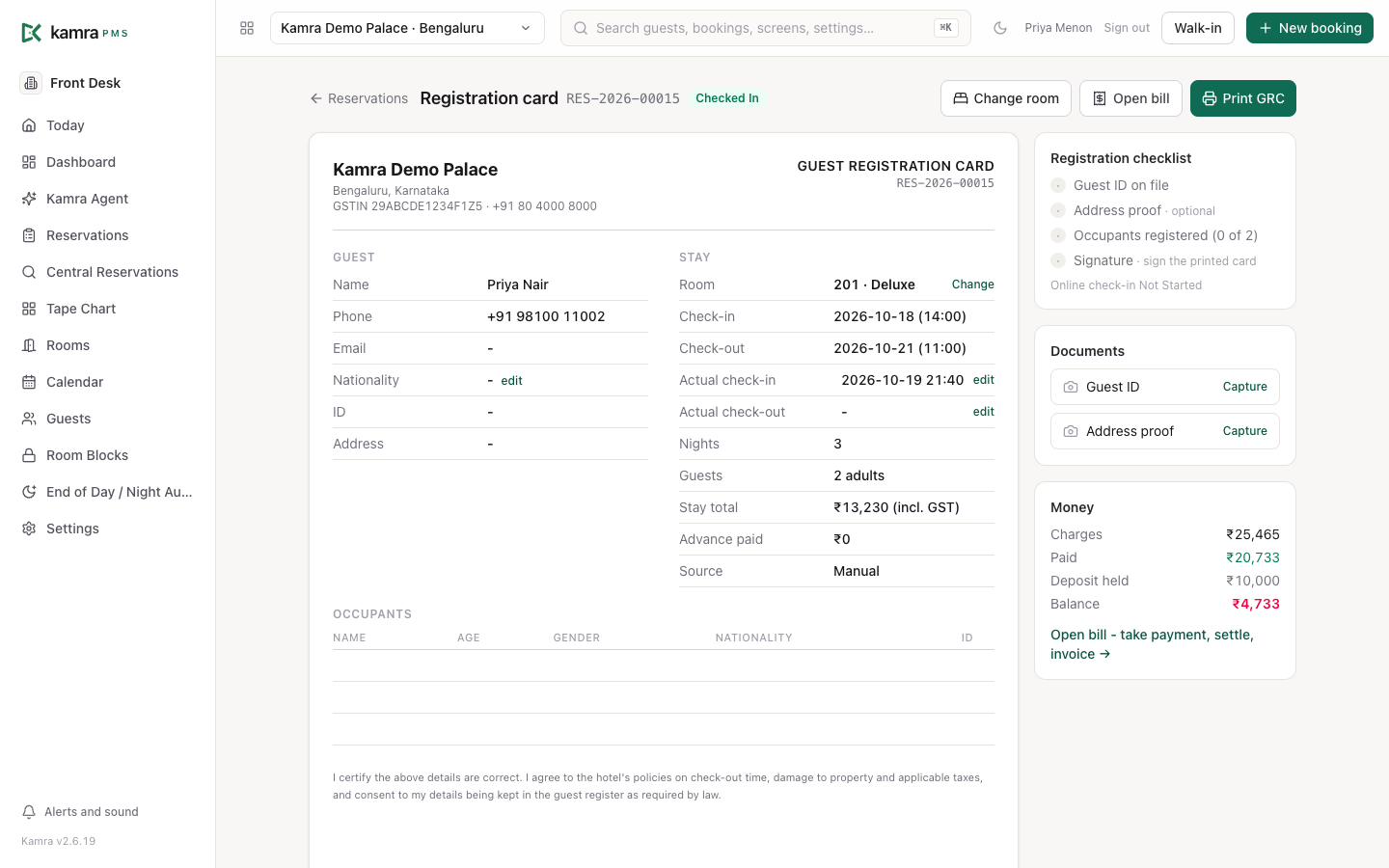
- Work down the Registration checklist on the right: Guest ID on file, Address proof (optional), Occupants registered and Signature.
- Under Documents, click Capture next to Guest ID or Address proof. On a tablet or phone this opens the camera.
- To correct the guest's nationality, click edit next to Nationality.
- If the guest arrived or left at a different time than planned, click edit next to Actual check-in or Actual check-out.
- Below the card, fill the Occupant register: one row per person in the room, with their own ID. Click Add occupant for more rows, then Save register. Once a row is saved, Capture ID on that row takes the occupant's ID. A child's row asks for name and age only, unless your country's register needs children's IDs too.
- Click Print GRC and have the guest sign. A guest who signed online already has their signature on the card.

The Money box shows charges, payments and the balance; Open bill goes to the folio.
Move a guest to another room
- Open the move from any of these:
- Change room on the registration card,
- Change room (or Assign room) in the booking's Room card,
- the guest's bar on the tape chart.
- Pick a room. Same type lists rooms of the booked type; All types (upgrade) shows every type. Free, clean rooms come first; booked rooms are greyed out.
- Check the price line at the bottom. Moving to another type re-prices the stay, and Kamra shows the difference and the new total before anything changes.
- Pick a reason (Guest request, Upgrade, Maintenance, Noise / complaint, Other), add a note if you like, and click Move to 303.
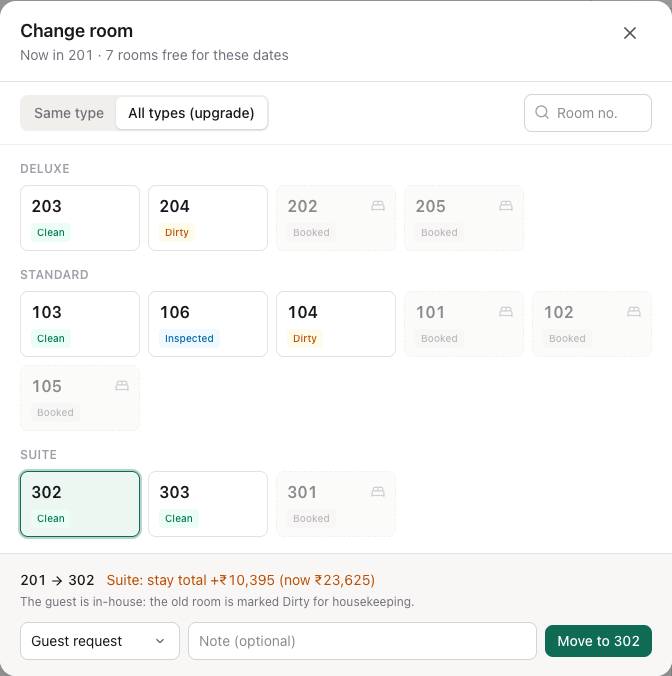
When the guest is already in-house, the old room is marked Dirty for housekeeping. Every move is written to the activity log with its reason.
Check a guest out
Check-out is a short guided sheet. Open it from any of these:
- Today → Departures: Check out on the guest's row.
- Today → Rooms: tap an occupied room, then Check out.
- Tape chart: click the stay, then Check out.
- The booking's detail panel: Check out.
- The command palette (Ctrl+K or Cmd+K): type check out and the room number or the guest's name.
The sheet shows only the steps this stay needs, in this order:
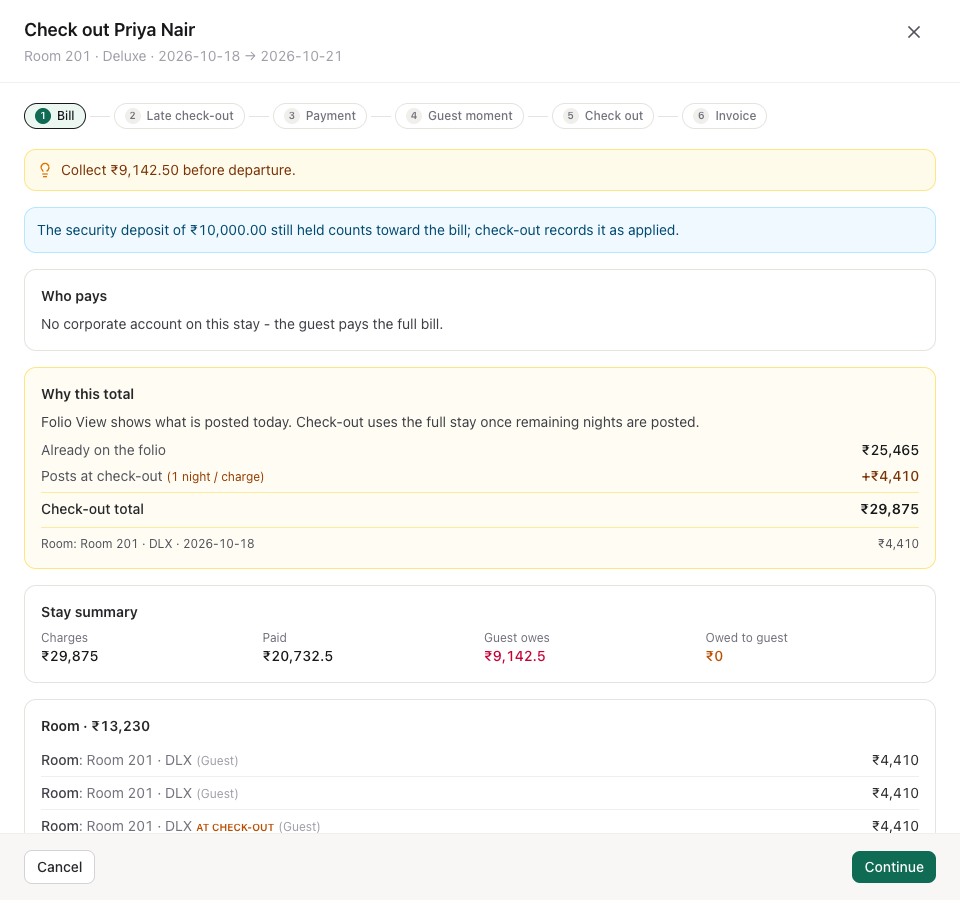
Bill. Every folio of the stay with its lines, as it will stand at check-out: nights the night audit has not posted yet are counted in. Restaurant or room-service orders and laundry that are not on the folio yet are listed here, each with a line on what to do:
- a restaurant bill: Post to room adds it to the bill; Settle separately takes payment for it at the outlet instead.
- laundry still at the laundry (Collected or In Process) can't be billed yet. When the bag is back at the desk, press Bag is back: mark ready, then Hand back and post to room.
- laundry that is Ready: Hand back and post to room marks every piece returned and adds it to the bill.
Open bills never stop the check-out. If one is still open at the Check out step, the sheet lists it under Still not on the bill: posted later, it lands on the departed stay's folio and has to be collected separately. Moving laundry along is for Front Desk and Housekeeping; a role that can't do it is told who can.
Late check-out. Only when the guest leaves after your check-out time. Enter the fee your hotel charges and press Add late check-out fee, or Skip to waive it. Kamra never suggests an amount.
Company bill. Only when a company with credit pays part of the stay. It shows which folio moves to the company's account (the city ledger) and the company's credit check. Tick the box once the guest agrees. If the company's credit is blocked, Finance or a Hotel Admin can type a reason to override it; the reason is logged with their name.
Payment. Only when money is still owed either way.
- The guest owes money: pick the payment mode, add a reference if you like, and press Collect.
- The guest paid too much: Kamra shows where the money comes from (a held security deposit, or a payment above the bill) and the mode it goes back by (the mode it came in by). Keep or change the reason and press Refund. A security deposit goes back through the deposit's own refund, so the deposit record and its ledger are released.
- Damage to the room? Withhold for damage keeps part of the deposit first.
Money goes through your till. If it is closed, the sheet shows Your till is closed: count the cash in the drawer, enter it as the Opening float (0 if it is empty) and press Open my till. You stay in the sheet. Front Desk, Finance and Hotel Admins can open their own till; you close it at the end of your shift under Finance → Cashier. The cashier PIN is asked when your hotel requires it.
Guest moment. Your hotel's check-out routine (ask for feedback, say goodbye). Tick each one, or Skip.
Check out. Press Check out. Front Desk and Hotel Admins can check a guest out. Finance can settle the bill in this sheet, but the Check out button stays off for them and says who can press it.
Invoice. Press Close and generate invoice for each folio (or Generate all invoices), then View or print. The invoice comes after check-out on purpose: check-out may still post the last night and move the company's share, and a folio invoiced before that is frozen. Issuing an invoice also needs your till open; the same Open my till card shows here when it is closed.
If anything stops a step, the reason shows inside the sheet next to that step, with what to do about it (open the till, open the folio). A failed step changes nothing, and the sheet reloads the bill after every action.
For a group, the sheet checks out one room at a time and lists the other guests of the group who are still in house, each with its own Check out.
After check-out the room is marked Vacant and Dirty, and housekeeping gets a high-priority checkout clean. Every step (payment, refund, check-out, invoice) is written to the activity log with the name of the person who did it.
Look up a guest
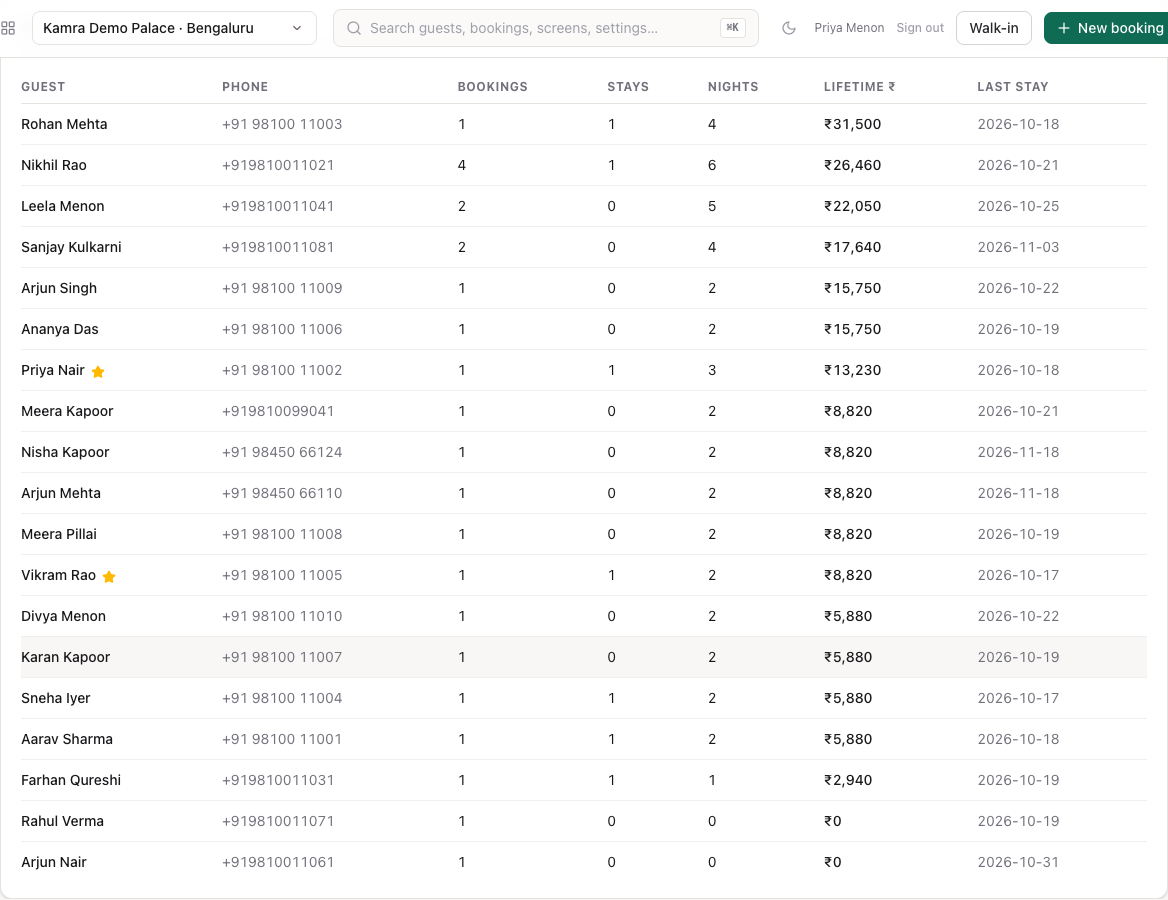
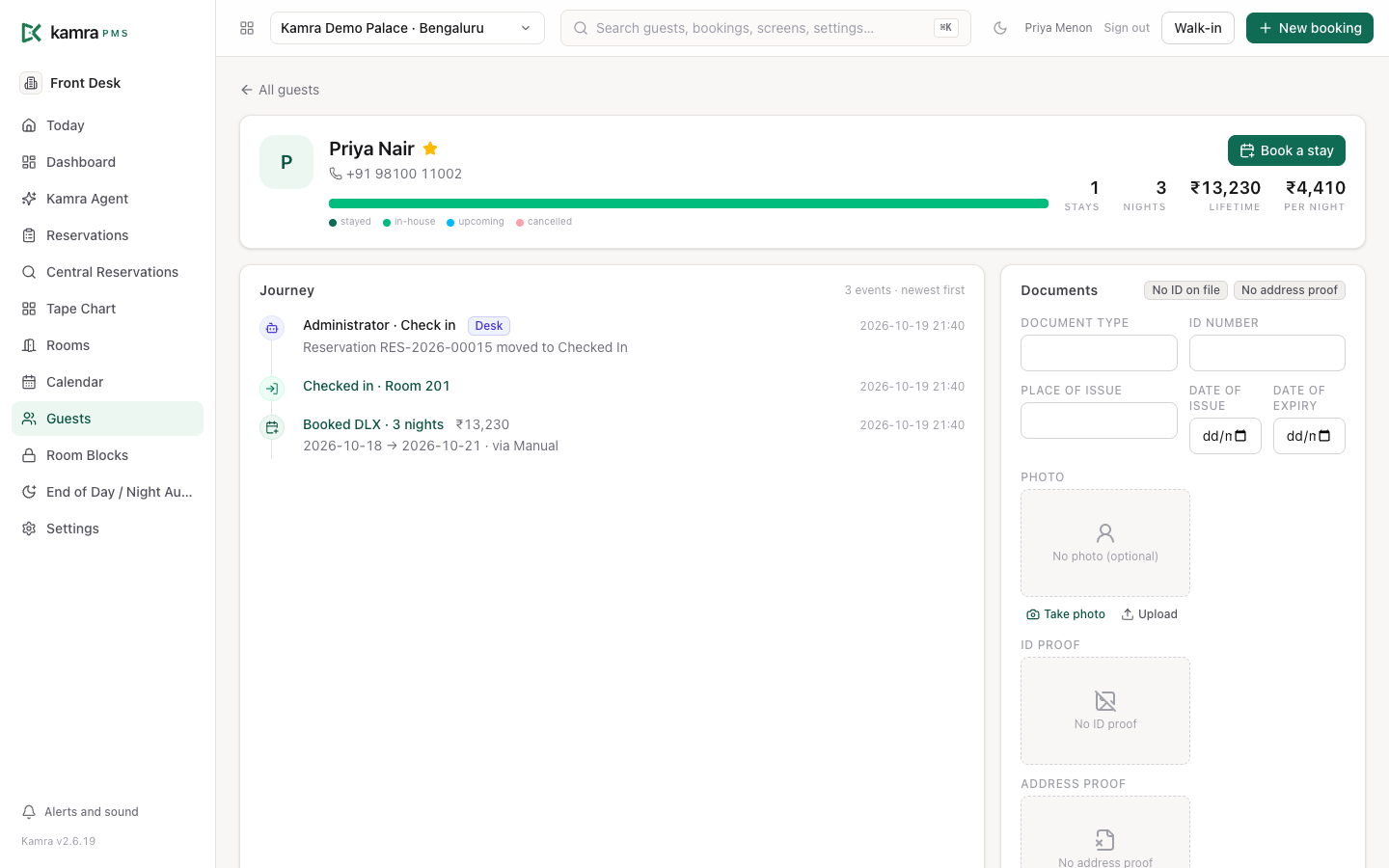
Front Desk → Guests lists every guest with their bookings, stays, nights, lifetime value and last stay. Search by name or phone, and click a guest to open their journey.
The journey shows every stay and event, with:
- Book a stay to start a booking already attached to this guest,
- Notes & preferences and the VIP tick (VIP guests get a star on every screen),
- Profile actions: Blacklist guest, Merge a duplicate, Anonymize profile and Export guest data.
Settings
| Setting | Where | Default | What it does |
|---|---|---|---|
| Check-in time / Check-out time | Settings → Stay policies | 14:00 / 11:00 | Printed on the GRC and the online check-in page. |
| Send pre-check-in links automatically | Settings → Front Desk → Arrivals | Off | Sends the self check-in link to upcoming arrivals each morning. |
| Send links this far ahead | Settings → Front Desk → Arrivals | 2 days | How far ahead of arrival the automatic link goes out. |
| Require pre-check-in before access details | Settings → Front Desk → Arrivals | Off | Holds back the Access instructions (door codes, Wi-Fi) until the guest has checked in online. |
| Guest ID retention | Settings → Privacy & data | Verify & Discard | Verify & Discard masks ID numbers to the last 4 digits and deletes ID photos at check-out. Store keeps them. |
| Security deposit | Settings → Stay policies → Deposits | 0 | A refundable amount to hold during the stay. When set, check-in has a Deposit and advance step. While it is held, the booking warns you before check-out. |
| Check-in steps | Settings → Front Desk → Check-in steps | See The steps | Which check-in steps are required. Required steps cannot be skipped and block the check-in until done. |
| Wi-Fi name, Wi-Fi password, Breakfast times, Emergency number, Anything else for guests | Settings → Front Desk → Guest info at check-in | Empty | Shown in the Wi-Fi and stay info step, to tell, print or send on WhatsApp. The password is never written to the activity log. |
Good to know
- Check-in waits for the steps your property marks Required. With the defaults, that includes the ID for the guest and everyone staying.
- A walk-in always arrives today. For a future date, make a normal booking.
- A booking needs a room before check-in. Whole-villa stays check in as one unit.
- The balance on Today includes nights the night audit has not posted yet, so it matches what the guest owes at check-out.
- A room whose guest is due out today but still checked in is not offered for a check-in or a walk-in until that guest checks out.
- Blacklist guest is for Hotel Admins. A reason is needed both to add and to lift it, and it goes to the activity log.
Troubleshooting
"Cannot check out: … is still owed." Use the Check out button: its Payment step collects the amount. For a company that pays later, transfer the balance to the city ledger on the folio.
"Invoice … is issued, its charges are frozen" at check-out. The folio was invoiced before every night was posted. The check-out sheet says so on its first step: open the folio, cancel the invoice, then check out. The sheet issues the invoice for you afterwards.
"Finish these check-in steps first: …" A required step is not done. Open the check-in from Today and finish the steps the message names. To change which steps are required, see Choose which steps are required.
"… is required at this property and cannot be skipped." Only optional steps have Skip. Do the step, or ask a Hotel Admin to make it optional.
"Room 204 cannot take charges to the room (set at check-in)." The desk blocked charges to the room. Take payment at the outlet, or open the booking's check-in steps and allow charges in Charges to the room.
"Assign a room before check-in." The booking has no room. Use Assign room on the booking or the GRC, or check in from Today, where you pick the room in the same step.
"NO_OPEN_SESSION: open your till under Finance → Cashier first." You tried to take money without an open till. The check-in, walk-in and check-out sheets show Your till is closed with an Open my till button in place: enter the opening float and press it. You can also open it under Finance → Cashier → My Till, or set a walk-in's Amount collected to 0. A small place with no cash drawer can turn tills off: Settings → Finance → Cashier controls → Take money through cashier tills. Payments and refunds are then recorded without a till; paid-outs, cash drops, petty cash and currency exchange still need one.
The Collect, Refund or Continue button is greyed out. The reason is written next to it: open your till, tick the company confirmation, write an override reason, or take (or waive) the deposit.
"Your role can't open a till." Your role (for example Housekeeping or Revenue) does not take money. Ask Front Desk, Finance or a Hotel Admin.
"Checking a guest in is for Front Desk or a Hotel Admin." Finance and other roles can see an arrival but not check it in.
A laundry bag shows "Still at the laundry". It can't be billed until it is back. Press Bag is back: mark ready when it is at the desk, then Hand back and post to room. If the guest leaves first, check out anyway: post the bag later from Laundry and collect it separately.
"Room … is still occupied by … Check them out first, or choose another room." The guest before is still checked in to that room. Check them out on Today (under Departures), or pick another room.
The check-in panel says "No free room of this type for these dates". Every room of the type is taken. Open the tape chart to move another stay or upgrade this one.
For developers
The check-in steps are kamra.checkin.checkin_flow and one endpoint per step (save_guest_details, confirm_billing, assign_checkin_room, sign_registration_card, issue_keys, log_checkin_requests, set_room_charges, complete_checkin_step, skip_checkin_step), then kamra.api.check_in, which refuses while a required step is open (kamra.checkin.check_in_readiness lists what is missing). The steps and which are required live in the property's check-in SOP (kamra.sop). The walk-in is kamra.api.walk_in (defer_check_in=1 books and hands over to the steps); check-out is kamra.api.check_out; room moves use kamra.api.movable_rooms, kamra.api.room_move_preview and kamra.api.move_reservation. The Today layout is kamra.today_layout.get_today_layout, save_today_layout, reset_today_layout and save_today_layout_default (Hotel Admin). AI agents use the front_desk_today, check_in_readiness, check_in, check_out, move_room, guest_lookup, guest_journey and update_occupants tools. See MCP tools and the API reference.