

Reservations - bookings, tape chart and cancellations
This page covers taking a booking, finding and changing it, taking a deposit, and cancelling it. Front Desk and Hotel Admin users can book; the tape chart, calendar and reservations list are in the Front Desk app. Checking guests in and out is in Front desk.
Before you start
- Rooms, room types and rates. Admin → Rooms and Room Types, and your rates and seasons under Revenue (Revenue). The quote uses them.
- Your stay policies. Settings → Stay policies: minimum stay, Free cancellation until (days before arrival), Late cancellation fee, No-show charge and Deposit expected at booking. The booking window quotes them and cancelling applies them.
- Add-ons, companies and travel agents, if you sell them. Add-ons show as chips in the booking window; companies and travel agents come from Revenue → Companies and Travel Agents.
Make a booking
- Click New booking in the top bar. It is on every screen.
- Type the Guest name. Guests who have stayed before appear as you type; pick one to attach the stay to their profile ("Returning guest · 4 stays"). A blacklisted guest shows a red badge.
- Add the Phone. The country code is filled in; type the local number.
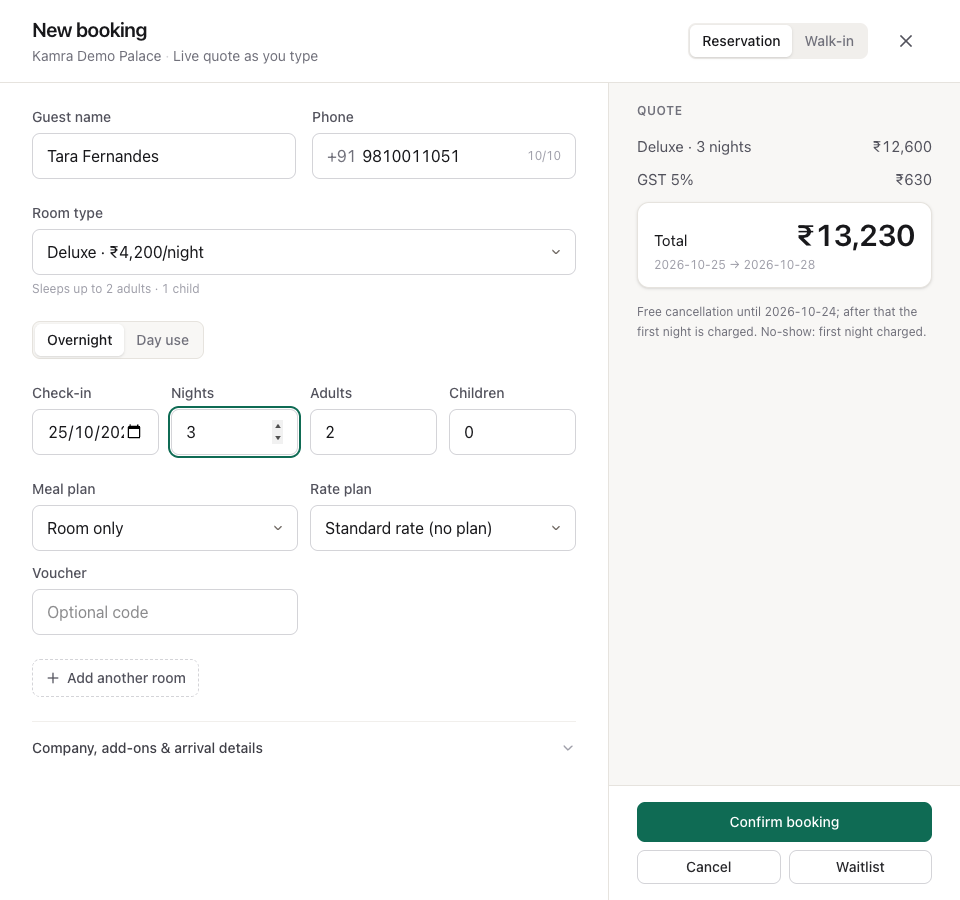
- Choose the Room type, the Check-in date and the number of Nights, then Adults and Children. Pick a Meal plan and a Rate plan, and type a Voucher code if the guest has one.
- Check the Quote on the right. It updates as you type: room, tax, meals, add-ons and the total, with the cancellation and no-show terms underneath. The cancellation line is worked out from today, the same way cancelling would charge it. It reads "Free cancellation until" a date and what is charged after that; "Non-refundable from now" with the fee, once the free window has closed; or "Free cancellation." It never shows a date that has passed.
- Click Confirm booking.

You get the booking reference and the room Kamra assigned. If no room could be assigned, the booking is still made; assign one later from the booking (see Change a booking). The stay shows under Arrivals on Today on its check-in date.
For a stay of a few hours, switch Overnight to Day use and set the time slot. The guest checks in and out the same day.
Add company, add-ons and arrival details
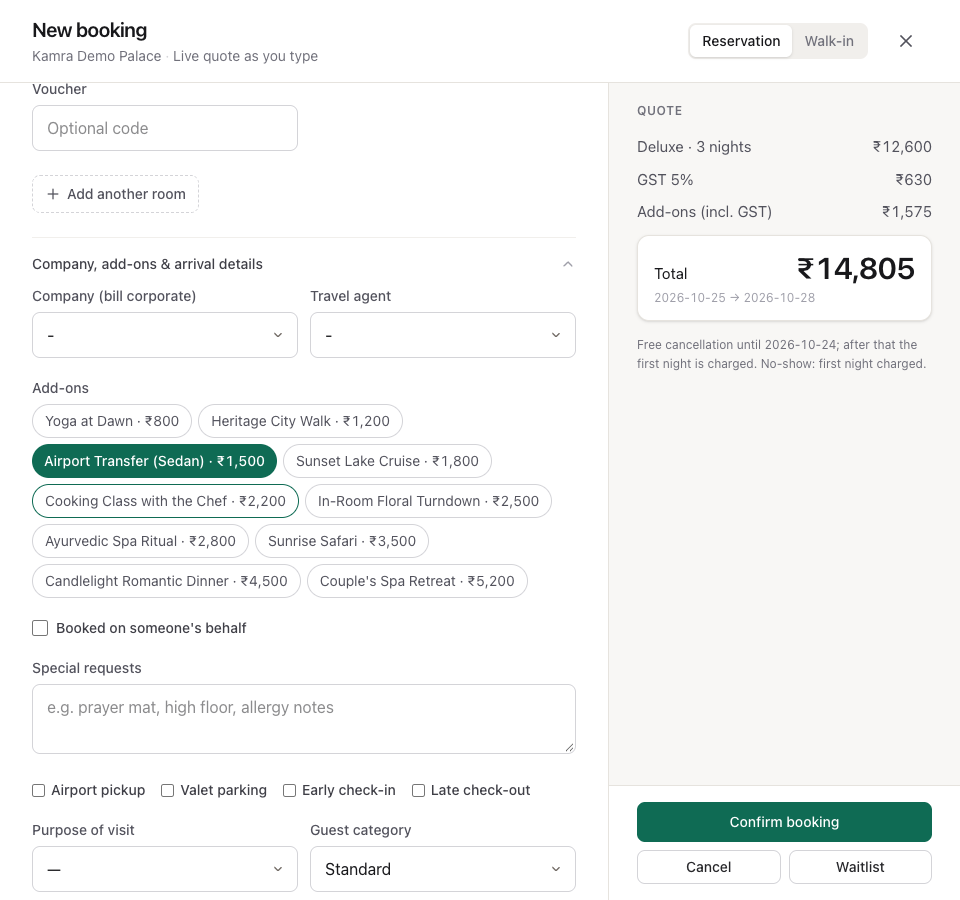
Open Company, add-ons & arrival details in the booking window for:
- Company (bill corporate) and Travel agent. A company makes it a corporate booking; the company's billing rules decide what it pays.
- Add-ons: click a chip to add it (Airport Transfer, a spa ritual…). Add-ons are added to the quote with their tax and posted to the folio.
- Booked on someone's behalf: the booker's name, phone and relation, and Send links & updates to the booker, the guest or both.
- Special requests, which go to the front desk as an instruction, and ticks for Airport pickup, Valet parking, Early check-in and Late check-out.
- How and when the guest arrives, Extra beds, Purpose of visit and Guest category.
If the party is bigger than the room type sleeps, the window says so and offers Split into 2 rooms. Where the room type allows extra beds, you can instead keep everyone in one room at a price you agree, with a note of who agreed it.
Book several rooms for one party
- In New booking, fill in the first room as usual.
- Click Add another room. Each extra room has its own room type, adults and meal plan.
- The quote lists every room and shows Total · all rooms.
- Click Confirm booking.
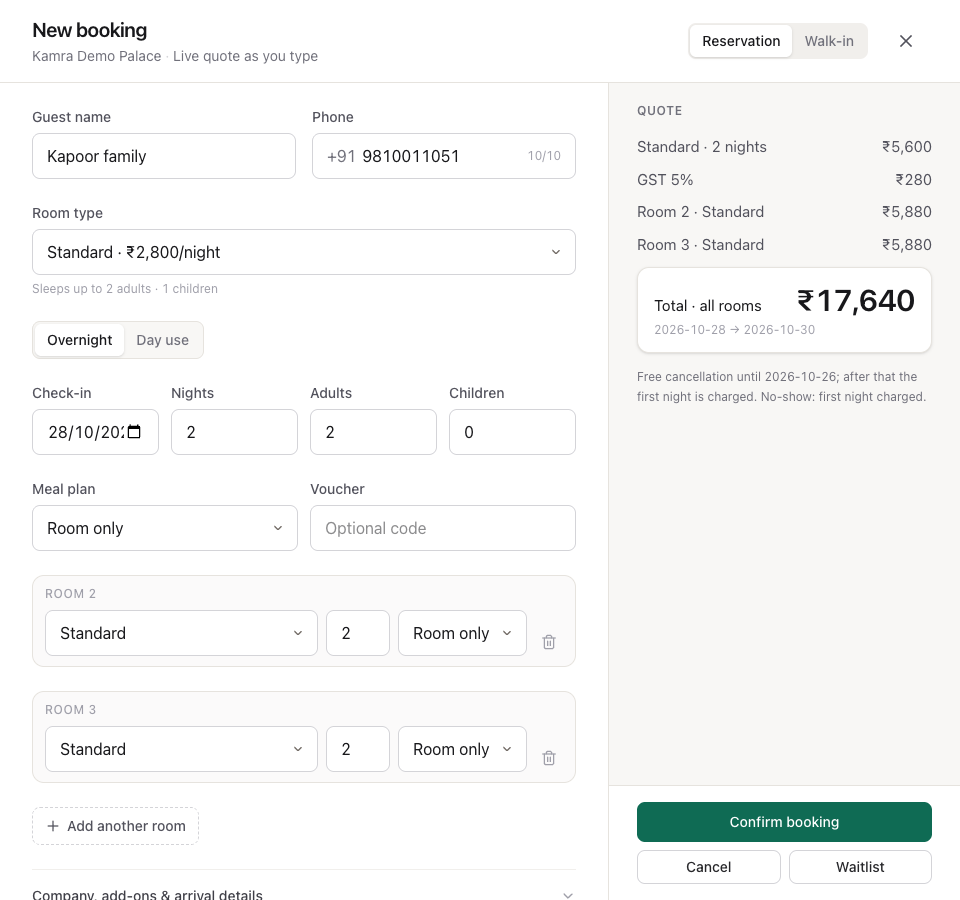
Kamra books every room under one group, so it can be billed together. If some rooms can't be booked, it tells you how many it booked and why the rest failed. Vouchers, add-ons and booker details are added to each stay afterwards. To hold a block of rooms for a group whose names come later, use Groups & blocks instead.
Put a guest on the waitlist
When the dates are full, you can still take the guest's details:
- Fill in New booking as usual.
- Click Waitlist instead of Confirm booking.
The stay is saved with the status Waitlist and no room. When a room frees up, open the booking and click Promote to a room: Kamra gives it the first free room of the type and confirms it. A waitlisted stay nobody promotes is removed by the night audit two days after its departure date.
Find a booking
- Front Desk → Reservations lists every booking. Search by reference, guest or room, filter by Status and by check-in dates, and use Export for a spreadsheet.
- The search box in the top bar (or ⌘K / Ctrl+K) finds guests, bookings and rooms from any screen.
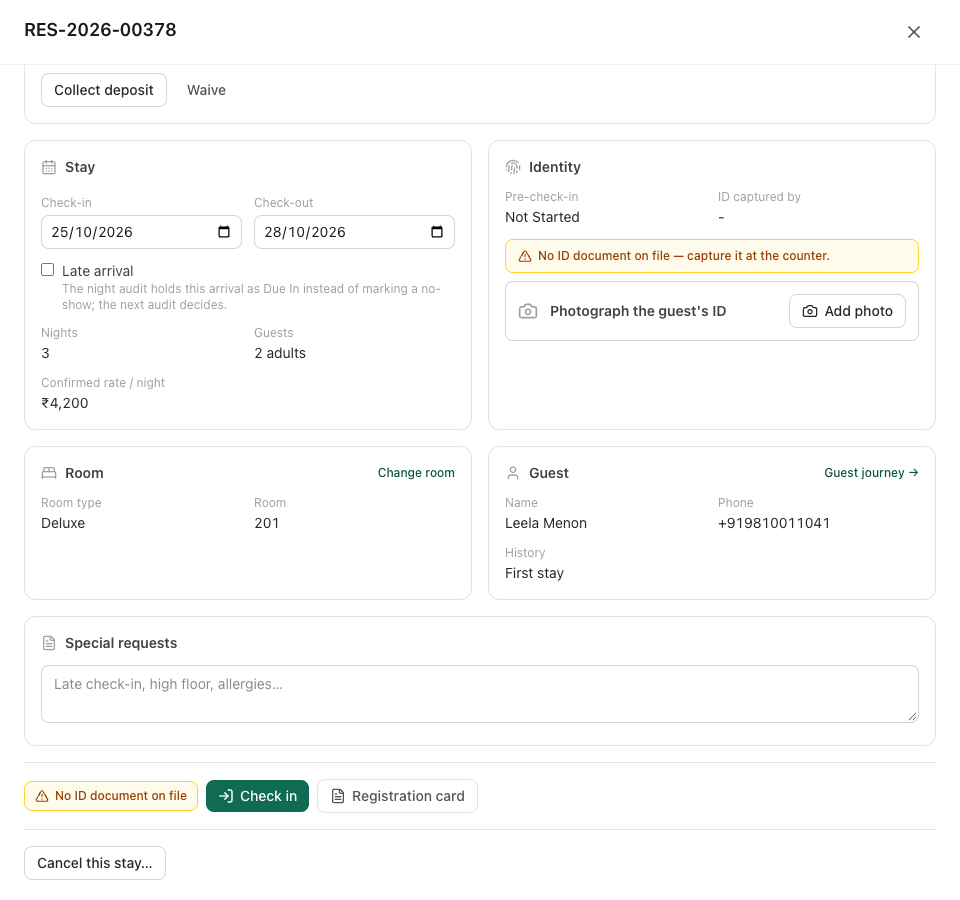
Click a booking to open its detail panel: everything about the stay on one screen.
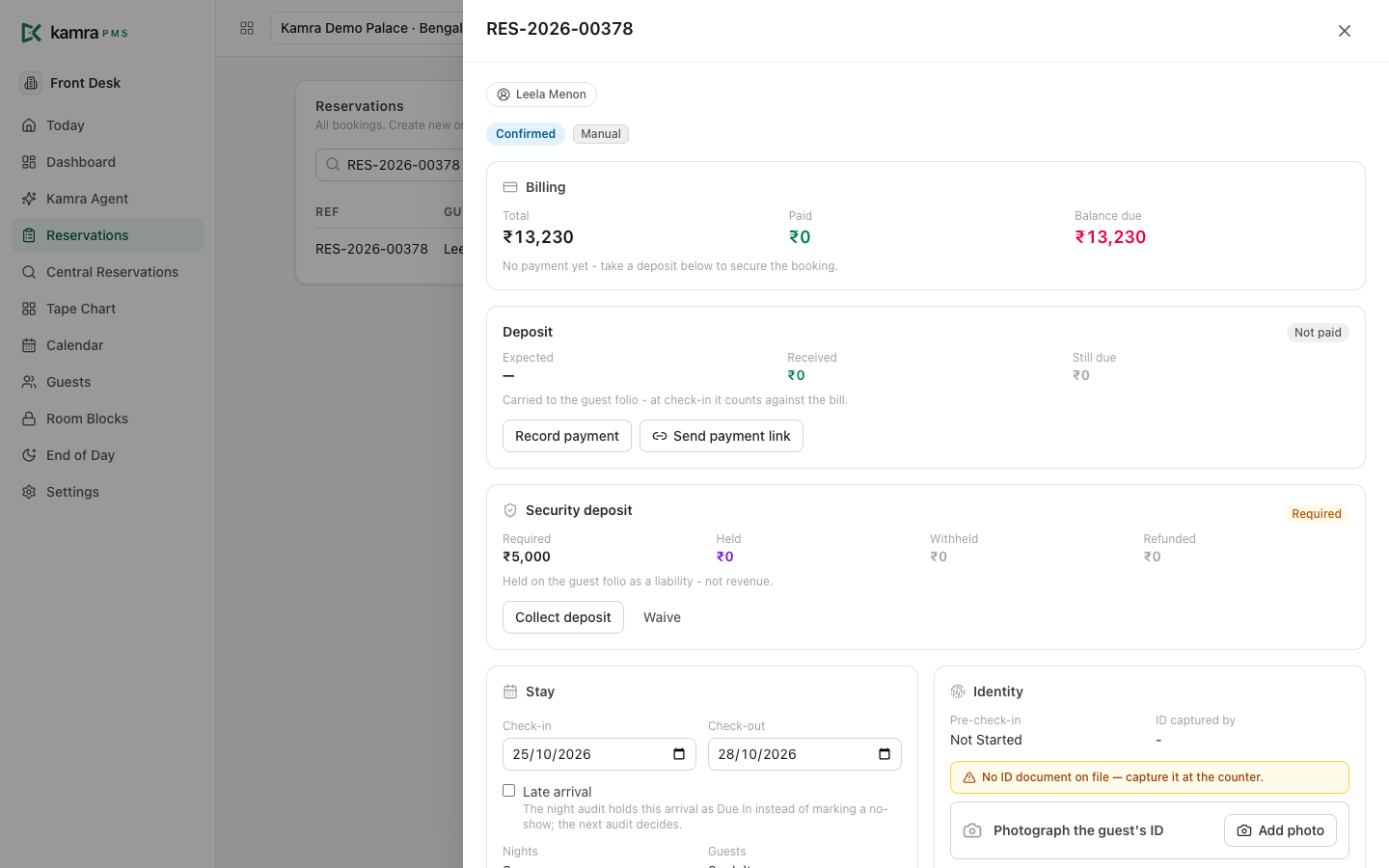
- Billing: total, paid and balance due, with Open folio →.
- Deposit and Security deposit (see Take a deposit before arrival).
- Stay: the dates (editable), Late arrival, nights, guests and the confirmed rate per night.
- Identity: the online check-in status and the guest's ID photo, with Verify identity after the guest checks in online.
- Room, Guest (with Guest journey →) and Booked by.
- Special requests: type and Save note.
- At the bottom: Check in, Check out, Registration card and Cancel this stay…, whichever apply.
Change a booking
From the booking's detail panel:
- New dates: change Check-in or Check-out in the Stay card and click Update dates & re-price. Kamra prices the new dates and asks you to confirm the new total with the guest before it saves. A booking with a manual price keeps its amount.
- Another room: click Change room (or Assign room) in the Room card. See Move a guest to another room.
- Late arrival: tick Late arrival so the night audit keeps the arrival as Due In instead of marking a no-show.
Only confirmed and checked-in bookings can be changed.
Move a stay on the tape chart
Front Desk → Tape Chart shows rooms down the side and dates across the top, with each stay as a bar. Use it to see who is in which room and to move stays around.
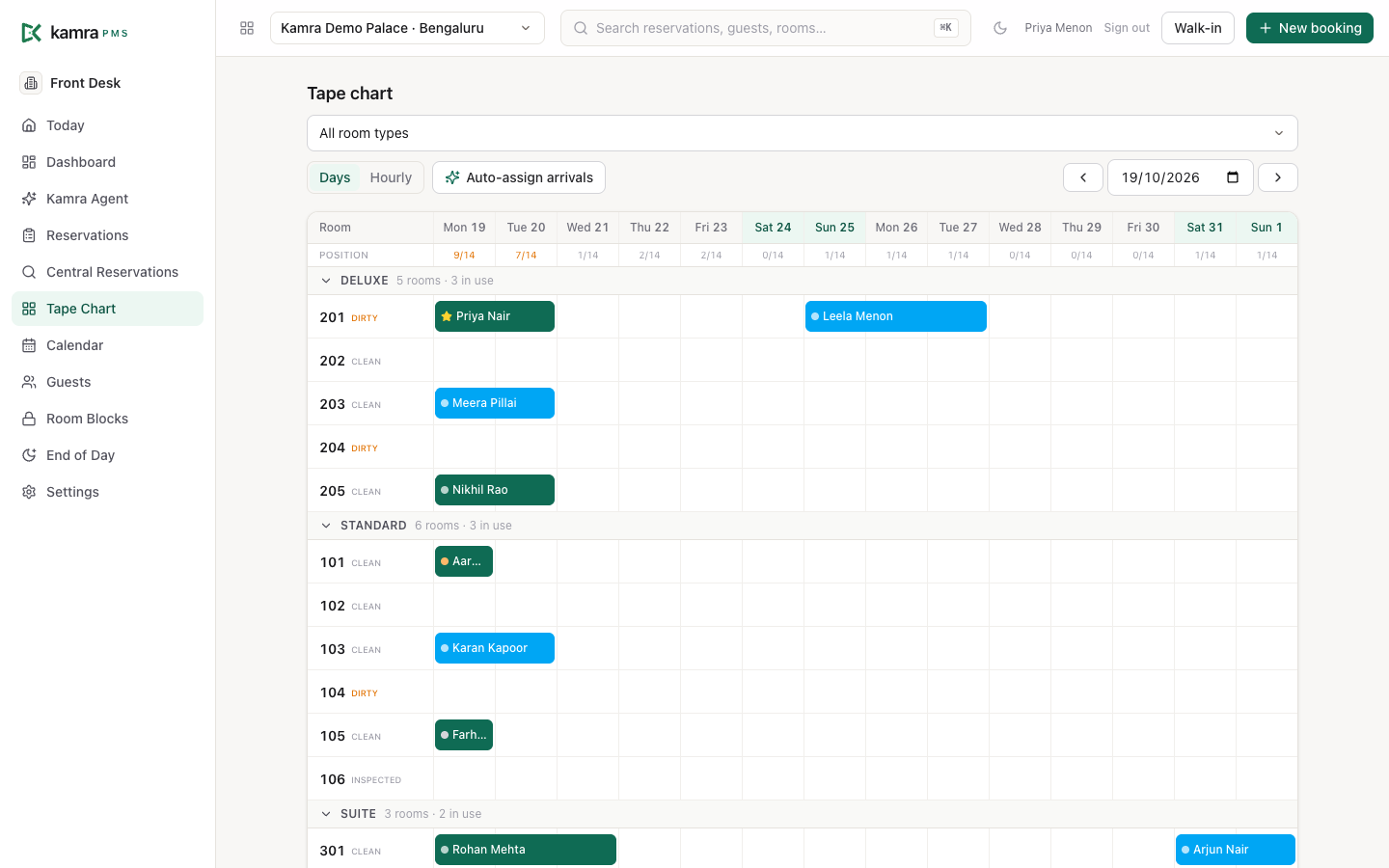
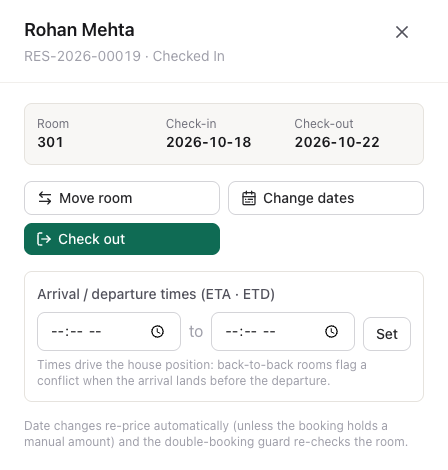
- Click (or tap) a guest's bar. A panel opens with the room, the dates and the actions for that stay.
- Move room opens the room picker: choose a room, check the price line, pick a reason and click Move to the room. See Move a guest to another room.
- Change dates shows the check-in and check-out dates. Change them and Kamra shows the new number of nights and the new stay total. Click Confirm new dates (or Confirm new dates and price when the total changes). Once the guest is checked in, only the check-out date can change.
- Check in shows on the arrival day and opens the guided check-in. Check out shows for a checked-in guest and opens the guided check-out.
- To record when the guest arrives and leaves, set the times under Arrival / departure times (ETA · ETD) and click Set.
- Open reservation opens the booking in the reservations list.
With a mouse you can also drag:
- Drag a bar onto another room's row. The room picker opens with that room chosen, so you see the price and pick a reason before the move.
- Drag a bar sideways, or drag its start or end edge, to change the dates. The panel opens with the new dates filled in and the new price; nothing changes until you confirm.
Drag does not work with touch. On a tablet, tap the bar and use the buttons. Kamra checks every change on the server: a room that is taken, or a date change that overlaps another booking, is refused.
What else is on the tape chart:
- The Position row shows rooms sold out of rooms available each day. ▲ means a demand premium is on; OB means the day is overbooked.
- A dot on each bar marks VIP, corporate, group or OTA stays; a lock marks a room held by a room block.
- When an arrival is due before the previous guest's departure time, the chart flags a changeover conflict.
- Hourly shows today hour by hour, for day-use stays.
- Auto-assign arrivals suggests a room for each arrival without one, matched to type and preferences. Review marks a choice worth a second look; Assign places them all.
Sell from the calendar
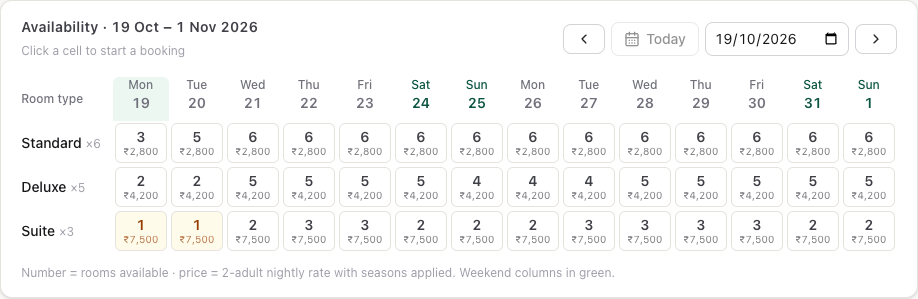
Front Desk → Calendar shows two weeks of availability by room type: the number of rooms left and the nightly rate for two adults, with seasons applied. Click a cell to open New booking with that room type and date filled in.
Take a deposit before arrival
The Deposit box is on the booking-confirmed screen and in the booking's detail panel. It shows what the property expects (Deposit expected at booking in Stay policies), what has come in, and what is still due.
- Record payment: the guest paid at the desk or by transfer. Pick the method, check the amount and click Record ₹…. It goes through your till, so you need an open cashier session.
- Send payment link: shown when a payment gateway is connected. Kamra creates a link for the amount due and a ready message; click Copy message or WhatsApp. When the guest pays, the deposit records itself.
The money sits on the guest folio as an advance and counts against the bill at check-in. A booking that is Held or Pending Payment is confirmed by its deposit. Taking money from a guest who is already in-house happens on the folio; see Billing.
Cancel a booking
- Open the booking (Reservations → click it).
- Click Cancel this stay… at the bottom.
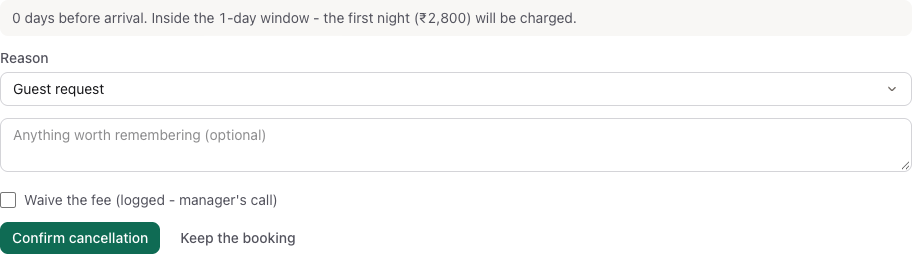
- Read the line at the top. It tells you how many days are left before arrival and whether the cancellation is free or what fee applies.
- Pick a Reason and add a note if you like.
- To let the guest off the fee, tick Waive the fee (logged - manager's call).
- Click Confirm cancellation.
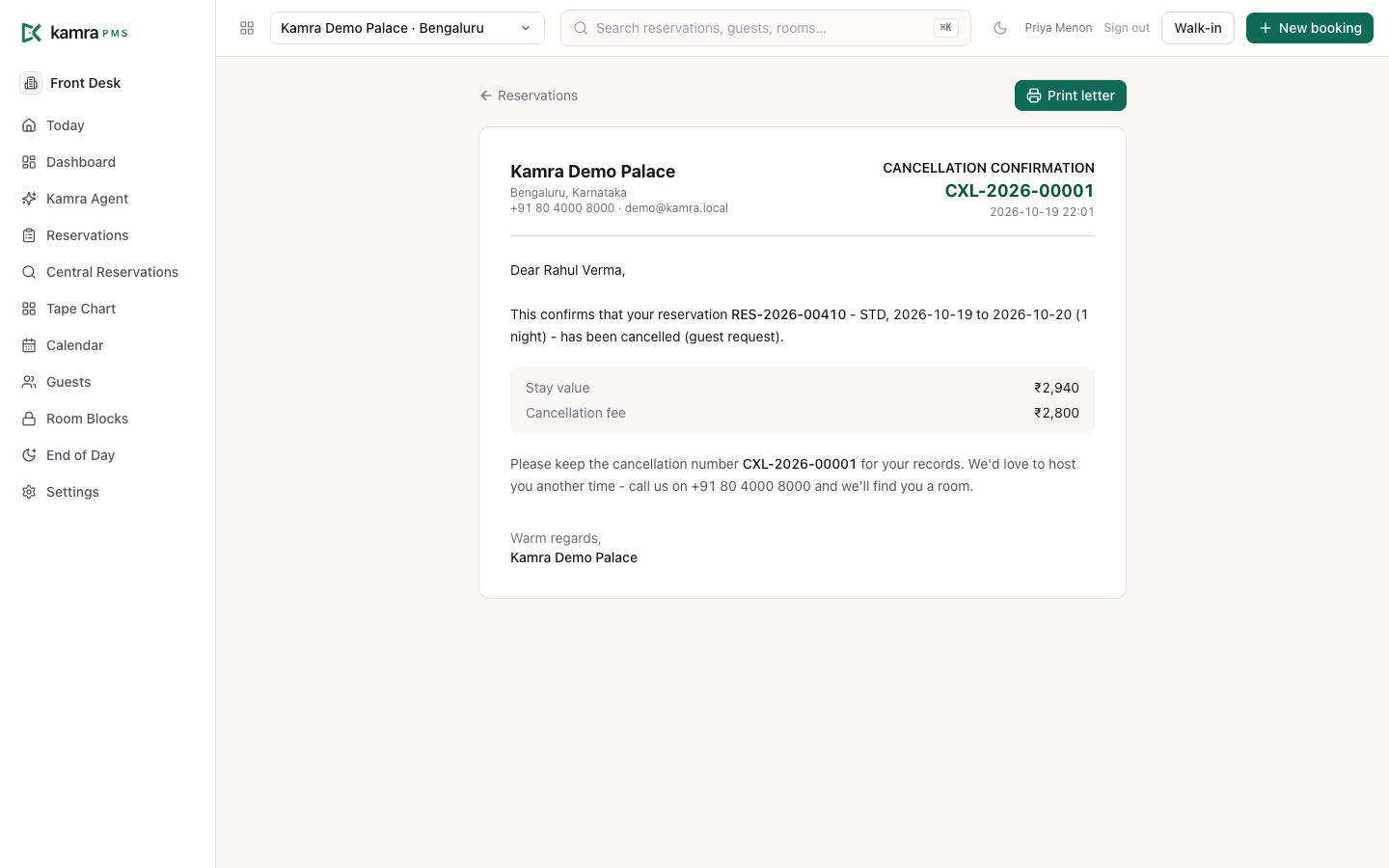
Kamra gives a cancellation number (CXL-…) and posts any fee to the folio. Click Print / share the confirmation letter for a letter to send the guest.
How the fee is worked out:
- Cancelling earlier than Free cancellation until days before arrival is free.
- Inside that window, the Late cancellation fee applies: None, First Night or Full Stay.
- If the property has cancellation tiers (for example free beyond 7 days, 50% from 3 to 7 days, 100% inside 3), the tier for the days left sets the percentage instead.
- Dates in a non-refundable season are charged 100%.
Only confirmed bookings can be cancelled. A guest who is in-house checks out instead. You can't cancel by changing the status field; it has to go through Cancel this stay… so the policy is applied.
Answer a booking request
When the booking engine runs in Request-to-Book mode, online bookings arrive as requests for you to approve (Booking engine). They show in Booking requests on Today and with the status Requested. A request does not hold a room.
- Accept checks availability again and takes a room.
- Decline needs a reason, cancels the request with no fee, and tells the guest.
Book at another property
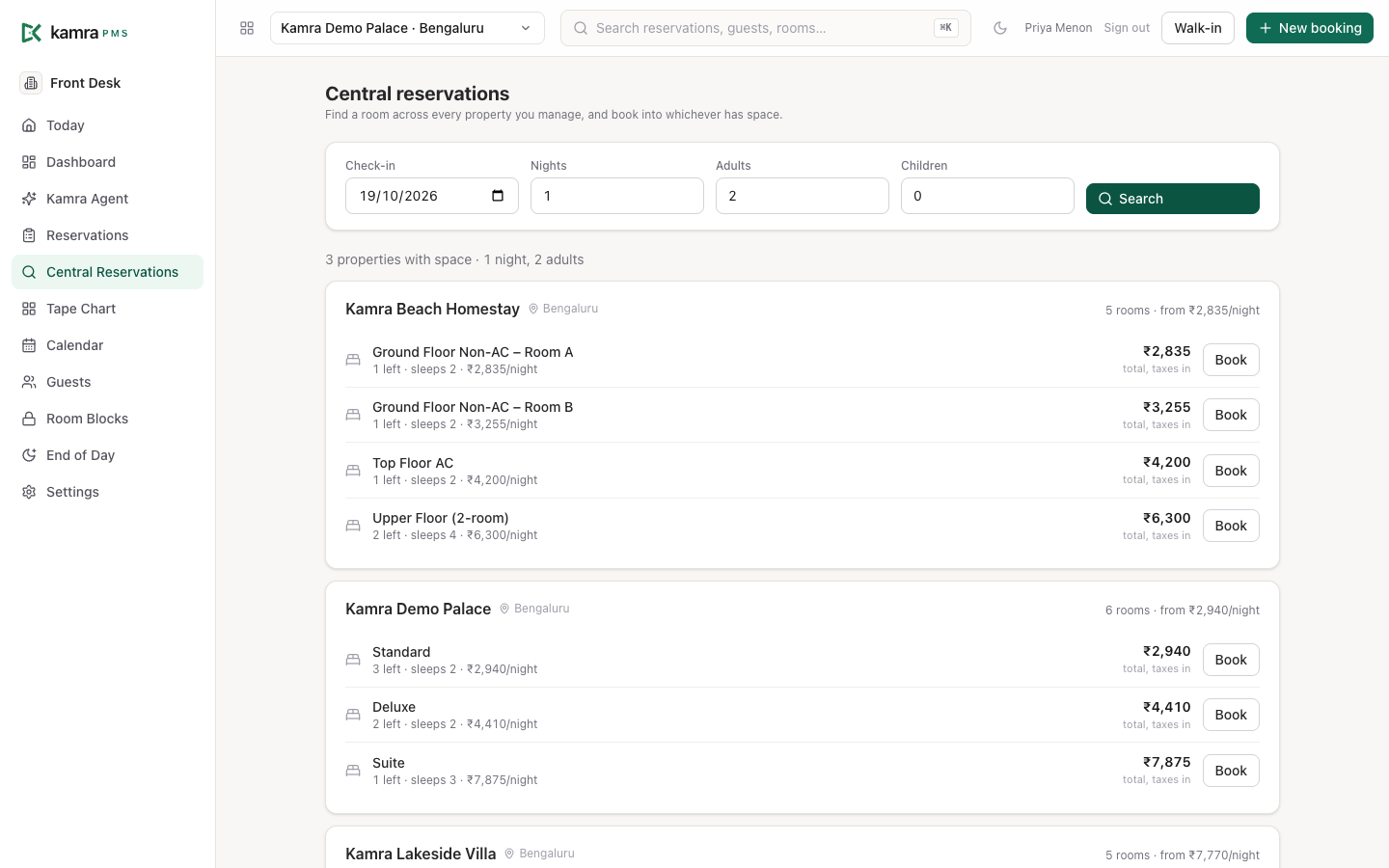
If you run more than one property, Front Desk → Central Reservations searches all of them at once.
- Set Check-in, Nights, Adults and Children, and click Search.
- Each property with space lists its room types, rooms left and the total with taxes.
- Click Book, enter the guest's name and phone, and click Confirm booking.
Hold rooms for a group
For a wedding, conference or tour, hold a block of rooms first and name the guests later. Groups live in Banquets & Groups → Groups & Blocks.
- Click New, give the Group name, Arrival and Departure, and the Block cutoff. Save.
- Open the group. Under Room block, click Add room type, pick the type, the number of rooms and the rate per night, then Save block.
- As names come in, use Pick up a room: pick the room type, type the guest's name and phone, and click Pick up. Each pickup is a normal booking in the Rooming list.
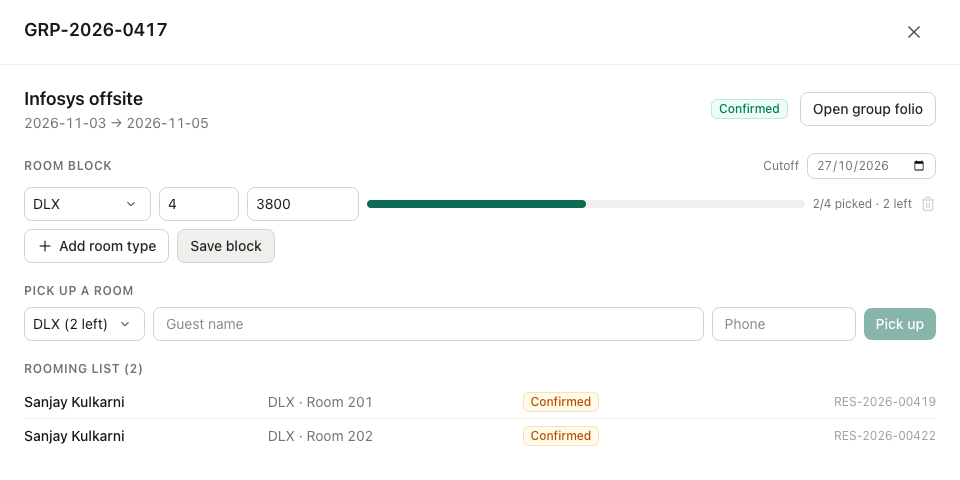
Rooms in the block are held for the group until the cutoff. After the cutoff, rooms not picked up go back on sale. Open group folio opens the group's master bill. For events tied to the group, see Banquets.
Take a room out of sale
To keep a room free for house use, a VIP, the owner or maintenance:
- Front Desk → Room Blocks → New.
- Pick the Room and the Reason (House Use, VIP Hold, Owner, Maintenance, Other).
- Set From date and To date (exclusive), add a Note, and save.
A blocked room doesn't show as available and won't sell; it shows with a lock on the tape chart. Set Status to Released to put it back on sale.
Settings
| Setting | Where | Default | What it does |
|---|---|---|---|
| Minimum stay | Settings → Stay policies | 1 night | Shorter bookings are refused. Seasons can set their own minimum. |
| Free cancellation until | Settings → Stay policies | 1 day before | Cancellations earlier than this are free. |
| Late cancellation fee | Settings → Stay policies | First Night | None, First Night or Full Stay, charged inside the window. |
| No-show charge | Settings → Stay policies | First Night | Posted by the night audit when a guest doesn't come. |
| Deposit expected at booking | Settings → Stay policies | 0% | Quoted in the booking window and shown in the Deposit box. |
| Hold unconfirmed bookings for | Settings → Front Desk → Holds & selling | 120 min | How long a Held or Pending Payment booking keeps its room before it is released. |
| Sell message | Settings → Front Desk → Holds & selling | - | Shown at the top of the booking window as a reminder of what to offer. |
| Release non-guaranteed arrivals at | Settings → Front Desk → Night audit & no-shows | Blank (never) | At this time, today's arrivals with no payment or deposit (not OTA or company bookings, not flagged late) are cancelled with no fee. |
Good to know
- A new booking can't start in the past.
- A double booking of the same room for the same dates is refused.
- A blacklisted guest can be booked only by a Hotel Admin, who must tick I understand and want to book this guest anyway and give a reason. A multi-room booking can't override a blacklist.
- Changing dates or room type re-prices the stay. Kamra always shows the new total and asks before it saves.
- Every booking, change, move and cancellation is written to the activity log with who did it.
- No-shows are marked by the night audit; see Night audit.
Troubleshooting
"Check-in … has already passed." The check-in date is before today. Pick today or a later date.
"… is sold out for …" Every room of the type is sold for at least one night of the stay (group blocks count as sold). Try another room type, use Waitlist, or check the tape chart for a move.
"This property requires a stay of at least … nights." The stay is shorter than the minimum stay for the property or the season.
"Only confirmed bookings can be cancelled." The guest is already checked in (check them out instead), or the booking is already cancelled.
There is no Send payment link button. No payment gateway is connected for the property. Use Record payment, or connect a gateway (see Settings).
For developers
Bookings are made with kamra.api.create_booking (one room) and kamra.api.create_group_booking (several), priced by kamra.api.get_quote. The detail panel reads kamra.api.reservation_detail; date changes use kamra.api.amend_stay_preview and kamra.api.amend_stay; cancelling uses kamra.api.cancellation_preview and kamra.api.cancel_reservation; the waitlist uses kamra.api.promote_waitlist. AI agents use the quote, create_booking, add_to_waitlist, promote_waitlist, cancellation_preview, cancel_booking, amend_stay, move_room and create_group_block tools. See MCP tools and the API reference.